

Add subscribers to a segment
Short answer
On the Subscribers page, open the menu at the end of a person’s row and choose Add to segment. Pick the segments and select Add to segment; for several people, tick their rows and use the toolbar.
When you’re done, each person’s row on the Subscribers page shows the segment’s colored label. The segment’s card counts them.
- Open Audience. Find the person, or tick the box at the start of several rows.
- Select the three dots at the end of the row and choose Add to segment. For several people, choose Add to segment in the toolbar above the list.
- In the Segments field, type part of a name and pick the segment. Pick more if you like; each one shows in the field. For a segment that doesn’t exist yet, type its name and pick Create “…”.
- Select Add to segment. With more than one picked, the button reads Add to 2 segments.
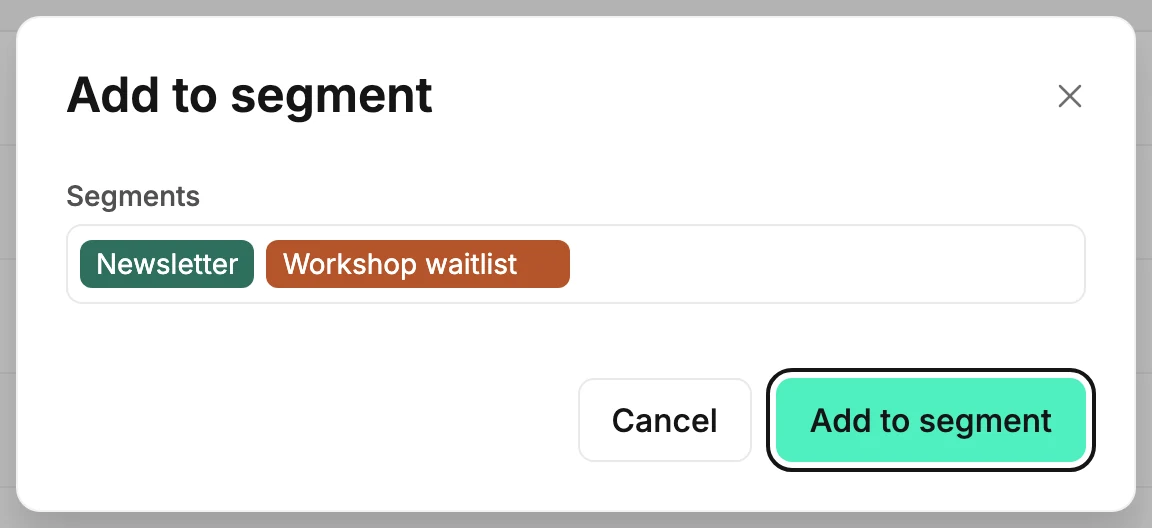
When the dialog opens, the field already shows the segments the person is in. This dialog only adds, so those stay. To take someone out, see Remove subscribers from a segment.
What happens
- Someone already in a segment you picked stays in it once. Nothing doubles.
- Adding people to a segment never changes their status.
- If an automation starts when someone is added to a segment, it starts for the people you add this way. It skips anyone whose status isn’t Subscribed.
Adding everyone who matches a filter
To add a whole group at once, apply a filter and save it as a segment instead of ticking rows. See Save a filter as a segment. People added that way don’t start an automation.
On a subscriber’s page
A subscriber’s page has the same Segments field. A pick there saves at once, and the ✕ on a segment takes them out.
If some couldn’t be added
Jounce says Added 2 of 3 — 1 couldn’t be added. Try again, or Couldn’t add them to that segment. Nothing changed — try again. Pick the people who were missed and add them again.
Next step
To send to the segment, see Choose who gets your email. To start an automation when someone joins it, see Choose what starts your automation.
More in this topic
Updated