

Filter your subscribers
Short answer
Select Filter above the list, or More filters under Filters in a narrow window. Pick a preset or add your own filters, then choose Apply, and the list shows only the people who match.
When you’re done, the list shows only the people who match, and a line above it says how many.
- Open Audience.
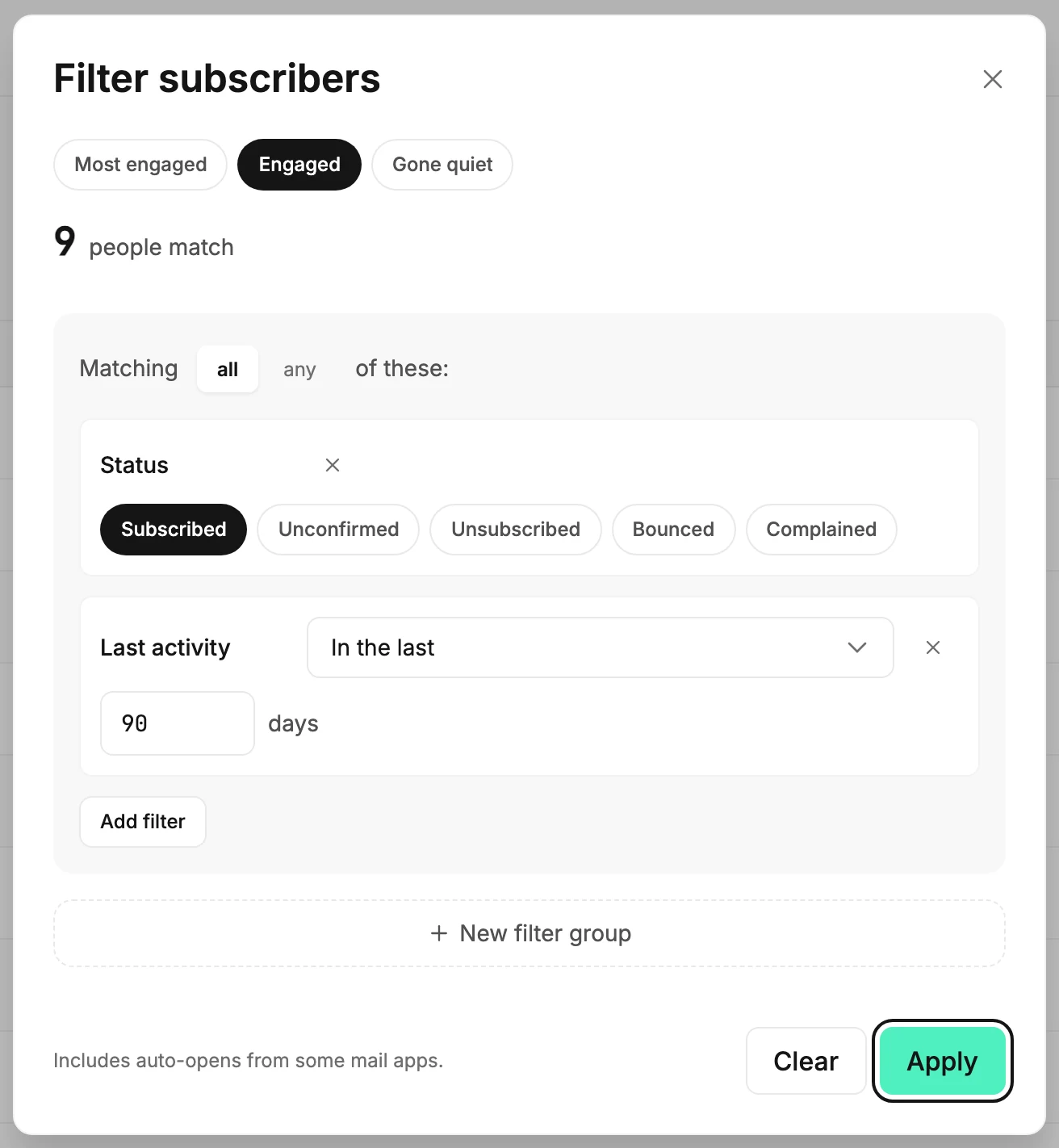
- Select Filter, to the right of the Status and Segment menus. In a narrow window, select Filters, then More filters. The Filter subscribers dialog opens.
- Pick a preset at the top, or select Add filter and choose what to filter by: a status, a segment, a place, and more. A row appears for each filter; The filter types says what each one asks.
- Set each row’s condition and value. The number at the top updates as you go, for example 9 people match.
- Choose Apply. The dialog closes and the list shows only those people.

What you see next
A line takes the place of the Status and Segment menus. It reads 2 filters · 9 match, with Edit, Save as segment, and Clear. In a narrow window, the line sits inside Filters, which reads Filters · 2. Edit reopens the dialog with your filters in it. Clear brings everyone back.
The header still counts your whole list. Only the rows change.
Searching while a filter is on
Typing in the search box pauses the filter, and the line reads paused while you search. Clear the search and the filter takes over again.
Starting from a menu
Set the Status or Segment menu before you select Filter, and the dialog opens with that choice as its first row. Applying the filter takes over from the menus, so you never have both on at once.
Next step
Keep the people it found as a group: Save a filter as a segment.
More in this topic
Updated