

Select several subscribers
Short answer
Tick the box at the start of each row. A toolbar above the list then shows everything you can do to the people you picked.
When you’re done, a toolbar above the list says how many people you picked, and one click acts on all of them.
- Open Audience.
- Tick the box at the start of a row. The toolbar appears, reading 1 selected.
- Tick more rows. To pick a run of rows, tick the first, then hold Shift and tick the last.
- To pick everyone on this page, tick the box in the header row.
- Choose an action from the toolbar.
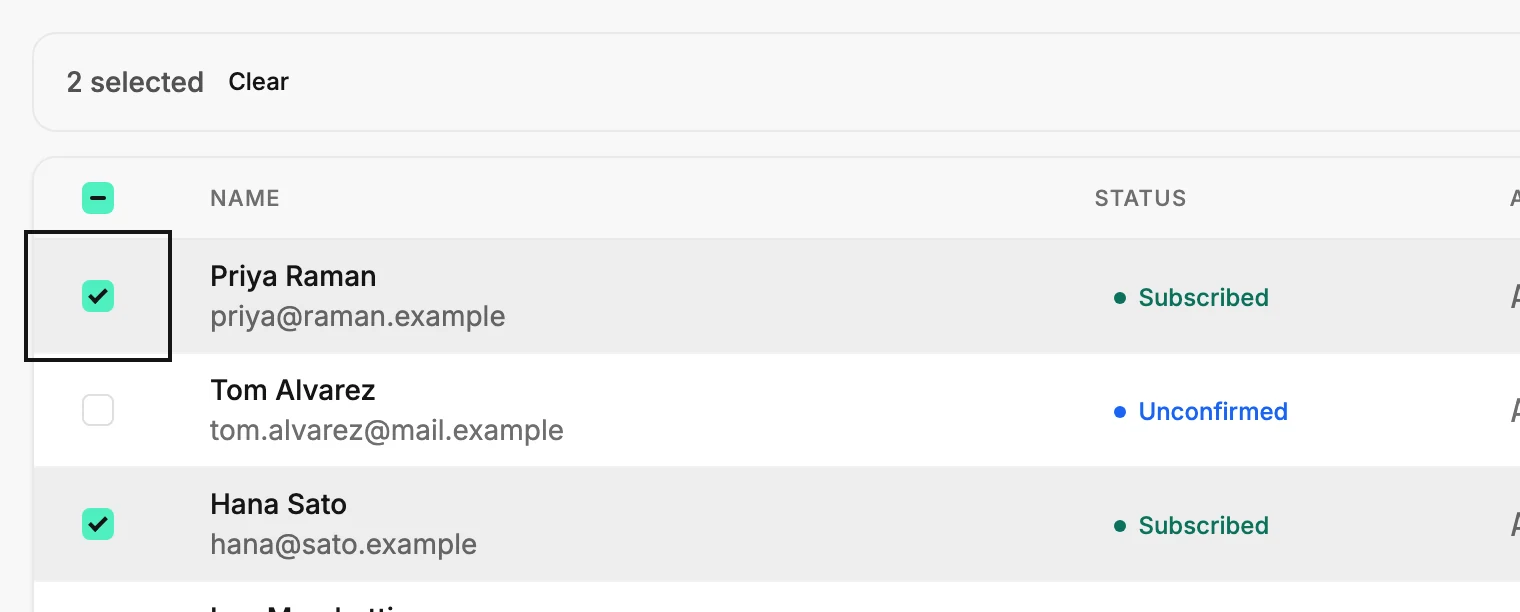
What the toolbar offers
- Add to segment, and Remove from segment when someone you picked is in one.
- Export downloads the people you picked as a CSV file. See Export subscribers.
- Resend confirmation appears when someone you picked is Unconfirmed. See Resend a confirmation email.
- Delete subscribers removes them from your list. See what deleting does.
- Clear drops the selection.
Editors don’t see Resend confirmation or Delete subscribers. Only Managers and Admins get those.
One page at a time
A selection covers the rows on the page you’re looking at. Turning the page, searching, or changing the Status menu drops it. You can’t pick the whole list at once.
For a bigger batch, narrow the list first with the Status menu, the Segment menu, or a filter. Then set the per page menu at the bottom of the list to 200, tick the header box, and work page by page.
Next step
Put the people you picked in a group: Add subscribers to a segment.
More in this topic
Updated