

Add a subscriber by hand
Short answer
Open Audience, select Add subscriber, then Add manually. Type their name and email, and select Create subscriber.
When you’re done, the person is at the top of your list, marked Subscribed. Their source reads Added manually.
- Open Audience in the top bar.
- Select Add subscriber, then Add manually. The Create a subscriber dialog opens.
- Type their first name, last name, and email. All three are needed.
- Select Create subscriber. Jounce shows a short message: Sam Reyes added.
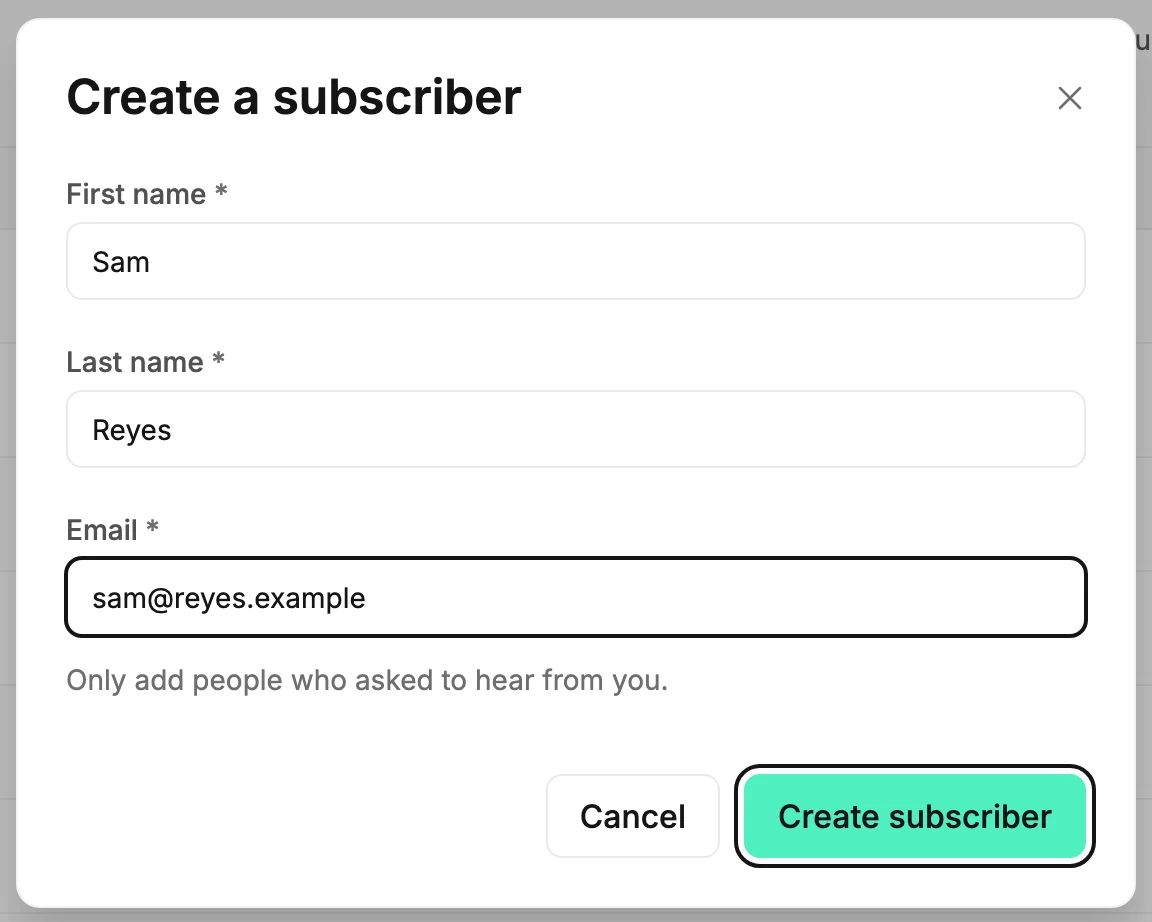
The dialog reminds you: Only add people who asked to hear from you. A bought or scraped list gets your emails marked as spam.
If the address is already on your list
Jounce never makes a duplicate. It keeps the person’s segments, status, and activity, and changes their name to what you typed. Then it shows one message that starts with the address. If they’re marked Subscribed, they get your next email. If Jounce can’t mail them, the message says why.
Note Typing a different name for an address already on your list renames that person. To fix it, open them from the list and correct the name. Their page saves when you leave the field.
- sam@reyes.example is already on your list. Their name is updated. They were there all along, and your next email reaches them.
- sam@reyes.example is back on your list. You had deleted them, and adding them brought them back.
- sam@reyes.example is already on your list, and hasn’t confirmed yet. You can mail them once they confirm.
- sam@reyes.example is already on your list, and unsubscribed. Only they can resubscribe, through one of your forms. Adding them again doesn’t undo an unsubscribe, even one made by mistake. See Why can’t I resubscribe someone?
- … and their address is bouncing. Jounce isn’t sending to it. Or … and they reported a message as spam. Jounce isn’t sending to them.
When Jounce can’t mail the person, the message has a View button that opens their page. Subscriber statuses explains each one.
If it’s someone’s old address
When you change someone’s email address, Jounce keeps the old one as theirs. Typing it here adds no one, whatever their status. The dialog stays open with what you typed, and one of these sentences shows under the email field:
- That’s Sam Reyes’s old address — they’re on your list as sam@reyes.example. Nothing was added. Open that contact takes you to their page.
- That’s Sam Reyes’s old address. They were deleted — you can add them back at sam@reyes.example. Type that address instead to bring them back.
- That’s a contact’s old address. Nothing was added. More than one person used it, or Jounce can’t tell whose it was.
Change the address and the sentence goes away. The old mailbox may be closed, or belong to someone else. A person who uses it can still sign up through one of your forms.
If it didn’t save
Jounce says Couldn’t add that subscriber. Your list is unchanged and keeps what you typed. Select Create subscriber again.
Next step
For a whole list at once, see Import subscribers from a CSV file; to group them, see Add subscribers to a segment.
More in this topic
Updated