

Save a filter as a segment
Short answer
With a filter on, select Save as segment above the list. Type a segment name or pick one you have, then choose the Add button, and everyone who matches joins it.
When you’re done, a segment holds everyone the filter matched. You can send to it or exclude it, like any other segment.
- Apply a filter. See Filter your subscribers.
- In the line above the list, or inside Filters in a narrow window, select Save as segment. The button waits for the count to settle, and it works only when at least one person matches.
- Type a Segment name. A preset fills one in for you, such as Engaged. Or pick one of yours under Or add to an existing segment.
- Choose Add 9 to “Engaged”. The button names your count and the segment they join.

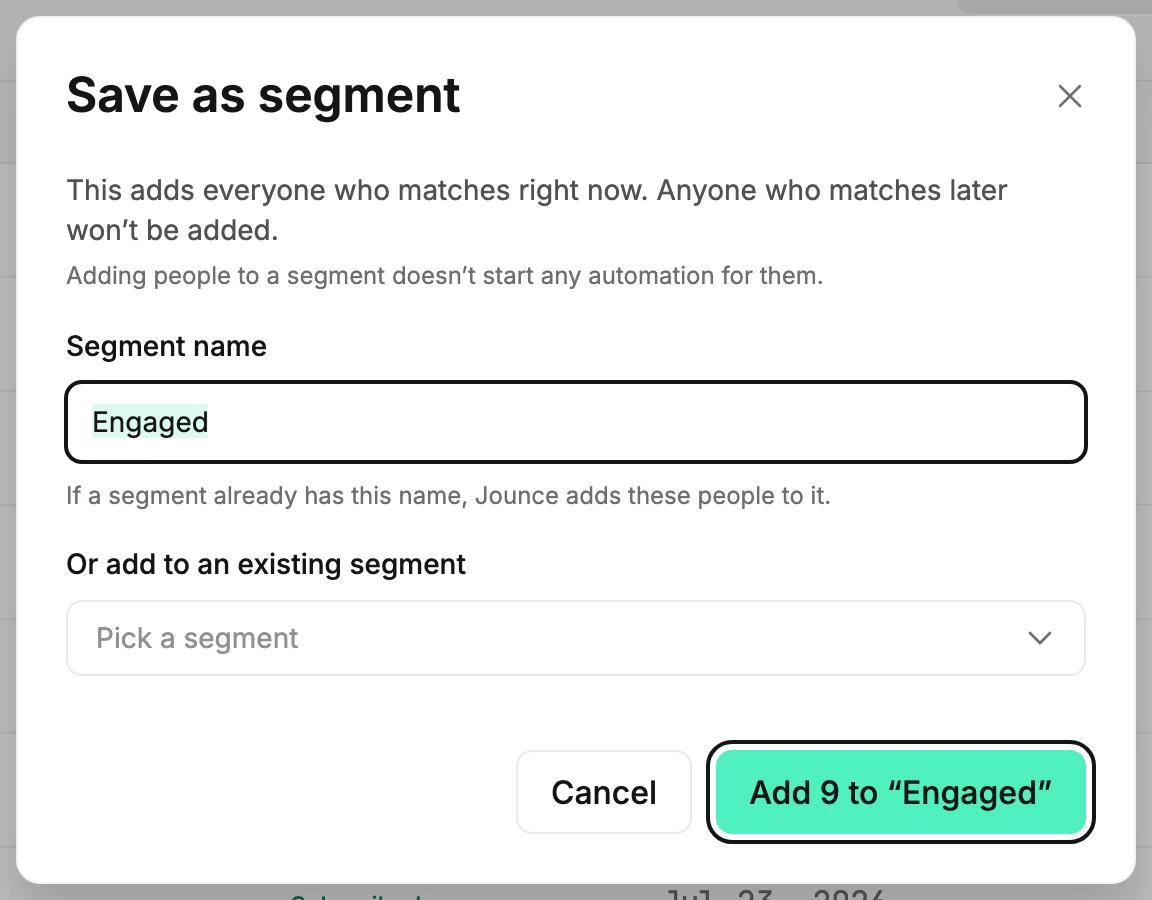
The dialog reads Adding them to “Engaged”. with a running count. Then it reads Added 9 people to “Engaged”. You can close it while it runs, and it keeps going.
What the segment holds
The dialog says it plainly: This adds everyone who matches right now. Anyone who matches later won’t be added. A segment made this way is a snapshot, not a rule. To bring in newcomers, apply the same filter again and save to the same segment. People already in it are skipped, and nobody is removed.
If the name matches one of your segments, spelled the same way, the people go into that segment. Jounce doesn’t make a second one. The dialog says so under the field: If a segment already has this name, Jounce adds these people to it.
A segment for one place
To keep everyone in a place as a segment, add a Location filter set to Is in any of, pick the place, and save.
Jounce estimates each person’s location from their internet connection. Someone it hasn’t located yet doesn’t match, so save to the same segment again later to bring in the people located since. See Where a subscriber’s location comes from.
Automations don’t start
The dialog says Adding people to a segment doesn’t start any automation for them. An automation that begins when someone joins a segment doesn’t fire for a batch added this way.
The gone-quiet caution
When the filter picks people by their lack of opens or clicks, the dialog adds: A segment never stops emails to these people. To stop emailing them, exclude this segment when you send. Saving the segment doesn’t change who gets your next email.
If some couldn’t be added
The finished dialog says how many couldn’t be added, and that they’re unchanged. To retry, choose Save as segment again with the same filter and name. The people already added are skipped.
Next step
Send to it with Choose who gets your email, or rest those people with Exclude people or segments.
More in this topic
Updated