

The Subscribers page
Short answer
Open Audience to see everyone on your list, one per row, with a status label, the date added, and their segments. Search, the Status and Segment menus, and Add subscriber sit above the list.
Audience in the top bar opens the Subscribers page. Two tabs sit at the top: Subscribers, the list itself, and Segments, the groups you sort people into.
The count under the title
The number under Subscribers counts the people Jounce can send to. Those are the ones marked Subscribed. When Jounce can’t mail some of your list, a second number beside it counts everyone. Why the two numbers differ explains the gap. Analytics shows how the list has grown over time; see The Subscribers tab.
Search
The search box matches the start of a name or an email address, so type the first few letters. When nothing matches, the page says No subscribers match and offers Clear search. If a Status or Segment choice is on as well, the button reads Clear search & filters and drops both.
The Status and Segment menus
Status lists All and the five statuses, with a count beside each. The counts are for your whole list, not for the current search. Pick one to show only those people. Subscriber statuses says what each one means.
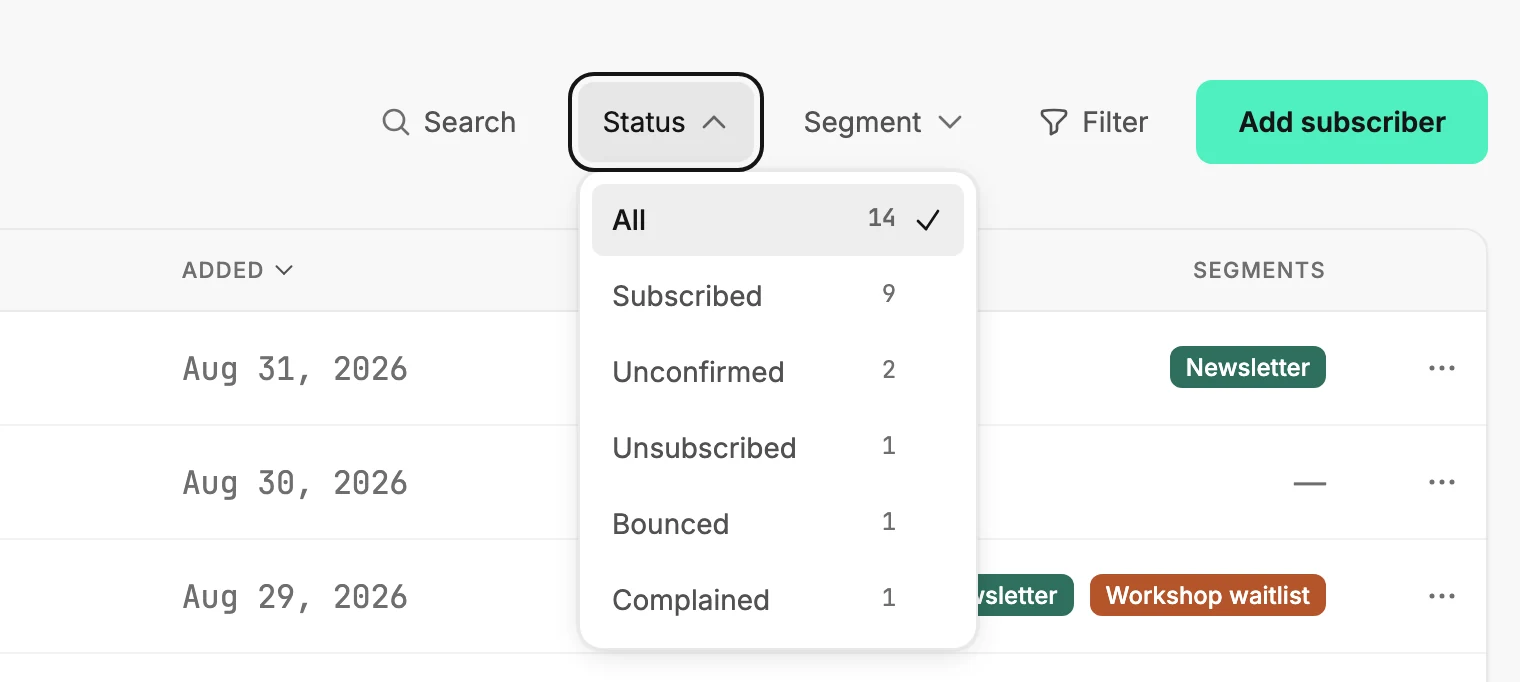
Segment appears once you have a segment. It lists All segments and each of yours; with more than eight, the menu gets its own search box.
Filter opens the filter builder. Use it for what the two menus can’t do, such as who opened an email in the last thirty days. While a filter is on, the two menus step aside. A line above the list says how many people match, with Edit, Save as segment, and Clear.
In a narrow window, the two menus sit under a Filters button. The last row under it, More filters, opens the filter builder. The line that says how many match sits there too.
Add subscriber
Add subscriber opens a menu with two choices. Add manually adds one person, and Add from CSV adds a whole list. See Add a subscriber by hand and Add your first subscribers.
The list
Each row is one person.
| Column | What it shows |
|---|---|
| Name | Their name, with the email address under it. A person with no name shows the address alone. Select it to open their page. An address a team shares gets a Shared inbox label beside it. |
| Status | Their status label: Subscribed, Unconfirmed, Unsubscribed, Bounced, or Complained. |
| Added | The date they joined your list. |
| Segments | A label for each segment they’re in, or a dash for none. When they don’t all fit, a count such as +2 stands for the rest; select it to see them. Select a label to show everyone in that segment. |
Select Name, Status, or Added to sort by that column; select it again to flip the order. The list opens newest first.
The menu at the end of a row
The three dots at the end of a row open that person’s actions.
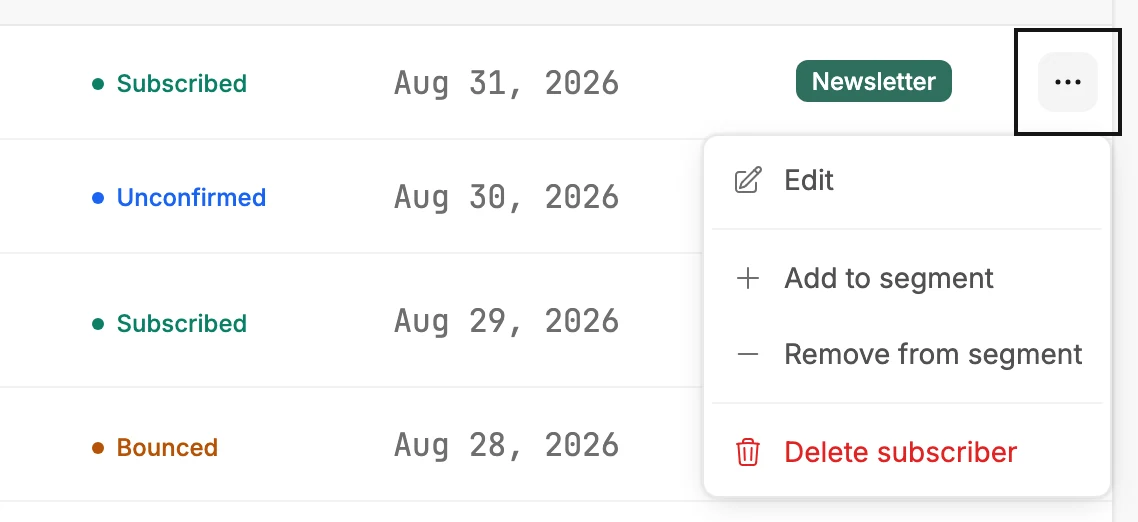
- Edit opens their page.
- Resend confirmation appears only for someone marked Unconfirmed. See Resend a confirmation email.
- Add to segment and, for someone already in one, Remove from segment.
- Delete subscriber. See Delete subscribers.
Editors don’t see Resend confirmation or Delete subscriber. Only Managers and Admins get those two.
Picking several people
The box at the start of each row selects that person. A toolbar appears above the list with the actions for everyone you picked. See Select several subscribers.
Pages
The list shows 50 people at a time. The line at the bottom reads Showing 1–50 of your total, with page numbers beside it. The per page menu switches to 100 or 200 rows, and Jounce remembers your choice on this browser.
When the list is empty
An empty list says No subscribers yet and Everyone starts with one, and shows one button, Add subscriber. It opens the same menu as on a full list: Add manually for one person, or Add from CSV for a whole list.
When the list can’t load
The page says Couldn’t load your subscribers and that your list is safe. Select Try again.
More in this topic
Updated