

Edit a subscriber’s details
Short answer
Open their page from the Subscribers list and type into First name, Last name, or a custom field. Jounce saves when you leave the field and shows Saved at the bottom right.
When you’re done, the person’s page shows the corrected details. Every list and email that uses their name picks up the change. Every role can edit a subscriber, Editors too.
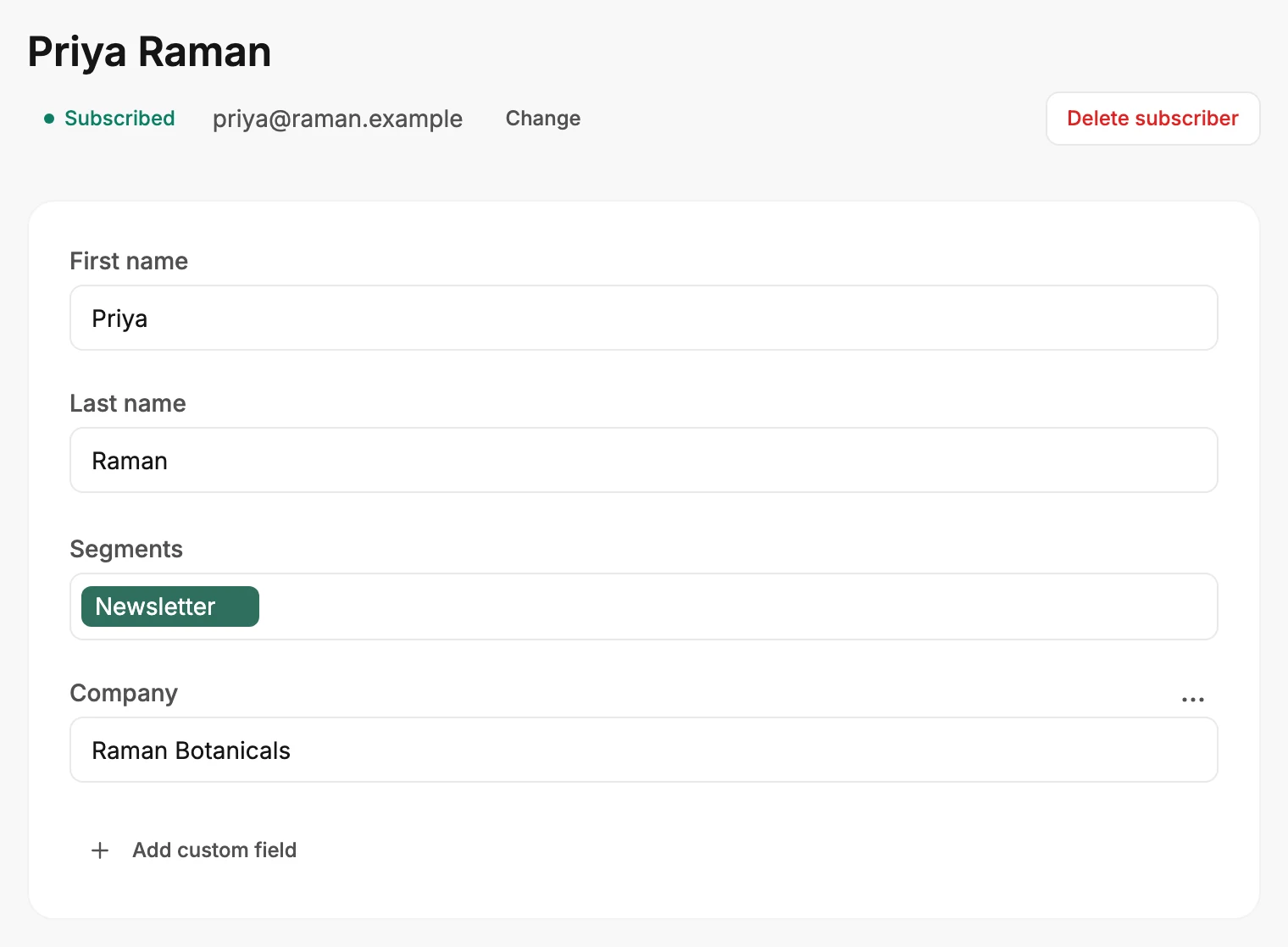
- Open Audience and select the person’s name in the list. Their page opens.
- Select First name, Last name, or one of your custom fields and type the change.
- Press Tab, or select anywhere outside the field. A note at the bottom right reads Saving…, then Saved.
There’s no Save button. Each field saves on its own as you leave it, so you can correct one thing and go. If you reload or close the tab while a change is still saving, your browser asks whether you want to leave. A change you made a moment before goes out at once.
Segments
The Segments field works the same way, and saves the moment you act. Type part of a segment’s name and pick it from the list. A name that isn’t a segment yet offers Create, which makes the segment and adds them to it. The ✕ on a label takes them out of that segment.
An automation that starts when someone is added to a segment starts for them here too. See Add subscribers to a segment.
Clearing a field
To clear a custom field, delete its text and leave the field. Jounce removes the value for that person and the box stays, empty. The three dots above the field do the same with Delete value, which also offers Undo.
What you can’t type here
- Their email address. Use Change beside it; see Change a subscriber’s email address.
- Their status. The person changes it when they confirm, unsubscribe, or resubscribe. A bounce, a spam complaint, or an app you’ve connected can change it too. See Subscriber statuses.
- Date added, Consented, and Source under Details, and the Consent record below them. Jounce recorded them and keeps them as they are. See The consent record.
- Location and Time zone, also under Details. Jounce estimates them. If they’re wrong, Clear location in the three dots at the end of the Location row removes both for good.
If it didn’t save
The note reads Couldn’t save. The change wasn’t saved, and the rest of the record is as it was. Check your connection, then edit the field again and leave it once more. Until a later change goes through, the browser asks whether you want to leave if you reload or close the tab.
Next step
Need a box that isn’t there? Add a custom field.
More in this topic
Updated