

Remove subscribers from a segment
Short answer
On the Subscribers page, open the menu at the end of a person’s row and choose Remove from segment. Select the ✕ on each segment they should leave, then select Remove from 1 segment; they stay on your list.
When you’re done, the person is out of the segments you chose and still on your list with the same status. Nobody is deleted.
- Open Audience. Find the person, or tick the box at the start of several rows.
- Select the three dots at the end of the row and choose Remove from segment. It appears only for someone who is in a segment. For several people, choose Remove from segment in the toolbar above the list.
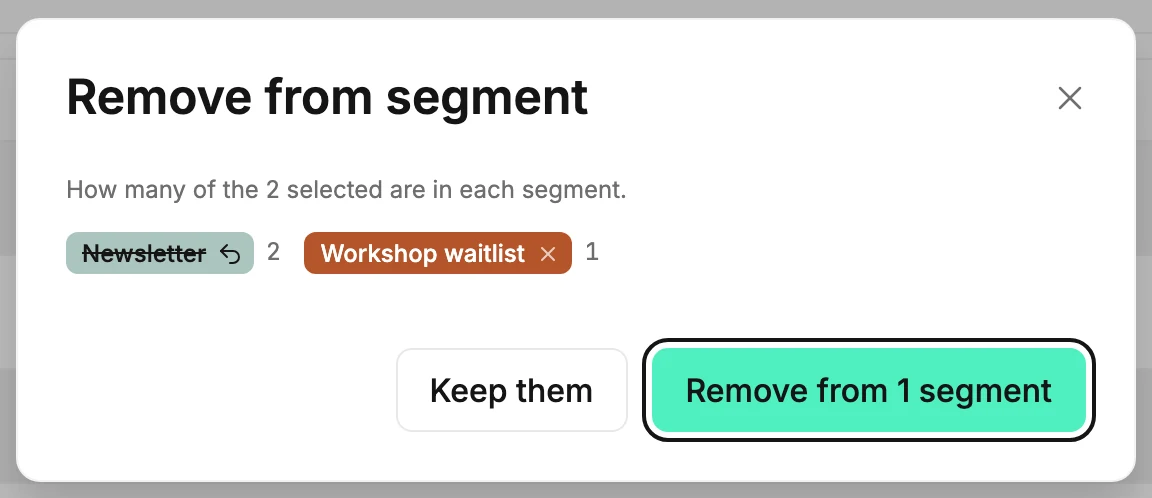
- The dialog lists the segments they’re in. Select the ✕ on each one they should leave. Its name dims and crosses out; select it again to keep it.
- Select Remove from 1 segment. The number counts the segments you marked.
From their page
On a subscriber’s page, the Segments field lists their segments the same way. Select the ✕ on one to take them out of that segment; the page saves on its own.
Removing several people at once
If you picked more than one person, the dialog says How many of the 2 selected are in each segment, with a number beside each name. Only the people in a segment you mark leave it. Everyone else you picked is untouched.
Not in any segment
The dialog says Not in any segments, or None of the selected subscribers are in a segment, and offers Close.
If nothing was removed
Jounce says Nothing was removed — your segments are unchanged. Try again and keeps the dialog open with your marks. When some worked, it says Removed 2 of 3 — 1 couldn’t be removed. Try again.
Next step
To drop the whole group instead, see Delete a segment; to take someone off your list, see Delete subscribers.
More in this topic
Updated