

Rename or recolor a segment
Short answer
On the Segments tab, select the three dots on a card. Choose Rename to change the name, or pick a color to change the card and the segment’s labels at once.
When you’re done, the name and color show everywhere the segment appears. That’s the card, the label on each row of the Subscribers page, the Segment menu, and the recipients step when you send. Every role can do both, even Editors.
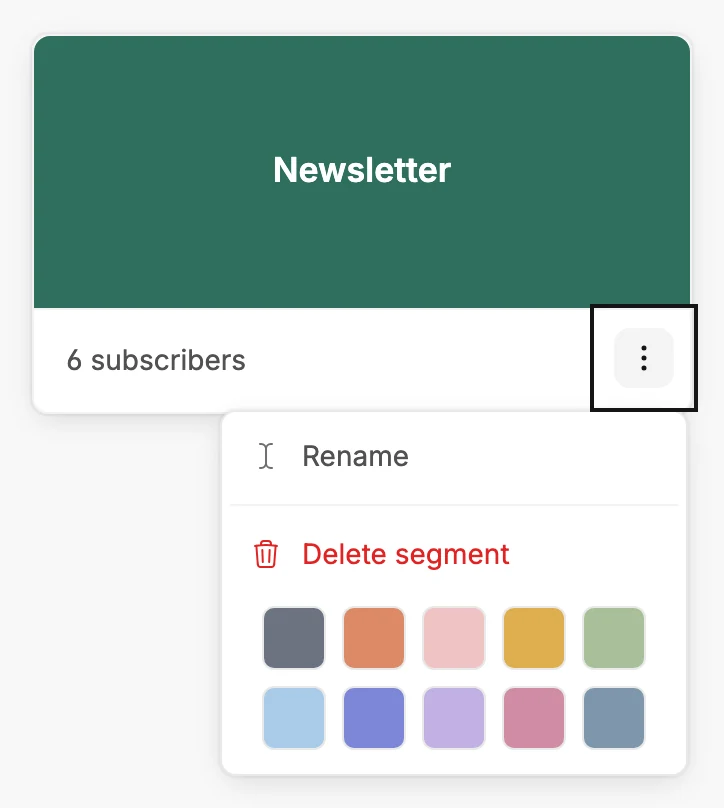
Rename
- Open Audience, then the Segments tab.
- Select the three dots at the corner of the card and choose Rename. The Rename segment dialog opens with the name selected, so typing replaces it.
- Type the name and select Save, or press Enter.
You can’t use another segment’s name. Jounce says You already have a segment called “Newsletter.” Try another name. Changing the capitals of its own name is fine.
Recolor
- Select the three dots at the corner of the card.
- Select one of the ten colors under the menu. The card changes at once, and so does its label on every row. A ring marks the color it has.
If some subscribers still show the old name
Jounce renames the segment first, then updates its label on each subscriber’s row. When it can’t finish, a message says Renamed. 3 subscribers still show the old name with Try again. The rename itself is done. Emails and automations follow the segment, not its name, so none go to the wrong people.
Next step
For one you no longer use, see Delete a segment.
More in this topic
Updated