

The Import subscribers screen
Short answer
Add from CSV opens a full-screen importer with three steps across the top: Upload, Map fields, and Segment. Each step asks one thing.
The screen replaces the page while you import. The top bar reads Import subscribers and has a close button. Once you’ve uploaded a file, it shows the three steps too. To go back, select the back arrow at the top left, or a step you’ve finished.
On a phone, the bar leaves Import subscribers out while the steps show. The step you’re on keeps its name; the others show as dots.
Once you select Import subscribers, the steps and the back arrow go away. The import is under way, so there’s nothing to go back to. If you close the screen before that, nothing changes.
The steps across the top have short names. Each page’s heading is longer. Map fields is the step whose heading reads Match your columns, and Segment is the one that reads Add them to a segment.
Upload
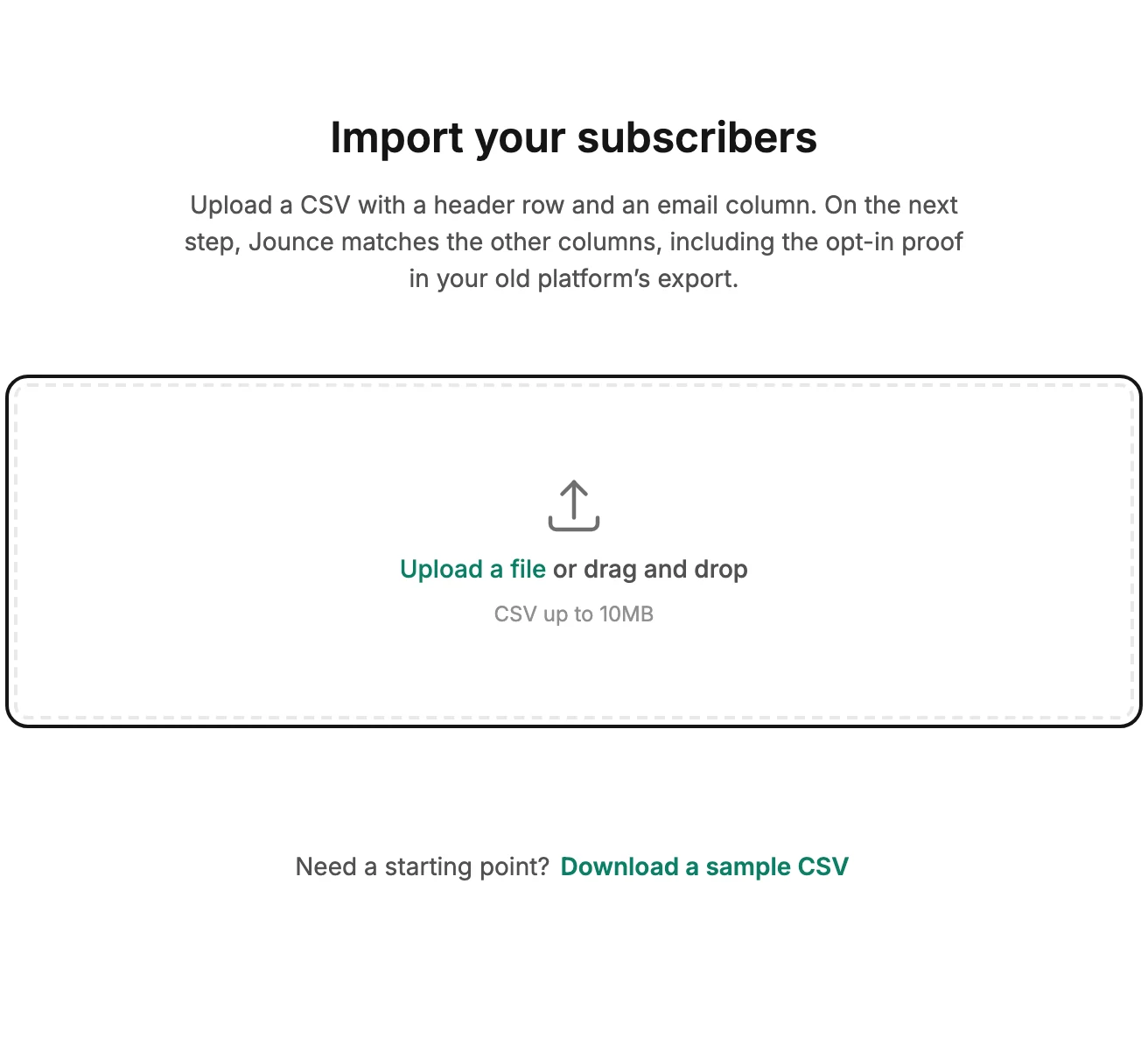
The heading says Import your subscribers. Select Upload a file to pick a CSV, or drag one onto the box. Under it, Download a sample CSV gives you a file in the right shape. Prepare your CSV file covers what the file needs. If the file is refused, see Why won’t my file import?
Match your columns
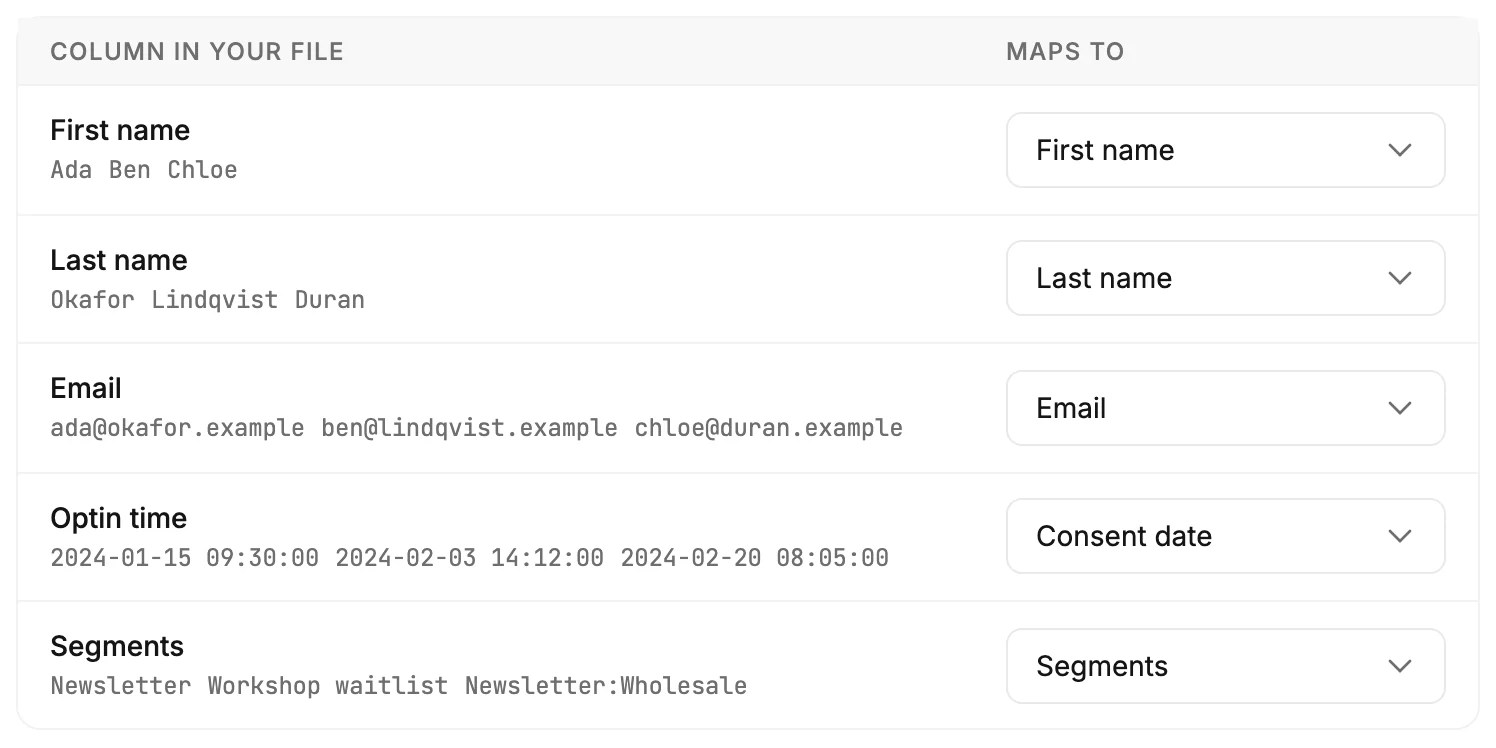
The step opens with Jounce matched what it could. The table has one row per column in your file. Column in your file shows the header and up to three sample values. Maps to is where that column goes:
| Maps to | What it becomes |
|---|---|
| Don’t import | Nothing. The column is left out. |
| First name | The person’s first name. |
| Last name | The person’s last name. |
| Their address. This is how Jounce tells people apart, so one column must map here. | |
| Segments | The segments they join, by name. Only a segment that already exists counts. |
| Consent date | The date they opted in, kept as their opt-in date. |
| Keep as proof | Stored as-is under the column’s own name, on each new subscriber’s record. |
| Your custom fields | A value on their page, under that field. |
| Create new field… | Opens a small dialog to name a field, then maps the column to it. |
If no column maps to Email, the step says so: Match a column to Email to continue — it’s how Jounce knows who’s who.
Below the table, When an email already exists offers Update their details and keep their history or Skip them. When an email already exists explains both. Last comes the permission statement: Everyone on this list asked to hear from me. No bought, rented, or scraped lists. Continue stays off until a column maps to Email and the statement is ticked.
Add them to a segment
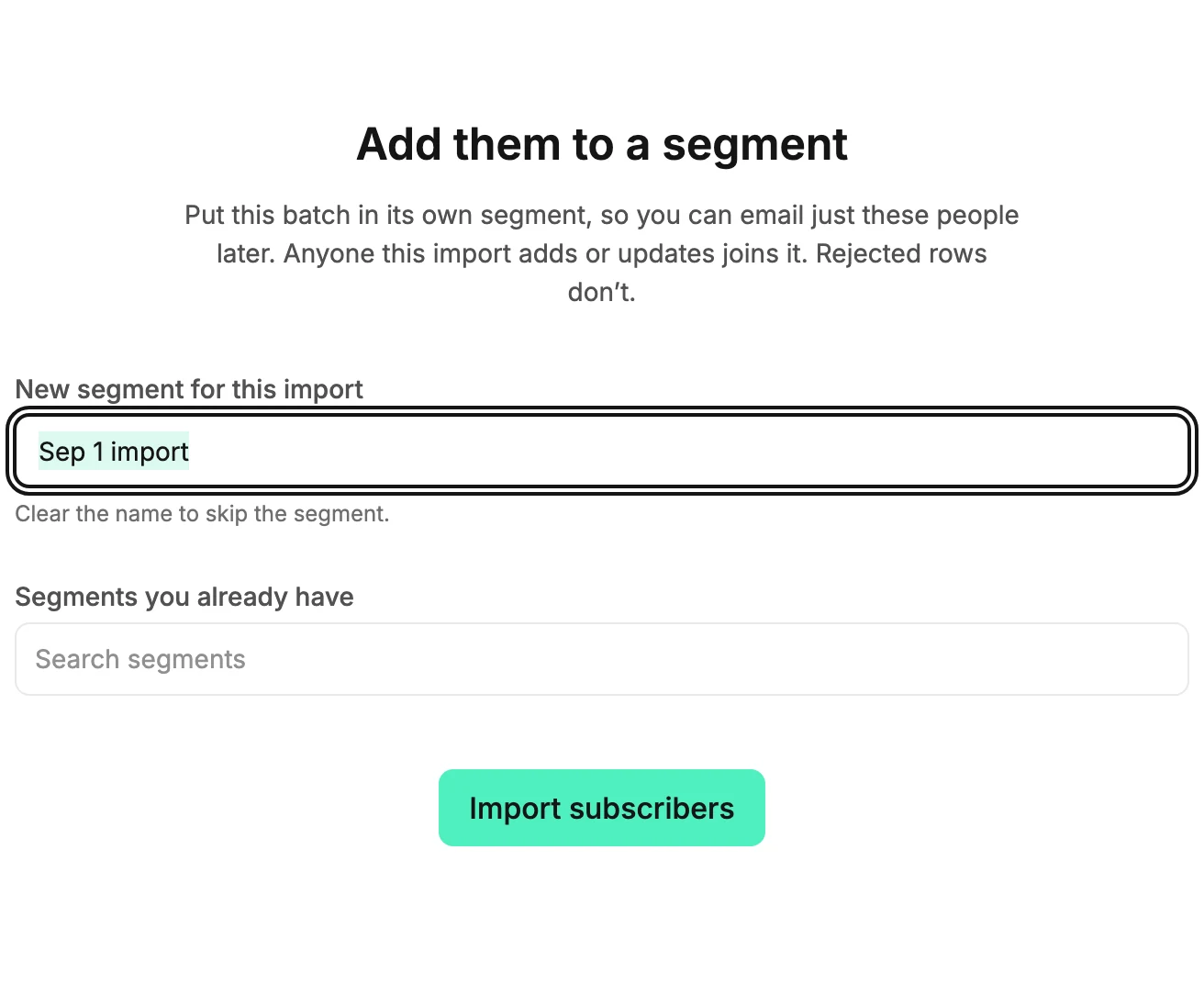
The step offers this import a segment of its own. You can find the batch later and send to just that segment. The name is filled in for you with today’s date, like Jun 26 import. Under it: Clear the name to skip the segment.
Segments you already have lets you pick more segments. Everyone the import adds joins them too. Import subscribers starts the import.
While it imports
The heading reads Checking your addresses, then Adding your subscribers. Three lines show the progress: Read your file — N rows, Checking addresses to protect your sending, and Adding your subscribers to “…”. Under them: Your file stays safe until every row is in.
A long list skips this view. Instead the screen says Your list is importing, and Jounce emails you when it’s done. Imports that finish in the background has the details.
The summary
The headline says how it went: Your subscribers are in when new people joined, Your list is up to date when everyone was already on your list, and Your import finished when some rows couldn’t be saved. They match the email Jounce sends for a big import.
One line under it says how many were new and how many were updated, and names the segment. When the file brought back people you had deleted, a second line says how many: 2 of these you had deleted are back on your list. They’re part of the updated count.
The line 2 rows repeated an email address — each address counts once means your file lists some addresses on more than one row. Jounce reads each of those addresses as one subscriber, so none is counted twice above.
Anything Jounce couldn’t take in shows below. N couldn’t be saved — try importing those again means a save failed. It’s safe to import the file again. N rejected lists why. Download the rejected rows gives you each address and its reason. See Why were some rows rejected? for each reason. Done closes the screen.
More in this topic
Updated