

Step 2 of 5
Add your first subscribers
Short answer
Open Audience, select Add subscriber, and choose Add manually for one person or Add from CSV for a list. Only add people who asked to hear from you.
When you’re done, the people are on your Subscribers page with the status Subscribed, ready to receive your first email.
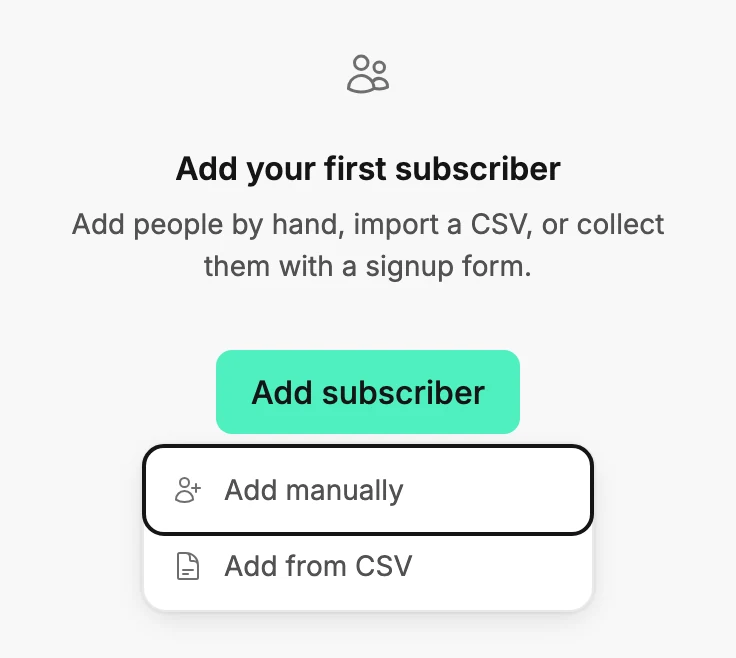
Open Audience in the top bar. On day one the page says No subscribers yet and Everyone starts with one, and offers one button, Add subscriber. It opens a menu with two choices: Add manually and Add from CSV. Once people are on your list, the same button sits above it and opens the same menu.
One person at a time
- Select Add subscriber, then Add manually. A dialog called Create a subscriber opens.
- Type their first name, last name, and email.
- Select Create subscriber. Jounce confirms with their name and added, and they appear at the top of the list. For the very first person, it adds your first subscriber.
A whole list from a CSV file
Select Add subscriber, then Add from CSV. Three steps follow, named across the top.
- Upload — drop in a CSV with a header row and an email column. Download a sample CSV shows the shape. Have a spreadsheet? Save it as a CSV file first; Excel and Google Sheets both export one from their File menu.
- Map fields — Jounce matches your columns to its fields; fix any it guessed wrong. Choose what happens When an email already exists, then tick the statement Everyone on this list asked to hear from me. No bought, rented, or scraped lists. The import can’t run without it.
- Segment — every import lands in a segment named for the day, so you can find the batch later. Keep the name, change it, or clear it, then select Import subscribers.
Jounce checks the addresses and adds them. The summary says Your subscribers are in and how many came in. A large list imports in the background: the page says Your list is importing, and Jounce emails you when it’s done.
There’s also a third way: a signup form on your site adds people as they join. You’ll find it under Forms.
Note Only add people who asked to hear from you. The Create a subscriber dialog says so, and the CSV step asks you to confirm it. A bought or scraped list gets your emails marked as spam.
Next step
Next on the path is Create an email from a template. For a big list, see Import subscribers from a CSV file.
More in this topic
Updated