

Invite someone to your workspace
Short answer
On the Members page, select Invite, type their email address, pick a role, and select Send invite. Jounce emails them a link that works for seven days.
When you’re done, the person has an email from Jounce with a Join workspace button, and their address sits under Pending invites until they join. You need to be an admin of the workspace.
- Select your avatar at the top right, then choose All settings. The Settings pages open.
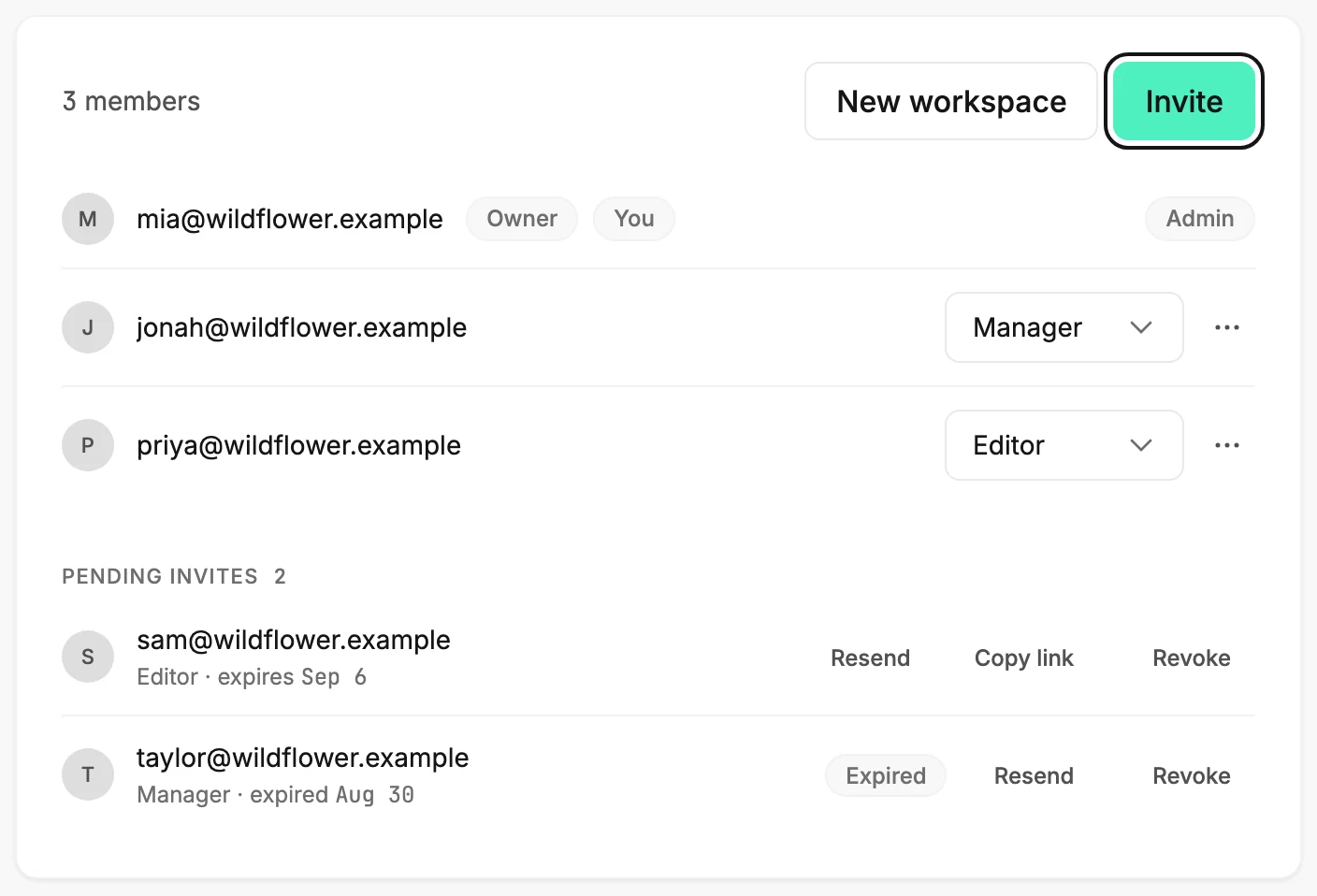
- Choose Members. The member list shows everyone in the workspace.
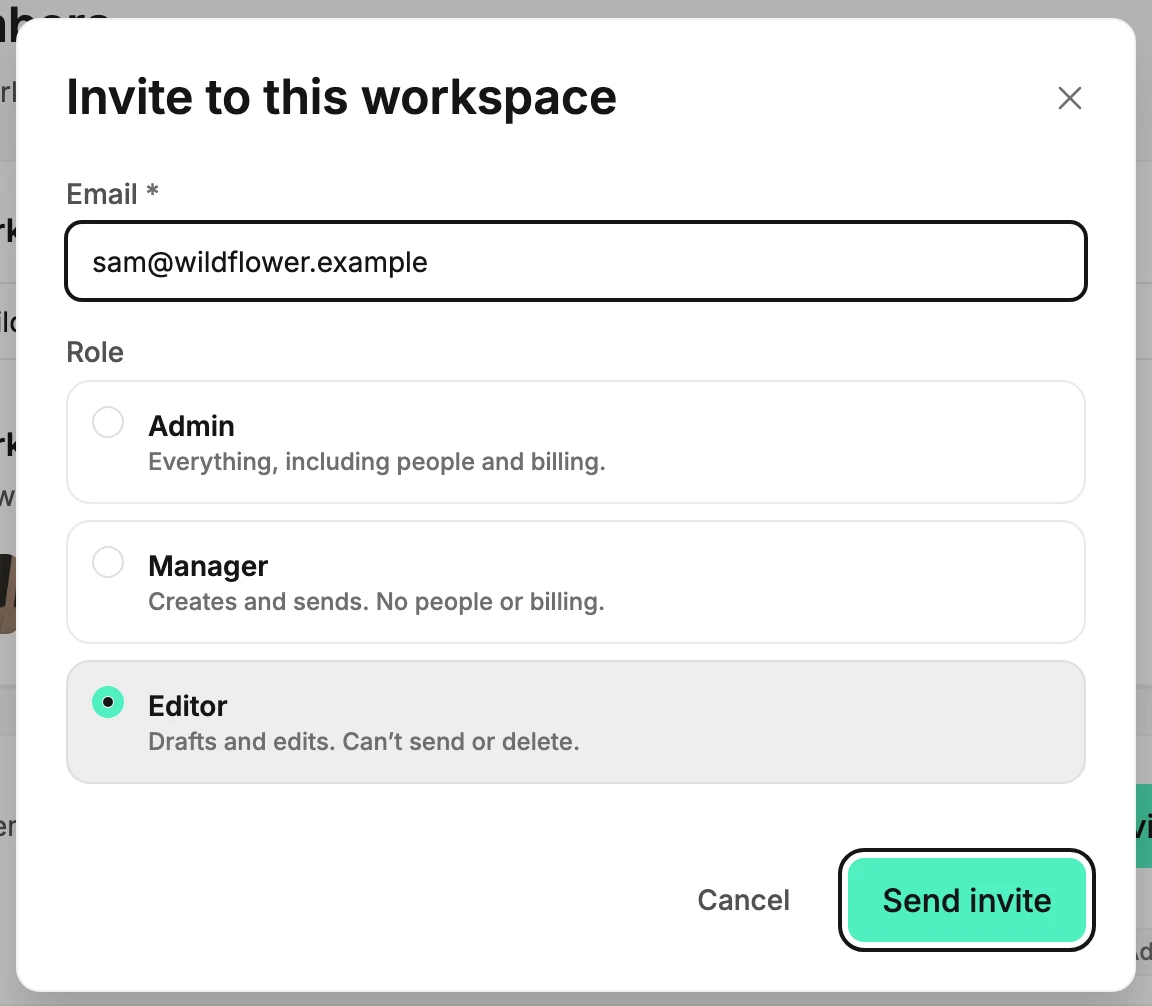
- Select Invite. The Invite to this workspace dialog opens with the cursor in the email field.
- Type their email address.
- Pick a role. Each has a line under it saying what it can do; Editor is picked to start.
- Select Send invite. Jounce says Invite sent, and the address appears under Pending invites with the date the link expires.
What happens next
The person gets an email with the subject ⟨Your name⟩ invited you to ⟨Your workspace⟩. They open its link, sign in or create a login, and select Join workspace. Their row then moves from Pending invites into the member list, with the role you gave them.
To change their role later, pick a different one beside their name on the Members page. See Change a member’s role.
Note If you signed up with an email address and haven’t verified it, Jounce asks you to first: Verify your email to invite. An invite goes out in your name, so Jounce confirms it’s really you. See Verify your email address.
If Jounce can’t email that address, it says so and keeps the invite. Use Copy link on the pending row and send the link another way. See Why didn’t they get my invite email?
Next step
Their row waits in The Pending invites list. If a link expired or went to the wrong address, see Resend or revoke an invite.
More in this topic
Updated