

Set up Jounce the first time you sign in
Short answer
After you sign up, Jounce opens setup: your website or business name, a few one-tap questions, then your brand, which Save brand keeps. Then you pick where to start: Make your first email, Make a sign-up form, or Look around first.
When you’re done, your brand is saved, your emails come from your brand’s name, and Jounce opens where you chose to start.
Jounce opens setup by itself after you sign up, and again for each new workspace you create. The bar at the top shows its three steps: Website, Business, and Brand. Every screen needs an answer, and each takes one tap or one short field.
-
On Start with your brand., type your site’s address in Your website and select Continue. The questions start, and Jounce reads your site while you answer them.
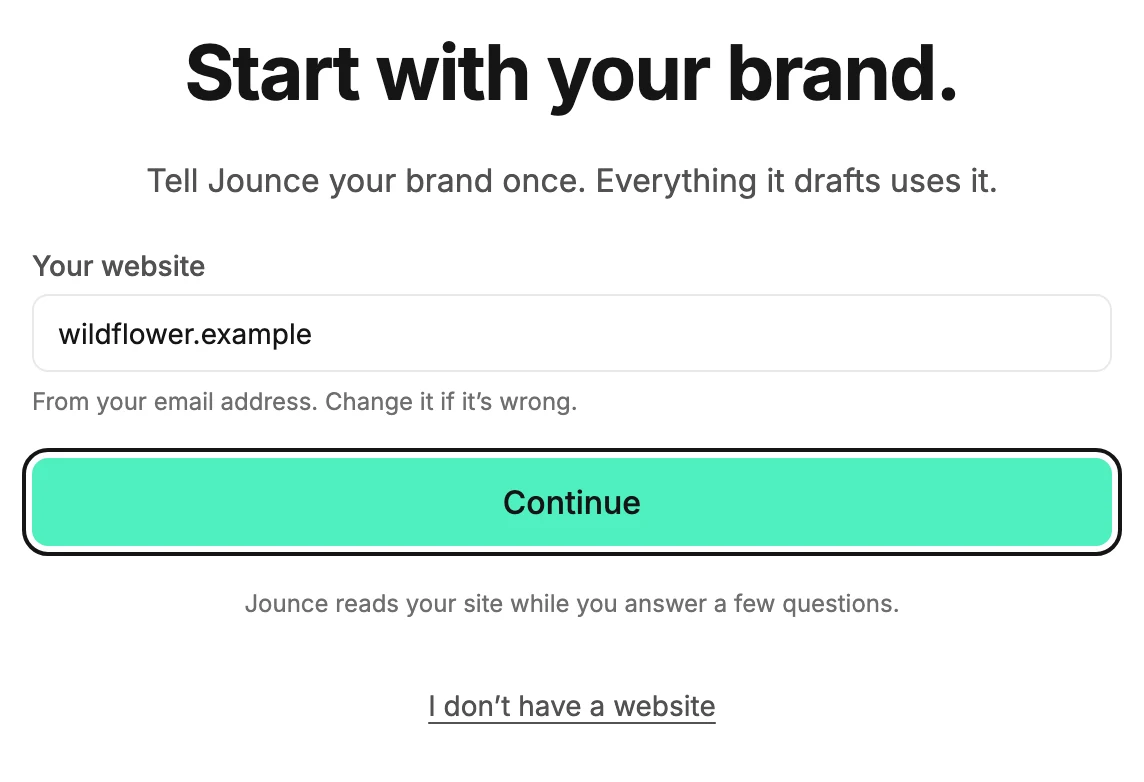
If your sign-up email is on your own domain, the address is filled in already, with From your email address. Change it if it’s wrong. No website? Select I don’t have a website and type your business name. See Pick a look when you have no website.
-
If Jounce asks What should Jounce call you?, type your first name and select Continue.
-
Under What will you send most?, pick one. Not sure yet counts as an answer.
-
Under How did you hear about Jounce?, pick one. Jounce asks this in your first workspace only.
-
Under What kind of business do you run?, select the answer Jounce read from your site, or pick one from the list.
-
Check your brand on the sample email and select Save brand. To fix something first, select Change. See What Jounce reads from your website.
-
Under Where to first?, which carries your first name, pick a door. Jounce opens it.
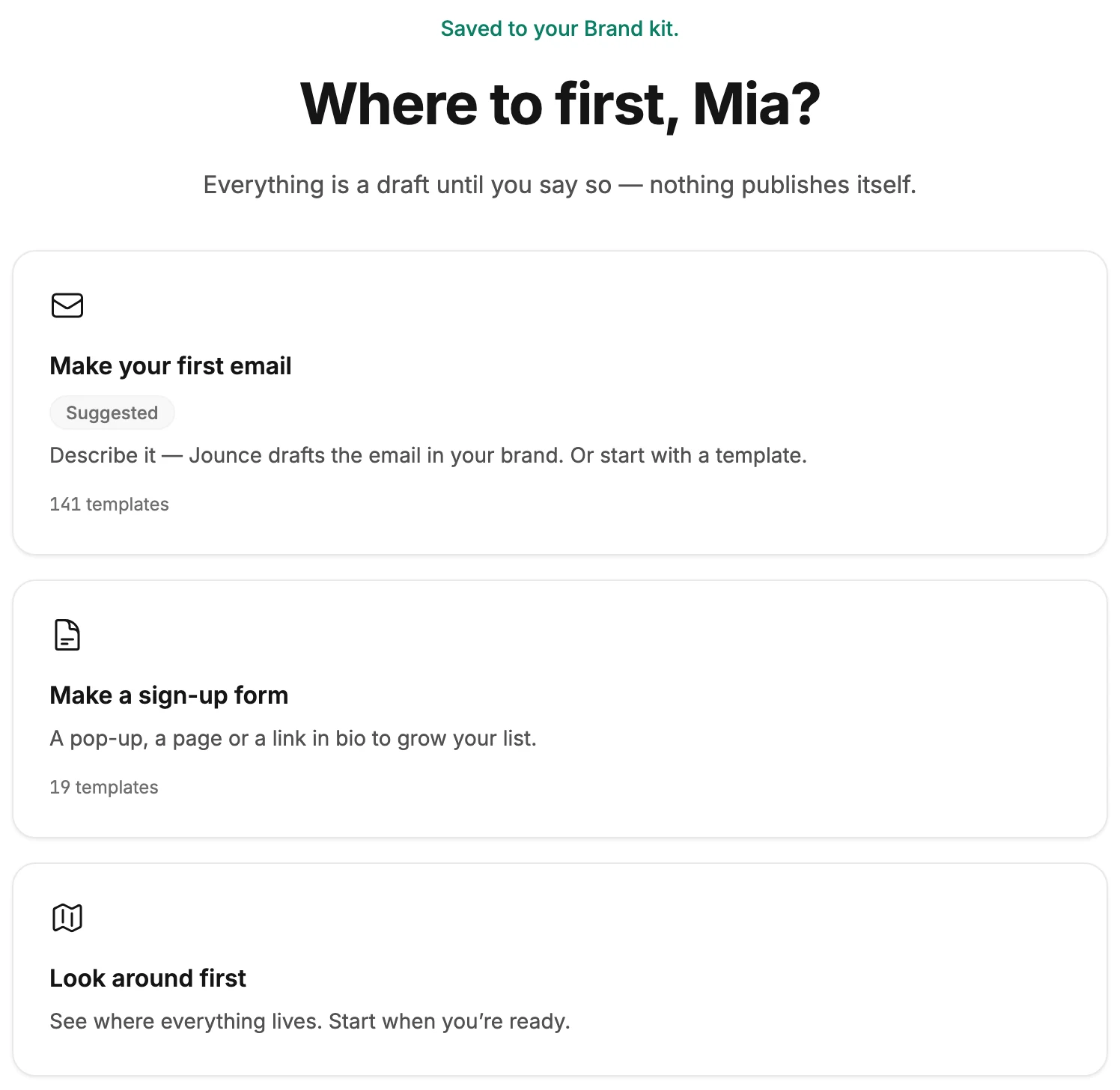
Where each door goes
- Make your first email opens What’s the email about?, where you describe your email and Jounce drafts it in your brand.
- Make a sign-up form opens the form templates.
- Look around first opens your Emails page.
On a computer, each door starts a short tour of that job. See Take a tour. On a phone, the editors need a bigger screen, so the last screen offers Browse templates and Look around. Its heading says Saved to your Brand kit.
If you stop partway
The arrow at the top left goes back one screen, and your answers stay. A reload keeps you on the same screen. Close the tab before you pick a door, and setup opens again the next time you open Jounce. There’s no way to skip it; see Why can’t I skip a setup step?
Next step
To take your first email from draft to Sent, see Send your first email.
More in this topic
Updated