

Your first minutes in a workspace you joined
Short answer
Right after you join, Jounce asks your first name if it doesn’t know it yet, then says you’re in and offers three ways to start. Nothing you answer changes the workspace.
When you’re done, you’re working in the workspace you joined, on the first job you picked.
You skip setup, because the brand belongs to the workspace. Your welcome is one or two short screens, and it shows once, right after you join.
-
On the invite page, select Join workspace. Jounce says Welcome to the workspace’s name. See Accept an invite.
-
Select Open it.
-
If Jounce asks What should Jounce call you?, type your first name and select Continue.
-
Under You’re in and the workspace’s name, Jounce asks Where to first? with your first name. Pick Make your first email, Make a sign-up form, or Look around first.
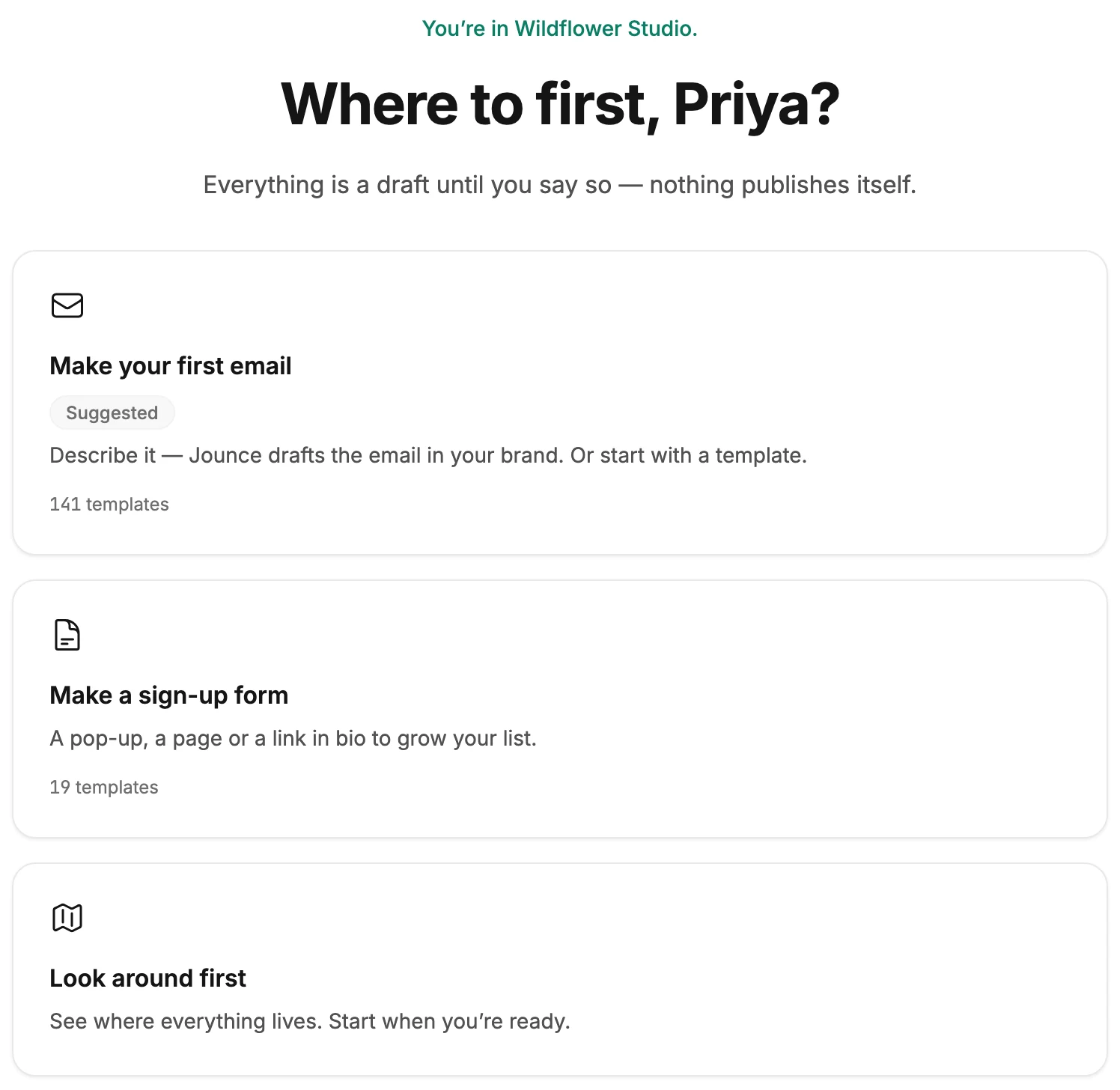
Your first name is yours, not the workspace’s. Its hint says what it’s for: For greetings in the app and the sign-off on emails Jounce drafts. Nothing you answer changes the workspace.
The doors open what they open at the end of setup, and on a computer each starts a short tour. On a phone, the screen offers Browse templates and Look around instead.
If you missed it
The welcome shows only in the tab where you joined. Close that tab, or open the invite link again later, and Jounce opens the workspace as usual. To take a tour another time, see Take a tour.
Next step
To find your way around the workspace, see The top bar.
More in this topic
Updated