

Change the theme
Short answer
Open the account menu at the top right, choose Theme, and pick Light, Dark, or System. System follows your device’s own setting.
Jounce has a light look and a dark one. When you’re done, it shows in the one you picked on this browser, or follows your device.
Pick a theme
-
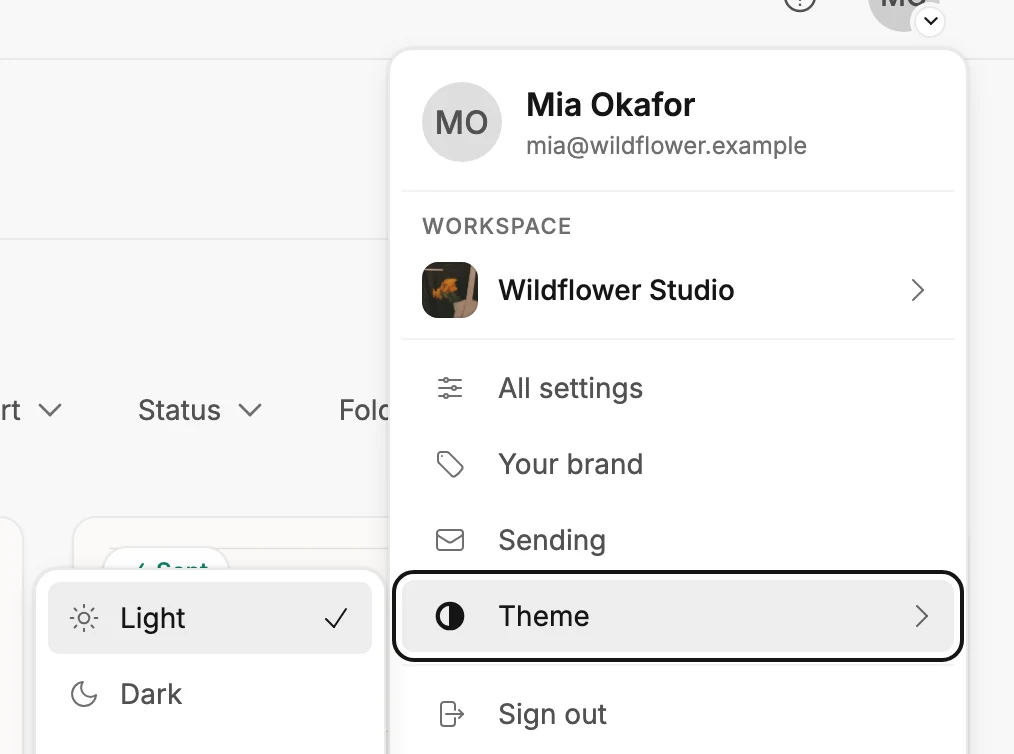
Select your avatar at the top right. The account menu opens.
-
Choose Theme. Three options appear beside it: Light, Dark, and System.
-
Pick one. The page changes as you pick, and the menu stays open so you can compare.
-
Press Esc, or click anywhere else, to close the menu.
What each option does
| Option | What you see |
|---|---|
| Light | The light look, whatever your device is set to. |
| Dark | The dark look, whatever your device is set to. |
| System | Jounce follows your device. When your device switches, Jounce does too. |
Your choice is remembered on this browser. A different browser or device starts on System until you pick there too.
Note If your device is dark but Jounce stays light, this browser is set to Light. Pick System and Jounce follows the device again.
Next step
The other rows under your avatar are in The account menu.
More in this topic
Updated