

Create a workspace
Short answer
Open the Workspaces panel from the account menu, select New workspace, type a name, and select Create workspace. Jounce opens the new workspace, empty and yours, with a short setup of its brand first.
When you’re done, you have a second workspace and you’re its admin. It starts empty, with its own subscribers, emails, forms, brand, members, and settings. The workspace you came from is untouched.
Anyone with a Jounce login can create a workspace, whatever their role in the one they’re in.
- Select your avatar at the top right. The account menu opens.
- Choose the row under Workspace. The Workspaces panel opens.
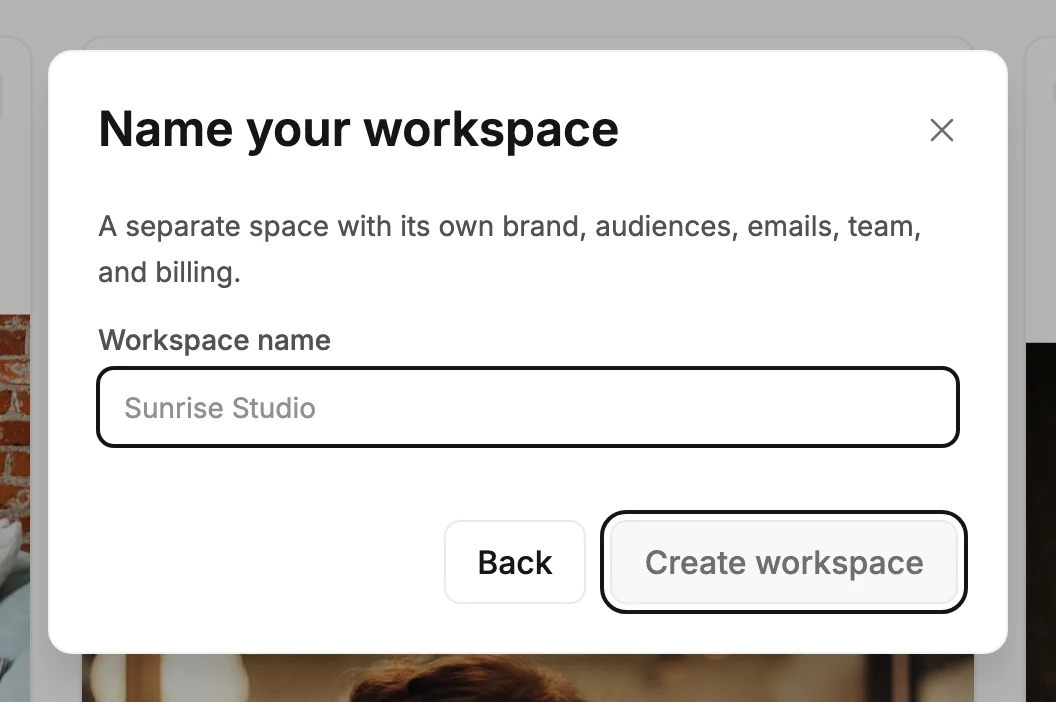
- Select New workspace. The panel asks you to name it.
- Type a name in Workspace name and select Create workspace.
- Jounce says You’re in ⟨workspace⟩ and opens setup for it: its website, a few questions, and its brand. It skips How did you hear about Jounce?, which Jounce asks in your first workspace only.
The brand name you save in setup becomes the workspace’s name. Setup ends with what to do first; see Set up Jounce the first time you sign in.
You can also start one from the Members page. Select your avatar, choose All settings, then Members, and select New workspace there.
Note One login can create a limited number of workspaces. If you reach the limit, Jounce says so and creates nothing. Contact support and Jounce will raise your limit.
Note If publishing is paused on a workspace where you’re an admin, Jounce creates nothing. It says Publishing is paused on one of your workspaces, so you can’t create another yet. Nothing was created. Write to hello@jounce.com and ask why. You can create one once Jounce turns publishing back on. See Why can’t I publish my form?.
If Jounce creates the workspace but can’t open it right away, it says ⟨workspace⟩ is ready. Open the Workspaces panel and pick it from the list.
If the Brand page holds kit changes you haven’t saved, Jounce creates the workspace, then asks Discard your edits? before opening it. Keep editing leaves you where you are, and the new workspace waits in the Workspaces panel. See The Workspaces panel.
Next step
To walk the empty workspace to Sent, see Send your first email; to bring your team in, see Invite someone to your workspace.
More in this topic
Updated