

The account menu
Short answer
Your avatar at the top right opens the account menu: your workspace, the settings pages, Theme, and Sign out. Help has its own button, just left of your avatar.
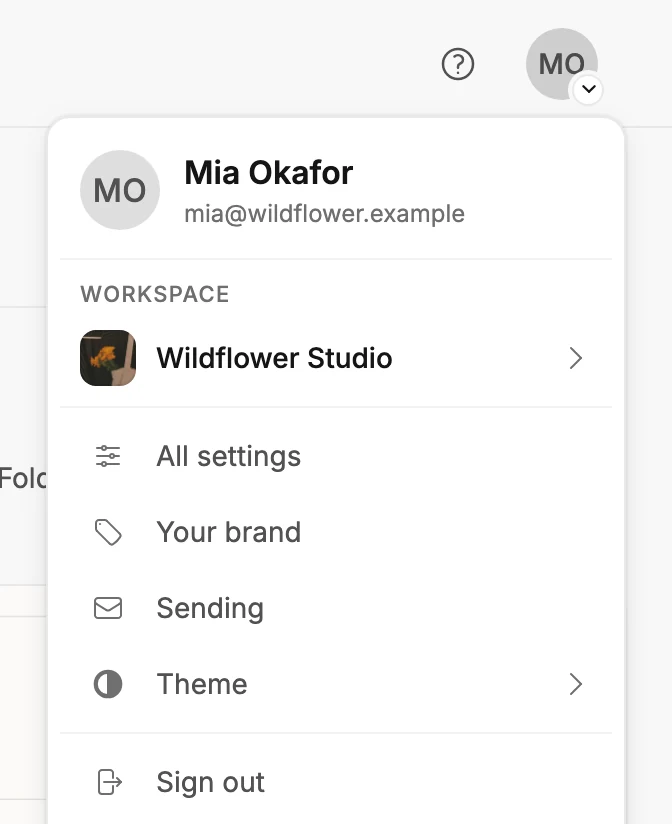
Your avatar sits at the top right of the Emails, Forms, Automations, Audience, Analytics, and Settings pages. Select it to open the menu. The menu holds the handful of pages you reach for often. The full list of settings lives behind All settings.
Help and the chat with Jo have their own button: the question mark just left of your avatar. See The help button.
Pages that fill the whole window have no avatar. They include the editors, the automation builder, the send steps, a results page, and the pages where you start something new.
To get back to your avatar, leave by the back arrow at the top left. On the send steps, the close button at the top right takes you back to the editor first.
Who you are
The top of the menu shows your name and email. If you’re a Manager or an Editor, the line under them says so: Editor in this workspace. Admins see no line. The name and the photo come from the Basics page; see Change your name.
Workspace
The workspace row shows the name of the workspace you’re in. Beside the name sits a small square. It shows the workspace’s icon, or its initials when the workspace has none. An Admin sets the icon on the Members page; see Change your workspace icon.
With two or more members, the row shows the count too. Choosing it opens the Workspaces panel, where you create a workspace or switch to another one.
All settings
Opens the settings pages: your details, brand, sending, members, billing, and the rest. See The Settings pages.
Your brand
Opens the Brand page: the colors, fonts, logo, voice, and social links Jounce uses in your emails.
Sending
Opens the Sending page: the name and address your subscribers see, and your own sending domain. See The Sending page.
Theme
Opens three options beside the menu: Light, Dark, and System. See Change the theme.
Sign out
Signs you out of Jounce on this browser and opens the sign-in page. If some changes haven’t reached Jounce yet, it asks first. See Sign out of Jounce.
Share Jounce
The card at the very bottom of the menu opens the Share Jounce page, where you find your link to pass along. See The Share Jounce page.
More in this topic
Updated