

Create your Jounce account
Short answer
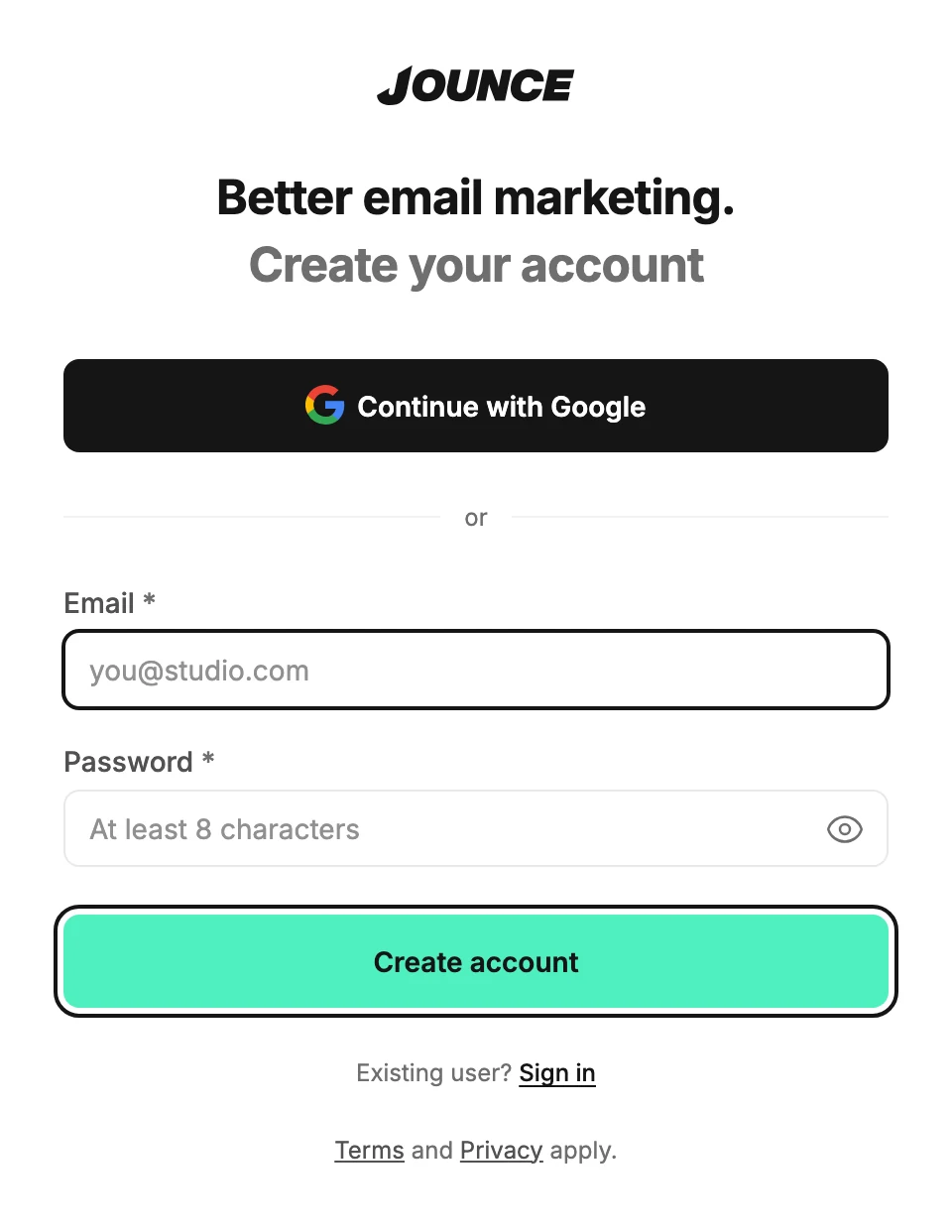
On the sign-up page choose Continue with Google, or Continue with email and a password of at least 8 characters. An email sign-up verifies its address first, then Jounce walks you through setting up your brand.
When you’re done, you’re signed in, and Jounce opens setup for your new workspace. There are two ways in. Pick the one you’ll remember.
Sign up with Google
- Open app.jounce.com/sign-up, or select Create an account under the form on the sign-in page.
- Select Continue with Google. Google’s sign-in page opens in the same tab.
- Pick the Google account you want to use. Jounce opens setup on Start with your brand.
Google confirms your email for you, so there is nothing to verify.
Sign up with email and a password
- Open the sign-up page and select Continue with email. The Email and Password fields appear.
- Type your email.
- Type a password of at least 8 characters.
- Select Create account. The page changes to Check your email.
- Open the email called Verify your email for Jounce and select Verify email. In the browser where you signed up, that’s all. Anywhere else, select Verify email again on the page that opens.
- Back on the sign-up page, the page opens setup on its own.
If the link doesn’t come, Send it again on the Check your email page sends another. See Verify your email address.
Note If the page says That email already has an account. Sign in instead., you’ve signed up before. The Sign in instead link takes you to the sign-in page with your email already filled in.
Next step
Jounce walks you through setup next: see Set up Jounce the first time you sign in.
More in this topic
Updated