

Pick a look when you have no website
Short answer
On the first setup screen, select I don’t have a website and type your business name. On the brand step, keep the look Jounce chose for your kind of business or pick another, then select Save brand.
When you’re done, your emails wear a look: a ready-made set of colors, fonts, and shapes. Your business name sits at the top of them until you add a logo.
-
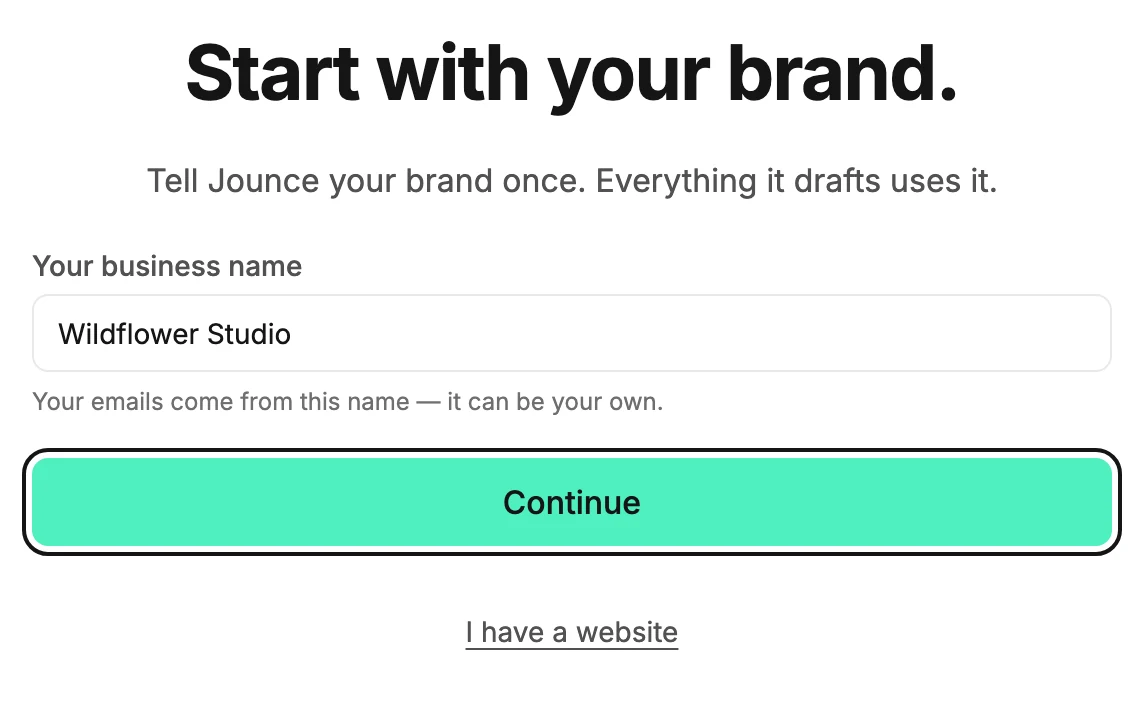
On Start with your brand., select I don’t have a website. The field changes to Your business name.
-
Type your business name and select Continue. The field’s hint says Your emails come from this name — it can be your own.
-
Answer the questions. Under What kind of business do you run?, pick from the list, or type an everyday word like bakery to search it.
-
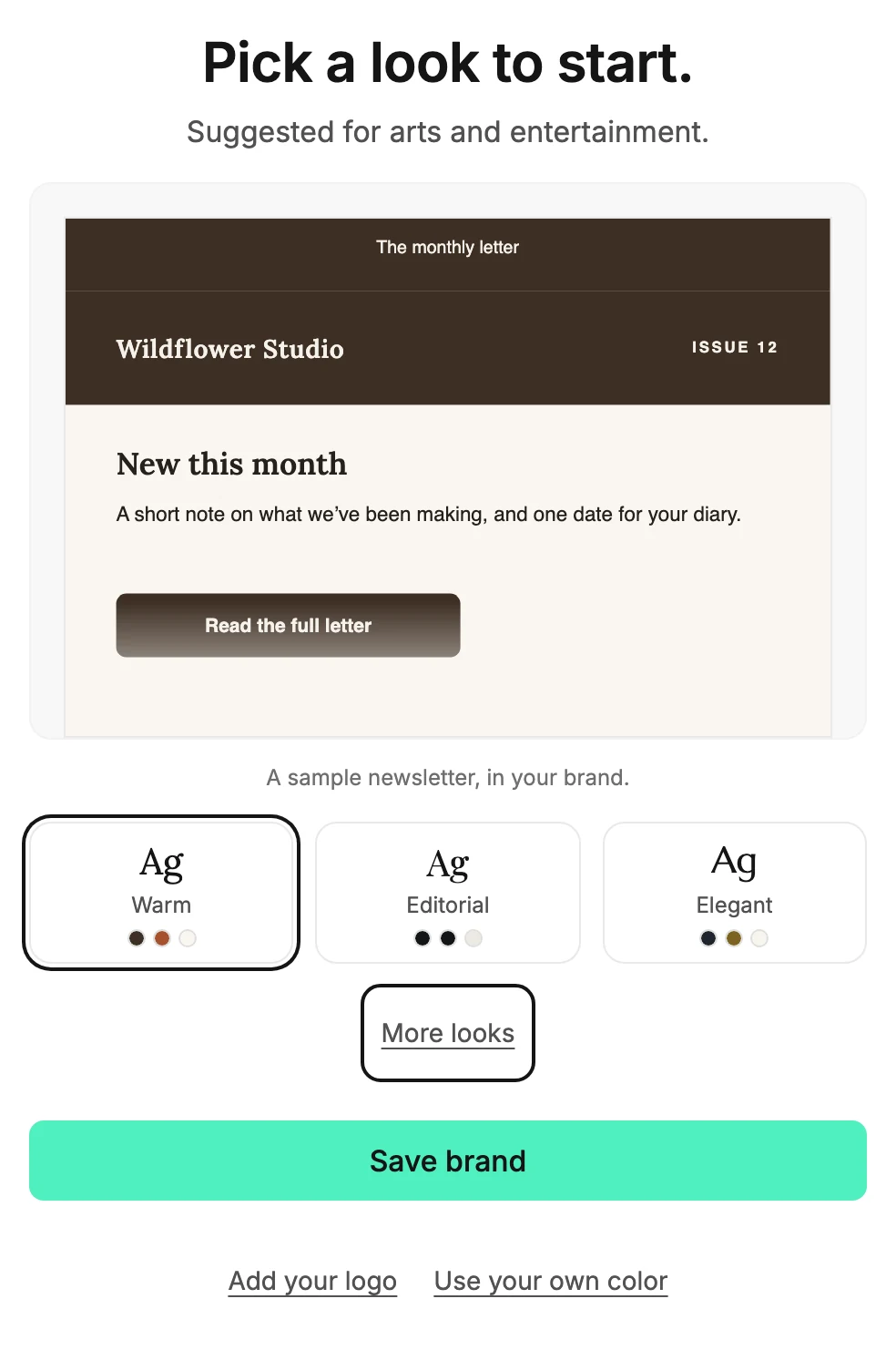
On Pick a look to start., check the sample email. The look Jounce suggests for your kind of business is already chosen, with two more beside it.
-
Select another look to see the sample change. More looks shows all seven: Warm, Editorial, Elegant, Calm, Modern, Bold, and Playful.
-
Select Save brand. Jounce saves the look and your business name.
Under Save brand, Add your logo opens Upload your logo, and Use your own color opens Main color, Button, and Highlight. Pick a main color, and the other two follow it unless you set them yourself.
Your business name becomes your workspace’s name and the name your emails come from. Setup shows the same looks when Jounce can’t read your website. See What Jounce reads from your website.
Next step
To change the look later, see Start your brand from a theme.
More in this topic
Updated