

Reset your password
Short answer
On the sign-in page choose Continue with email, select Forgot password?, enter your email, and select Send reset link. The link in the email opens a page where you set a new password.
When you’re done, your account has a new password, and you sign in with it. Nothing else about your account changes.
Ask for the link
- Open the sign-in page and select Continue with email.
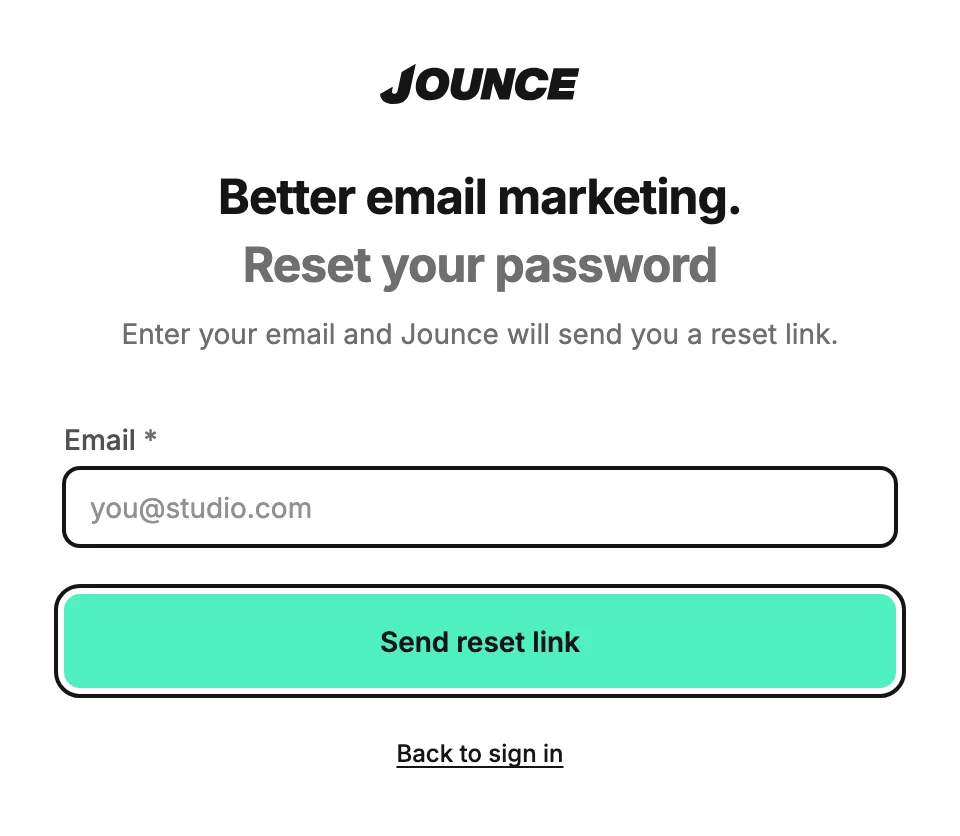
- Select Forgot password? under the password field. The page changes to Reset your password.
- Type your email and select Send reset link. The page says Check your inbox.
Jounce says If that email has an account, a reset link is on its way whether or not the address has one. So a typo in the address looks the same as success. If nothing arrives, check the address before you resend.
Set the new password
- Find the email called Reset your Jounce password. It comes from no-reply@jounce.com. It can take a minute to arrive.
- Select Set a new password in that email. A Jounce page opens, headed Set a new password, with your address under it.
- Type a password of at least 8 characters and select Save new password. The page says Password updated.
- Select Sign in and use the new password.
If it didn’t arrive
Check your spam folder first. Then go back to the Check your inbox page and select Didn’t get it? Resend. Jounce waits a short while between links to one address, and it caps how many it sends in a day. If you ask too soon, the screen says so.
Note Got a reset email you didn’t ask for? Ignore it. Your password stays as it is until someone opens the link and saves a new one.
Next step
Use the new password on the sign-in page: Sign in to Jounce.
More in this topic
Updated