

The Workspaces panel
Short answer
The panel opens from the workspace row in the account menu. It lists every workspace your login belongs to, marks the one you’re in, and holds the New workspace button.
Select your avatar at the top right, then choose the row under Workspace. The panel has two views: the list, and the naming step behind New workspace. A third, Discard your edits?, shows only while the Brand page holds kit changes you haven’t saved.
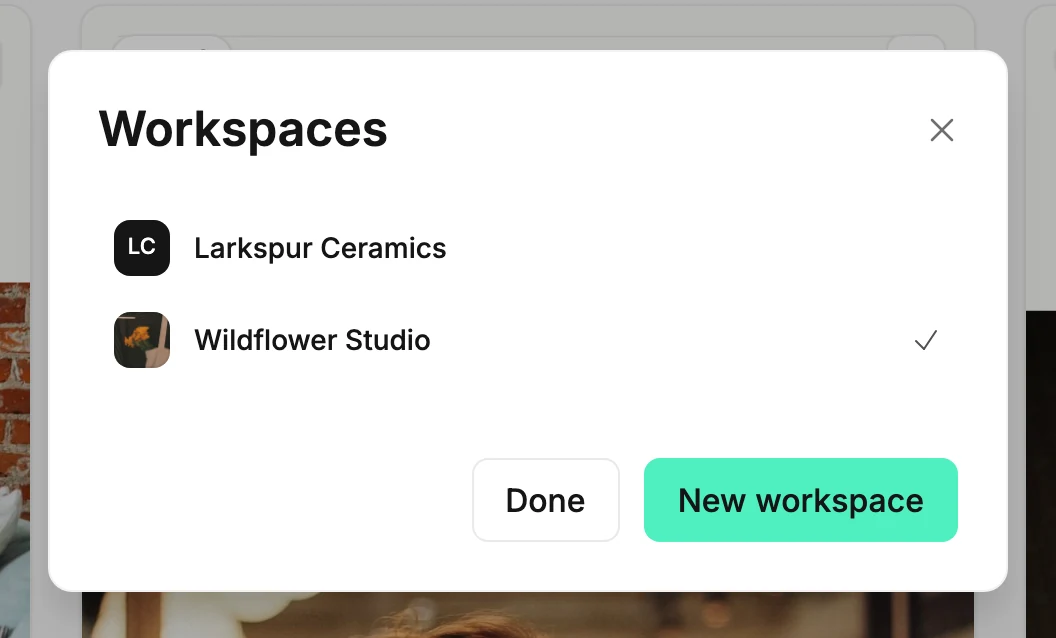
The list
Every workspace your login belongs to, in alphabetical order. The one you’re in carries a check mark. Choose any other row to switch to it; see Switch workspaces. A workspace you were invited to joins the list once you accept; see Accept an invite.
Each row opens with a small square: the workspace’s icon, or its initials when it has none. See Change your workspace icon.
With eight or more workspaces, a Find a workspace box sits above the list. Type part of a name to shorten it. When nothing matches, the panel says No workspace matches that.
If the list can’t load, the panel says Your workspaces didn’t load and offers Try again. It won’t show an empty list just because loading failed.
Done
Closes the panel. You stay where you were.
New workspace
Opens the naming step, titled Name your workspace. Under the title, one sentence says what you’re making: A separate space with its own brand, audiences, emails, team, and billing.
| Control | What it does |
|---|---|
| Workspace name | The name that shows in the account menu, this panel, and the send review. |
| Back | Returns to the list. Nothing is created. |
| Create workspace | Creates the workspace and opens it. Stays off until you type a name. |
See Create a workspace for the steps and what to expect after.
Discard your edits?
Your kit on the Brand page waits for Save kit, and switching workspaces would drop changes you haven’t saved. So while the Brand page holds some, the panel asks before it switches: after you choose a workspace, or after Create workspace.
| Control | What it does |
|---|---|
| Keep editing | Closes the panel. You stay where you were, with your changes. |
| Discard edits | Switches without them. |
Closing the panel keeps your changes too. After Create workspace, the new workspace exists either way, and the panel says ⟨workspace⟩ is ready above the question.
Another way in
The Members page has a New workspace button of its own. It opens this same panel on the naming step, so a person with one workspace can start a second one from there.
More in this topic
Updated