

Switch workspaces
Short answer
Select your avatar at the top right, choose the row under Workspace, and pick a workspace in the panel. Jounce opens that workspace’s Emails page.
When you’re done, you’re working in the other workspace: its emails, its audience, its forms, and its brand. Nothing moves with you.
Each brand or client is its own workspace. If the second one doesn’t exist yet, start with Create a workspace.
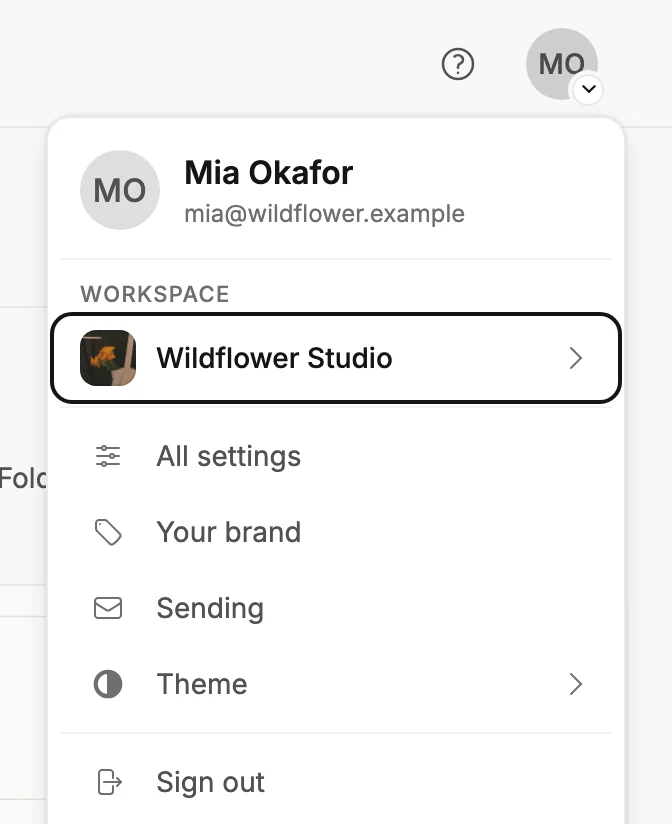
- Select your avatar at the top right. The account menu opens.
- Choose the row under Workspace. It names the workspace you’re in. The Workspaces panel opens.
- Pick a workspace from the list. The one you’re in carries a check mark.
- Jounce says You’re in ⟨workspace⟩ and opens that workspace’s Emails page.
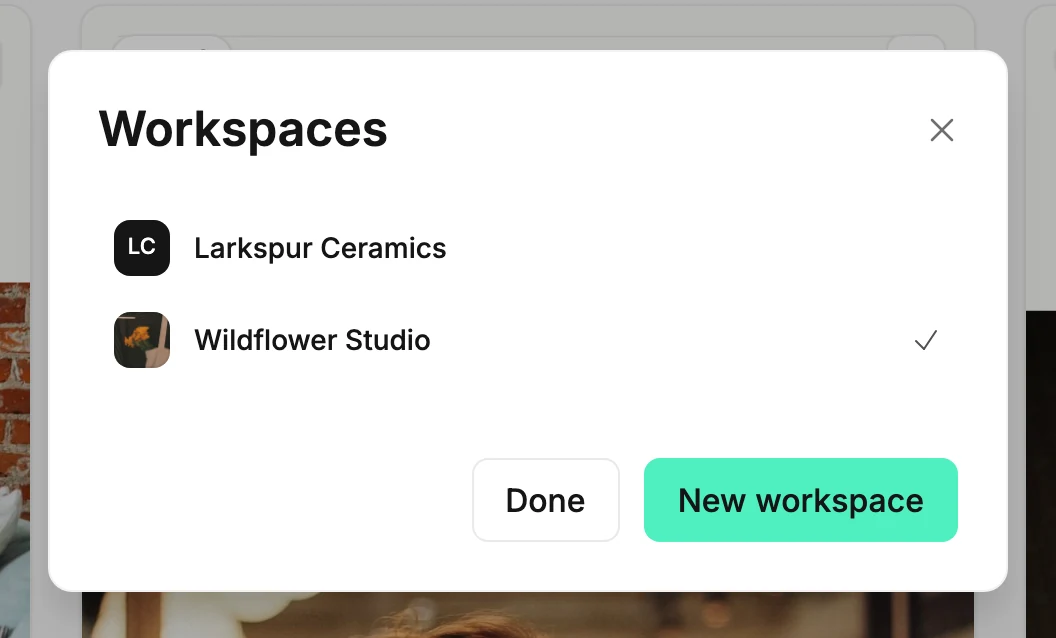
Jounce remembers the workspace you switched to. The next time you sign in, it opens there.
Note With eight or more workspaces, a Find a workspace box appears at the top of the panel. Type part of a name to shorten the list.
If the switch doesn’t go through, Jounce says That switch didn’t take. You’re still where you were — try again. Nothing has changed.
If the Brand page holds kit changes you haven’t saved, the panel asks Discard your edits? before it switches. See The Workspaces panel.
A message that offers Undo leaves when you switch, and its Undo goes with it. To take a change back, select Undo before you switch.
Next step
What stays with each one is in What a workspace is.
More in this topic
Updated