

Organize emails and forms with folders
Short answer
Open an email’s or form’s ⋯ menu, choose Add to folder, and type a folder name to pick one or create it. A Folder menu then appears above the list so you can look at one folder at a time.
When you’re done, your emails or forms sit in folders you named. The Folder menu above the list shows one folder at a time. Folders exist on the Emails and Forms pages. An item can sit in more than one folder.
Put an item in a folder
- Select the ⋯ (three dots) on the item’s card, or at the end of its row.
- Choose Add to folder. The Add to folders window opens with the cursor in the field.
- Type a name. Pick a folder you have from the list, or choose Create to make one with that name.
- Add more folders the same way if you like, then select Done.
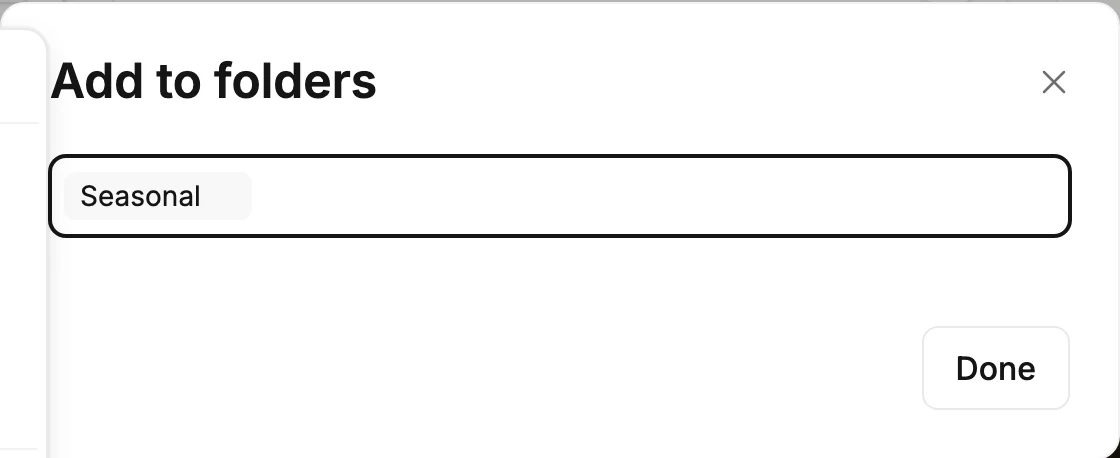
The folder’s name then shows under the item’s name on its card.
Look inside a folder
The Folder menu appears above the list once you have a folder. In a narrow window, it’s a row under Filters.
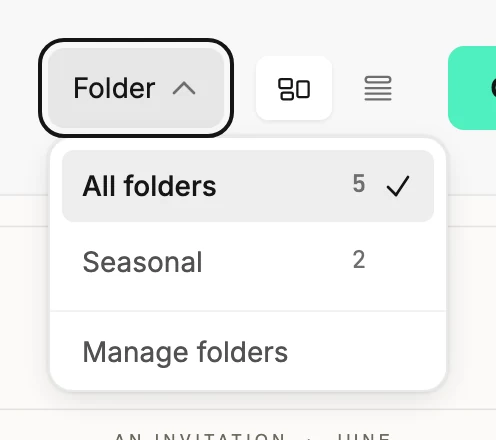
- Open Folder and pick one. Each shows how many items it holds.
- Pick All folders to see everything again.
While you’re in a folder, the count under the heading is the folder’s. The ⋯ gains Remove from folder, and Duplicate puts the copy in the same folder.
The page’s web address includes the folder, so a bookmark or the back button brings you back to it. An empty folder says No emails in this folder with a Show all emails button.
Rename or delete a folder
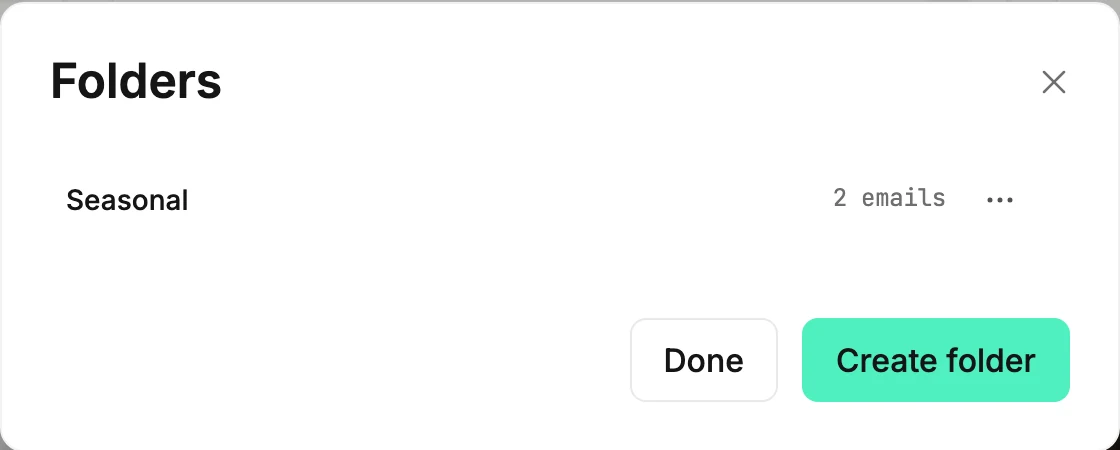
- Open Folder and choose Manage folders at the bottom. The Folders window lists your folders with their counts.
- Select the ⋯ beside a folder for Rename or Delete folder.
- Create folder makes a new one here too. Select Done when you’re finished.
Note Deleting a folder deletes the folder only. Your emails or forms stay where they are.
If your role in the workspace is Editor, Delete folder doesn’t appear. See Workspace roles.
Automations don’t have folders. For subscribers, use segments on the Audience page.
Next step
Narrow a folder further with Search, sort, and filter a list.
More in this topic
Updated