

Change your name
Short answer
On the Basics page, type your first and last name. Jounce saves as you go and shows the name in the top bar and the account menu.
When you’re done, the top bar and the account menu show the name you typed.
-
Select your avatar at the top right and choose All settings. The Basics page opens.
-
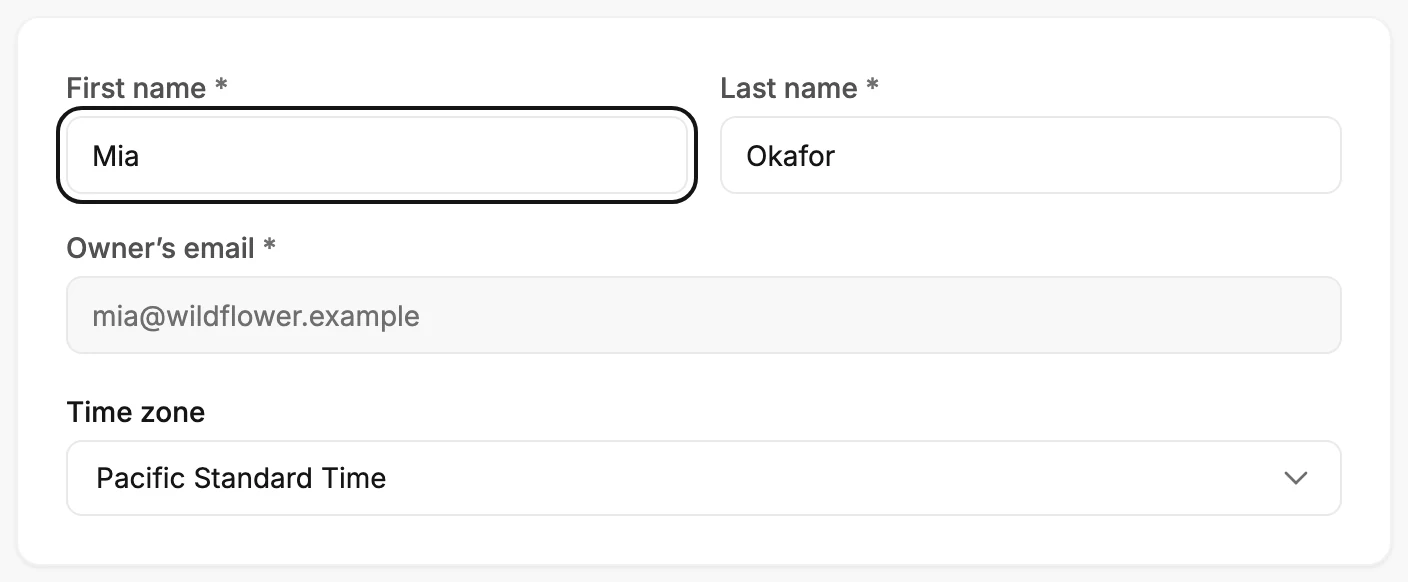
Type your name in First name and Last name.
-
Click away or press Tab. A moment later Saved shows at the bottom right.
Both fields are required. If you clear one, the field says so and Jounce keeps the name it had.
Where the name shows
- The top bar and the top of the account menu. Before you type one, Jounce shows the name from your Google sign-in, or the part of your email before the @.
- Your initials, when there’s no photo.
- The From line of your emails, when you haven’t set a From name. See Change the name your email comes from.
Note The name is saved with this workspace, and everyone in it sees the same one in their top bar.
Next step
To put a picture where the initials are, see Change your profile photo.
More in this topic
Updated