

Change your workspace icon
Short answer
On the Members page, under Workspace icon, select Change icon and pick an image; only Admins see the control. The icon shows beside the workspace’s name in Jounce, never in your emails.
When you’re done, the icon shows beside the workspace’s name in the account menu and the Workspaces panel. Everyone in the workspace sees it. Until a workspace has an icon, that square shows its initials.
You need to be an Admin. A Manager or an Editor doesn’t see the control.
- Select your avatar at the top right and choose All settings.
- Choose Members. Workspace icon sits in the first card, under Workspace name.
- Select Change icon. Your computer’s file picker opens.
- Pick a PNG, JPG, WebP, GIF, or SVG up to 10 MB. Jounce says Your workspace icon’s updated, and the square shows your picture.
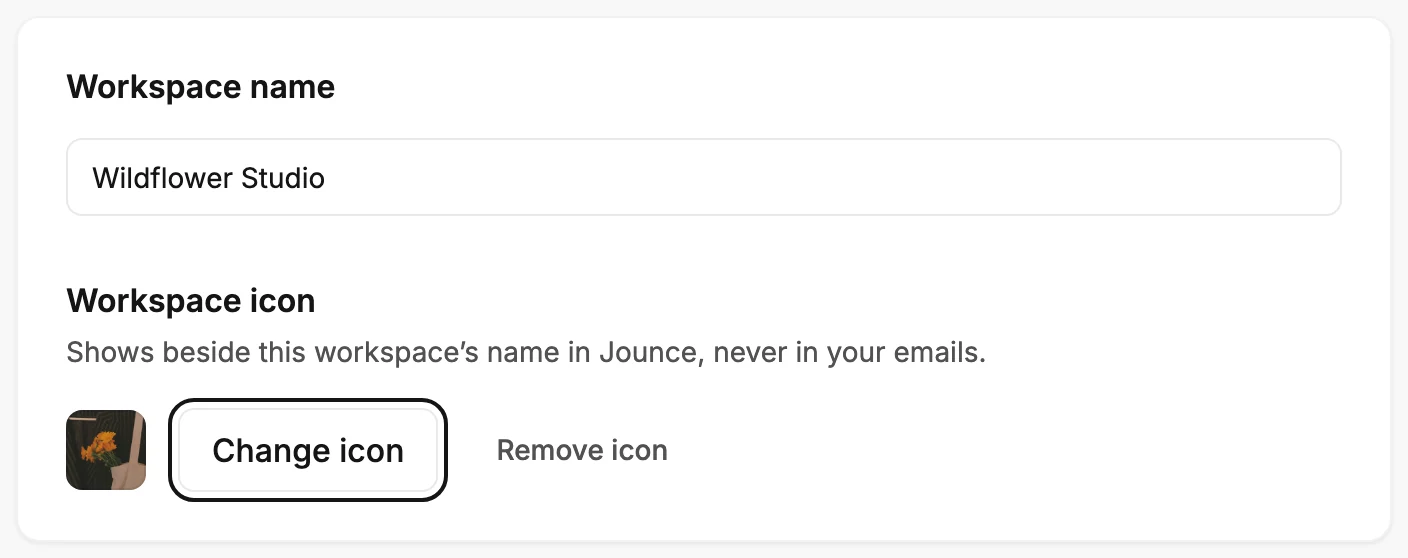
The icon shows only inside Jounce. The card’s own line says so: Shows beside this workspace’s name in Jounce, never in your emails. The square never shows the logo from your Brand page. That logo is for your emails; see Upload your logo.
What Jounce does with the picture
Jounce saves the icon as a square. A picture that isn’t square is cropped to its middle, and the message adds Jounce cropped it to a square.
A logo on a transparent background stays whole. Jounce sets it on a dark square, or on a white one when the logo wouldn’t show on dark.
A very small picture is enlarged in whole steps, so its edges stay sharp instead of blurring. For a smoother icon, choose a larger picture.
Remove the icon
Select Remove icon, beside Change icon. Jounce says Your workspace icon’s removed and offers Undo. The square goes back to the workspace’s initials, taken from the first and last words of its name.
Undo puts back the icon you removed. If someone has set a new icon in the meantime, the new one stays, and Jounce says A newer icon’s in place, so Jounce kept it.
When a website scan sets it
Scan my site on the Brand page sets the icon from your site’s own icon, the one a browser shows in its tab, when no one has set or removed one. The scan card then says Your site’s icon is now this workspace’s icon. A scan never replaces an icon, and never brings back one that was removed.
If your site’s icon isn’t square, or it’s the one your site builder shows until you add your own, the workspace keeps its initials. See Fill your brand from your website.
If it didn’t go through
Your icon stays as it was, and a message says what to do.
- That file type won’t work for an icon. Choose a PNG, JPG, or WebP.
- That file is over the 10 MB limit. Choose a smaller one.
- Jounce couldn’t convert that SVG. Your icon’s unchanged — choose a PNG instead.
- Jounce couldn’t use that picture. Your icon’s unchanged — choose another one. The file is damaged, or the picture is empty.
- That upload didn’t go through. Your icon’s unchanged — try again.
Next step
To change the name beside the icon, see Rename your workspace.
More in this topic
Updated