

Change your profile photo
Short answer
On the Basics page, select Change photo and pick an image file, and Jounce shows it in the top bar right away. Remove photo takes it down and shows your initials instead.
When you’re done, the photo shows in the top bar and at the top of the account menu.
-
Select your avatar at the top right and choose All settings. The Basics page opens.
-
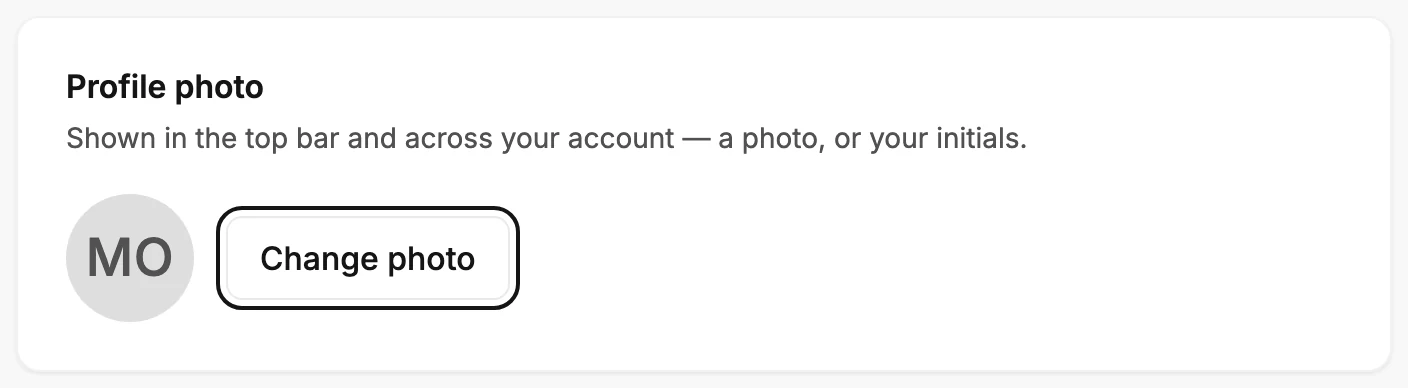
Under Profile photo, select Change photo. Your computer’s file picker opens.
-
Pick a PNG, JPG, GIF, or WebP under 10MB. Jounce uploads it and says Your photo’s updated.
The top bar changes as soon as the upload finishes.
Remove a photo
Select Remove photo, beside Change photo. Jounce says Your photo’s removed. Your initials show instead. If you signed in with Google, your Google photo shows rather than initials.
Which initials
Your initials are the first letters of your first and last name. With no name saved, Jounce uses the name from your Google sign-in, or the first letter of your email address.
If it didn’t go through
The file has to be a PNG, JPG, GIF, or WebP under 10MB.
- A file that isn’t an image says That file isn’t an image. Choose a PNG, JPG, or WebP.
- Another kind of image, or one 10MB or bigger, says That upload didn’t go through. Your photo’s unchanged — try again. Export a smaller PNG or JPG and try once more. The same message shows when the upload stopped partway.
Note The photo you upload belongs to this workspace, not to you alone. Everyone in the workspace sees it in their own top bar. In another workspace, you see that workspace’s photo.
Next step
To set the initials and the name beside the photo, see Change your name.
More in this topic
Updated