

Start your brand from a theme
Short answer
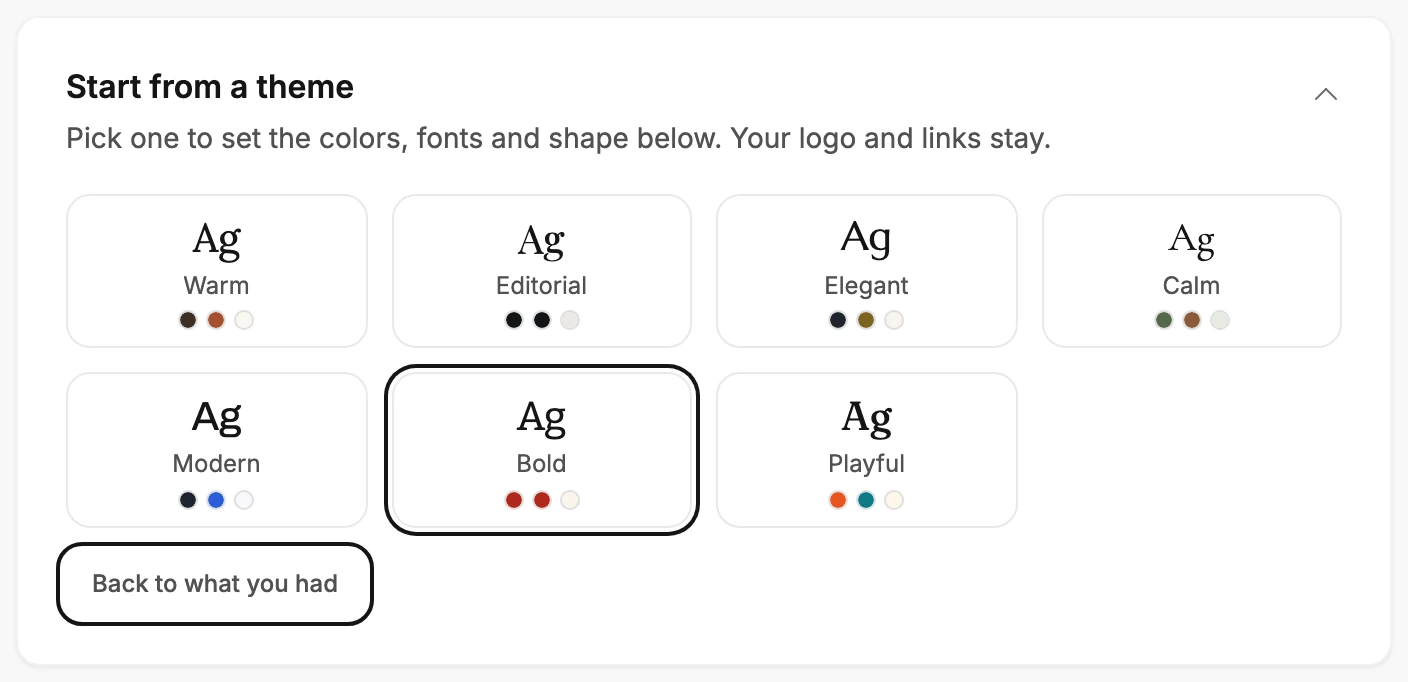
On the Brand page, open Start from a theme, pick one of the seven themes, and select Save kit. Until you save, Back to what you had puts your earlier colors, fonts, and shape back.
When you’re done, your colors, fonts, and shape come from the theme you picked. Your logo and your social links stay as they were.
A theme is a ready-made set of colors, fonts, and shape for your emails. The seven are the same looks setup offers when you have no website; see Pick a look when you have no website.
-
Select your avatar at the top right and choose Your brand. The Brand page opens.
-
Find Start from a theme, under Start from your website. If the card is folded, select it. The seven themes open.
-
Pick a theme: Warm, Editorial, Elegant, Calm, Modern, Bold, or Playful. The Colors, Fonts, and Shape cards below change to match.
-
Change any color, font, or shape you’d like to be your own.
-
Select Save kit at the bottom of the page. Jounce says Kit saved, and that new emails use it.
Changed your mind?
Until you save, Back to what you had sits under the themes. It puts back the colors, fonts, and shape you had before your first pick. Once you’ve saved, select Undo in the message that says the kit saved.
When the card is open
While no brand is saved, the themes are open when you arrive. Once one is, the card starts folded. A scan of your website folds it too, unless you opened it yourself.
Next step
To see where your brand shows up next, see Apply your brand to new emails.
More in this topic
Updated