

Send emails without a logo
Short answer
On the Brand page, under Logo, choose what your emails show where a logo would sit: your brand name, or nothing. Then select Save kit.
When you’re done, the logo spots in your emails show your brand name, or they’re left out. The choice covers every email you create, from a template, with AI, or from scratch. An older email, one that opens in the earlier editor, keeps its own Logo block.
- Select your avatar at the top right and choose Your brand. The Brand page opens.
- In the Logo card, find Without a logo, show under the upload box. It shows while the card has no logo. Neither choice is selected until you pick one.
- Choose Your brand name or Nothing. Your brand name opens two boxes, Name and Links to.
- Check Name, and change it if you like. It starts with the brand name from your Brand profile, if you set one, and takes up to 60 characters. While it’s empty, a line under it says Until you type a name, your emails show nothing here.
- To make the name a link, fill in Links to with a full address starting with https://.
- Select Save kit at the bottom of the page. Jounce says Kit saved. New emails use it. Until then, nothing is kept.
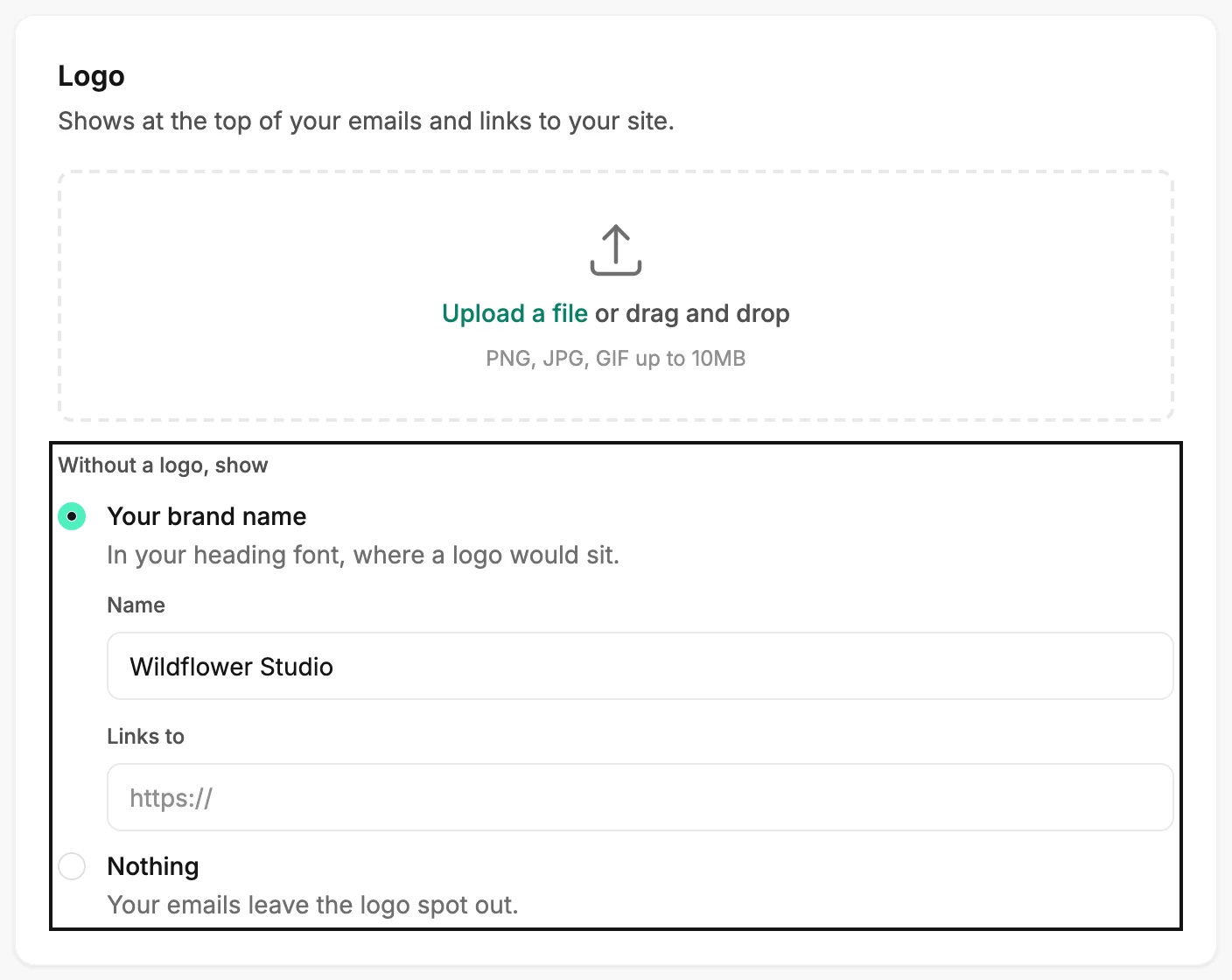
What each choice does
Your brand name sets the name in your heading font, in every empty logo spot. It shows in the editor and in the sent email. A photo cover that carries your logo shows the name on its photo.
If the name reads as a web address, such as yourstudio.com, Jounce
doesn’t count clicks on it.
Nothing leaves the logo spot out. An email you make from a template or with AI arrives without its Logo row, the header that holds your logo alone. Its closing layout starts with Logo switched off under Elements. A header that holds more than your logo keeps the rest.
Emails you made earlier keep their blocks. A Logo row left in one still shows a dashed Your logo box in the editor, and it isn’t sent. To remove it, select it and press the Delete or Backspace key.
Until you choose, every empty logo spot shows that dashed box, and nothing is sent in its place. Jounce never fills it in for you.
Choose from the editor
In an email you created from a template, with AI, or from scratch, select an empty logo spot. While your saved brand kit has no logo, Without a logo sits under the upload area in the settings panel.
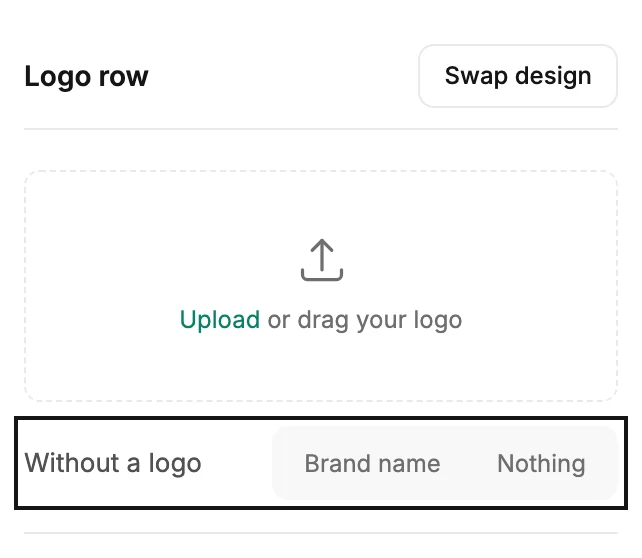
- Brand name uses the brand name in your Brand profile. With none there, it opens the Brand page, where you can type one.
- Nothing, on a Logo row, also deletes that block. Jounce says Logo row deleted, and Undo brings it back.
Jounce saves your choice to your brand kit for every email. Change it here or on the Brand page any time.
When you add a logo
A logo always wins. Upload one and your logo spots show it in place of your choice. Remove it, and your choice comes back. See Upload your logo.
Next step
To see your choice on an email, see Create an email from a template.
More in this topic
Updated