

Upload your logo
Short answer
On the Brand page, under Logo, select Upload a file or drag an image onto the box, choose Upload logo, then select Save kit. Jounce turns an SVG into a PNG so inboxes can show it.
When you’re done, your logo is in your kit. Every email you create shows it in its logo spots. In an email that opens in the earlier editor, it fills every empty logo spot.
- Select your avatar at the top right and choose Your brand. The Brand page opens.
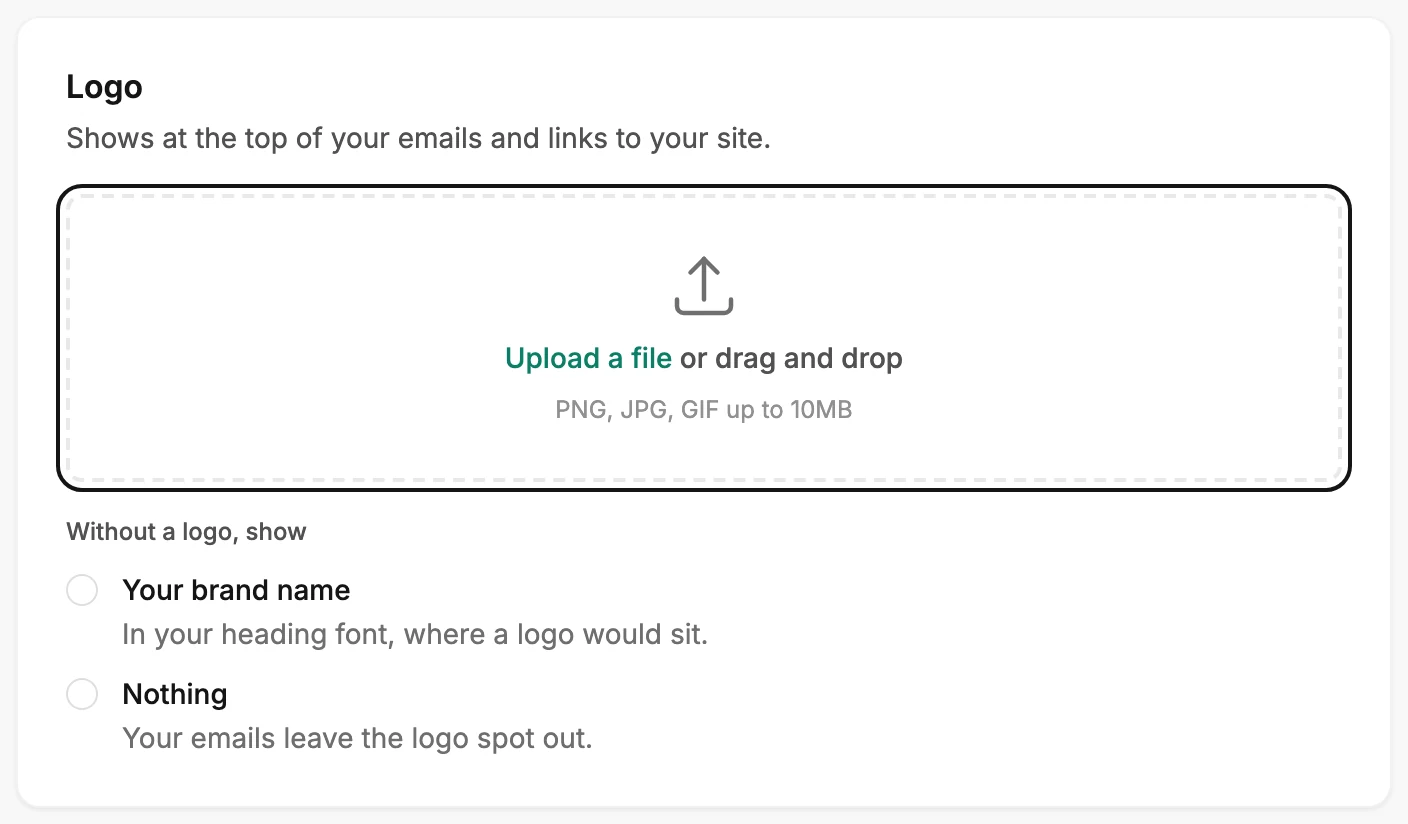
- Under Logo, select Upload a file, or drag an image onto the box. The box takes PNG, JPG, GIF up to 10MB.
- Check the preview. Its × clears it if you picked the wrong file.
- Select Upload logo. The button spins while the file uploads, then your logo shows in the card.
- Select Save kit at the bottom of the page. Jounce says Kit saved. New emails use it, with Undo beside it.
Nothing is kept until you select Save kit. If you leave the page first, Jounce asks whether to discard your edits.
What Jounce does with the file
Mail apps don’t show SVG images, so Jounce turns an SVG into a PNG sized for email before it uploads. If the file can’t be used, a message at the bottom of the page says why. See Why won’t my logo upload?
Name and Links to
With a logo in the card, two boxes sit beside it. Name shows in place of the logo when images are off. Links to is the page the logo opens in every email you create. It’s a full address starting with https://.
A new logo fills an empty Name with your brand’s name. One you pick from a scan also fills an empty Links to with your site’s address. If your kit was set to show your brand name in the logo’s place, the logo starts with that name and link.
On colored backgrounds
Under your logo, On colored backgrounds shows it on your brand color, the way headers and closes on your brand color place it. For a one-color logo, Jounce makes a version for colored backgrounds and says Recolored from your logo. Save to use it.
Upload a version adds your own file, and Remove version takes one off. A logo that’s hard to see there reads Hard to read on your brand color.
Where the logo goes
In an email that opens in the earlier editor, an empty logo spot shows your logo and sends it. The confirmation email your forms send uses it too. See The Logo block. If your account turned off Apply my brand to older emails, those spots stay empty. See Apply your brand to new emails.
Your logo doesn’t show beside your workspace’s name in Jounce. That square is the workspace’s icon, which an Admin sets on the Members page.
From an email
In an email you started from a template, with AI, or from scratch, select a logo spot and upload your logo in the settings panel. It goes to your brand kit and shows in every email. Jounce says Logo saved to your Brand kit, with Undo beside it. To change it later, point at the logo there and select Replace.
Until you first save your brand kit, a logo you upload in an email stays in that email alone.
Remove or replace it
Select Remove logo, and the card goes back to the upload box. Then select Save kit. After you save, emails whose logo spot was left empty send without your logo.
Without a logo, show, under the upload box, sets what takes the logo’s place: your brand name, or nothing. See Send emails without a logo.
To replace the logo, remove it and upload the new one, or run a scan and pick from the logos Jounce finds.
Next step
To put your logo to work, see Start an email with AI.
More in this topic
Updated