

Fill your brand from your website
Short answer
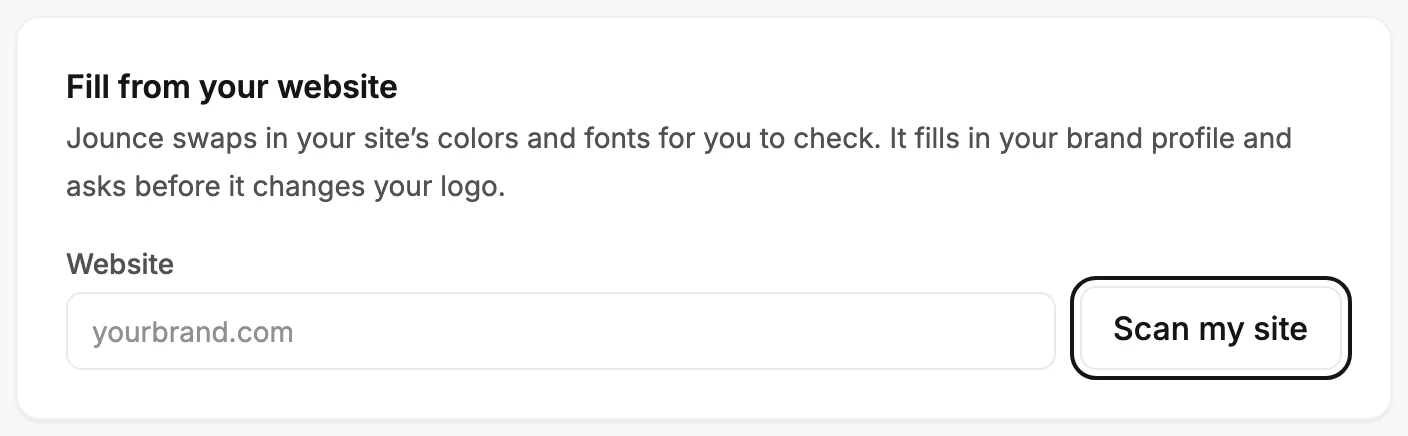
On the Brand page, type your website’s address under Start from your website and select Scan my site. Jounce fills in your colors, fonts, button shape, social links, and brand profile and offers the logos it found; Save kit keeps the colors, fonts, shape, social links, and logo.
When you’re done, your colors, fonts, and brand profile match your website, and your logo is the one you picked.
- Select your avatar at the top right and choose Your brand. The Brand page opens.
- Under Start from your website, type your site’s address in the box. Something like yourbrand.com is enough.
- Select Scan my site, or press Enter. A line under the box says what Jounce is doing, from Reading your website to Finding your logo.
- Wait for the card to say Here’s your brand, from yourbrand.com. Check it below, then save your kit.
- Check the cards below. Colors, Fonts, and Shape show what Jounce found, and the Brand profile card opens on the draft it wrote.
- In the Logo card, choose the logo that’s yours, or keep the one you have. See Choose the logo Jounce found.
- Select Save kit at the bottom of the page. Jounce says Kit saved. New emails use it. The very first time you save a kit, it says Kit saved. From now on, every new email starts in your brand.
Note If you signed up with an email and a password, verify your email first. Until you do, Scan my site opens a window titled Verify your email to scan your site. Your site’s address stays in the box. Open the link in your email, select Verify email if asked, then I’ve verified, then Scan my site again.
What a scan changes
The colors, fonts, shape, social links, and logo wait on the page until you select Save kit. Until then, your brand stays as it was.
- Brand takes your site’s main color.
- Button takes the color of your site’s buttons, when they have one of their own. If not, its box is left empty and says Follows brand.
- Highlight takes your site’s accent color. If there’s none, its box is left empty too.
- Canvas takes your site’s background color, when the scan finds one. When that color is your brand color, Canvas doesn’t take it, so your brand color still stands out in your emails.
- Heading font and Body font take your site’s fonts, or the closest ones Jounce has.
- Corners, Buttons, Button case, and Depth in the Shape card take the look of your site’s buttons. Jounce reads how round they are and whether they’re filled, outlined, or plain text links. It also reads whether their labels are in capitals, and whether your site’s buttons and cards cast a shadow.
When the scan finds no main color, your colors stay as they were. When the scan can’t see any buttons on your site, Corners and Buttons stay as they were, and Button case follows your site’s menu, when it has one.
Social links take the profiles your site links to, such as your Instagram or YouTube page, one per platform. This only happens when your Social links are empty, so links you added yourself stay as they are.
The brand profile doesn’t wait: it fills in and saves at once. Its name is the one your site gives itself, when the site says it clearly. It fills in only when the profile has no name yet, so a name you typed stays.
Every line of the profile is yours to edit; see The Brand profile. The logos wait for your pick, and nothing replaces your logo until you choose one.
A scan can set your workspace icon too: the small square beside the workspace’s name in Jounce. When no one has set or removed an icon, Jounce takes your site’s own icon at once. The card then says Your site’s icon is now this workspace’s icon. An Admin changes it on the Members page.
A scan can also find your mailing address, the one every email shows in its footer. When your site’s footer gives a whole street address and your account has none yet, the card shows it with Use this address.
Select it and Jounce says Saved as your emails’ mailing address. Nothing saves until you do, and a scan never replaces an address you’ve given. To change it later, see Add your mailing address.
Scan a different site
Once a scan is done, the card shows Scan a different site. Select it to clear the address and scan again. A second scan replaces the colors, fonts, and shape with what it reads. It refills the profile lines it can read, and offers the logos again, with the logo in your Logo card first.
When the result isn’t right
Every line is yours to change before you save. Pick another font, change a color, edit the profile, or upload a logo of your own. To drop what the scan found, leave the page and choose Discard edits. The brand profile keeps its draft, and the workspace keeps its icon, since both saved at once.
If a font changed, the card says so. See Why did Jounce swap my font? If the scan stopped with a message, see Why couldn’t Jounce read my website?
Next step
For where your colors, fonts, and logo go on your next email, see Apply your brand to new emails.
More in this topic
Updated