

The Members page
Short answer
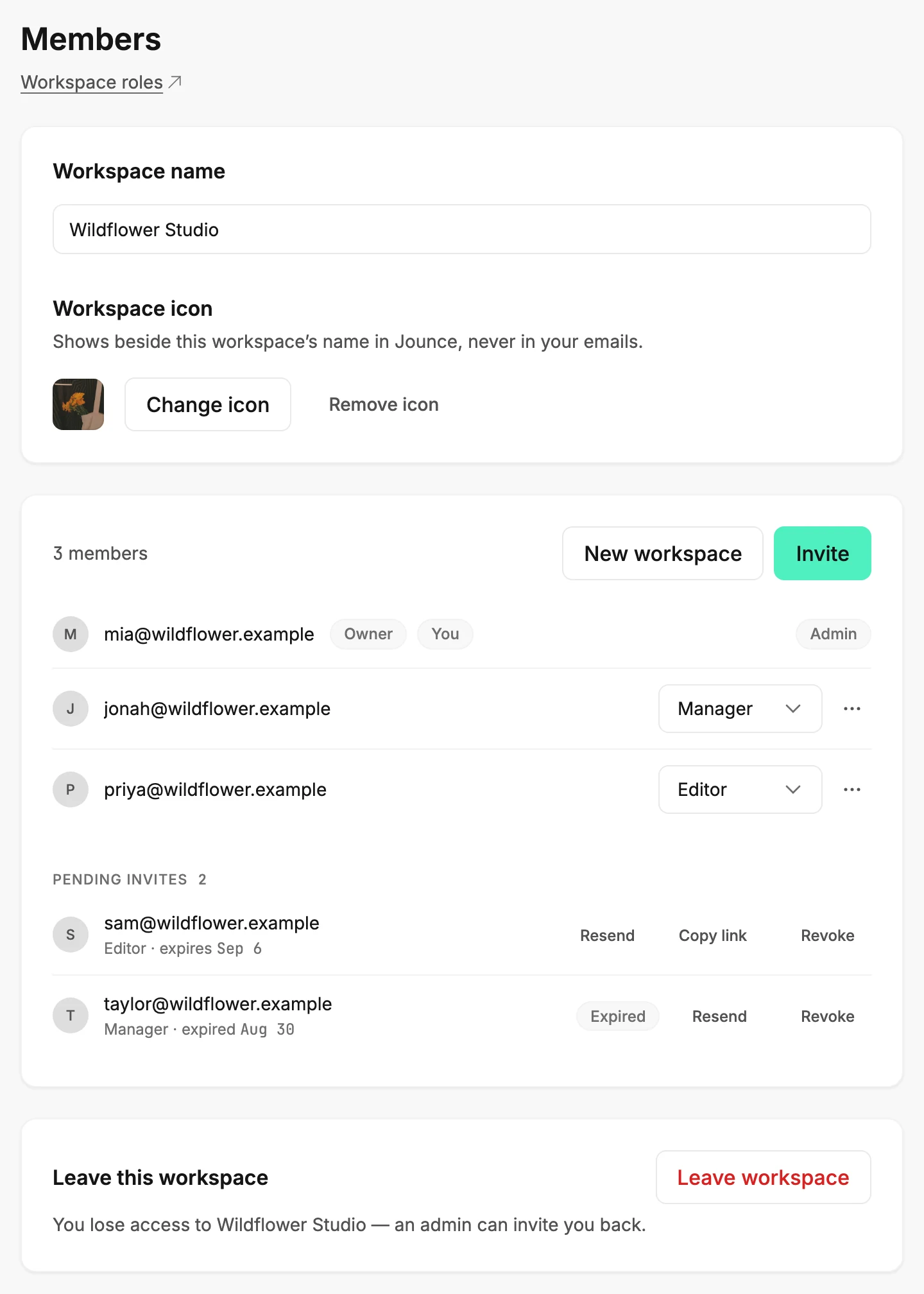
The Members page lists everyone in your workspace with their role, marks the owner, and ends with Leave workspace. Admins also see the workspace name and icon, a role menu and three dots beside each person, the Invite button, and pending invites.
Select your avatar at the top right and choose All settings, then Members under Workspace. Under the title, a link to Workspace roles opens in a new tab.
What you see depends on your role: a member of a workspace is an Admin, a Manager, or an Editor.
Workspace name
Admins see this card first. The name in the box shows in the account menu, the Workspaces panel, and the review step before a send. Edit it and click away, and Saved shows at the bottom right. See Rename your workspace.
Workspace icon
Under the name, in the same card. The square shows the workspace’s icon, or its initials when it has none. The card’s own line says where the icon goes: Shows beside this workspace’s name in Jounce, never in your emails.
Change icon opens your computer’s file picker. Remove icon appears once the workspace has an icon. See Change your workspace icon.
The member list
The card opens with the count, 3 members, and two buttons. New workspace is there for every role and starts a workspace of your own; see Create a workspace. Invite appears for Admins and opens the Invite to this workspace dialog; see Invite someone to your workspace.
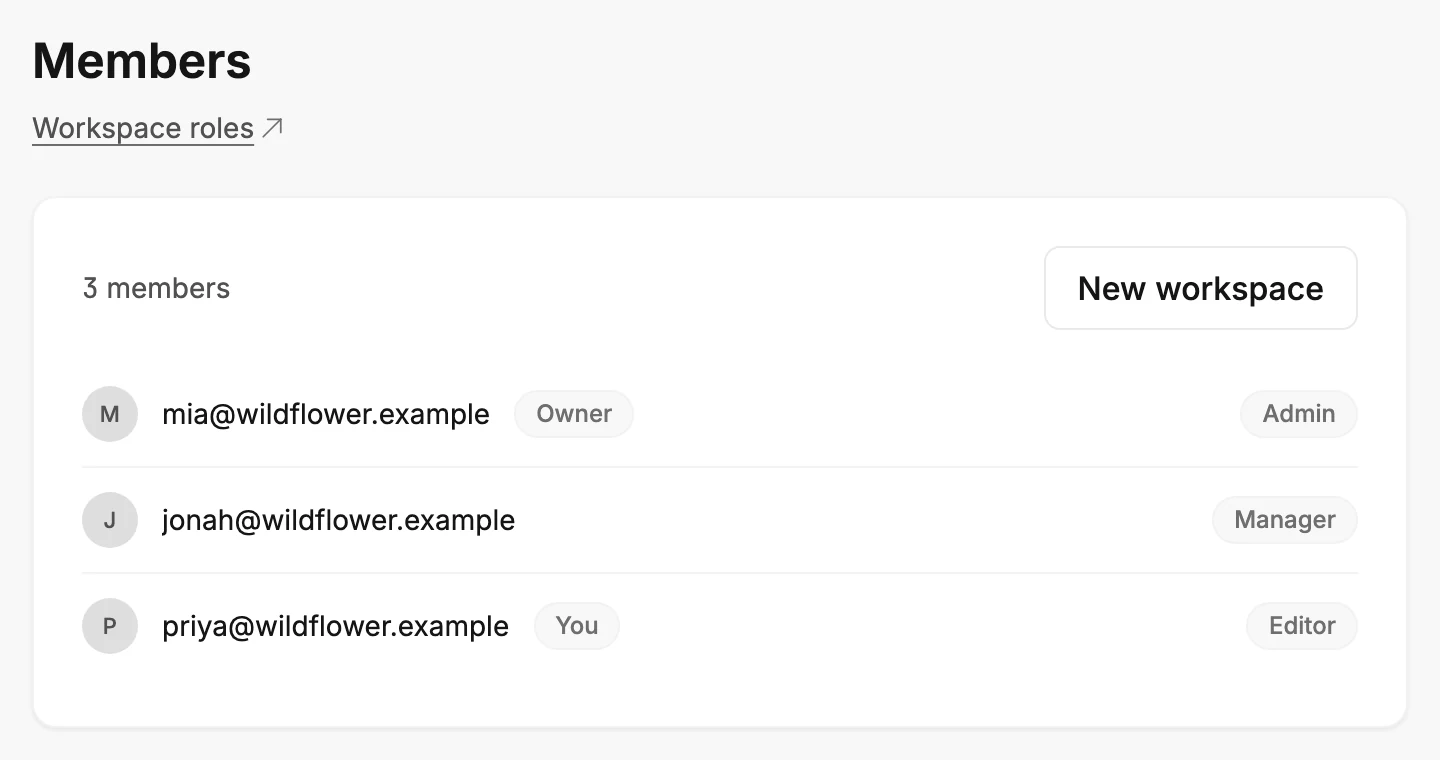
Each row is one person: their avatar, their email address, and their role. Your own row wears a You badge. The workspace owner’s row wears an Owner badge, whatever their role; see Workspace roles. Admins come first, then Managers, then Editors, and within a role you come before everyone else.
When you’re an Admin, every row but your own ends in a role menu and a ⋯ (three dots). Pick a different role in the menu and Jounce saves it at once; see Change a member’s role.
The ⋯ holds two choices, and each opens a confirmation:
- Make owner, on every row but the owner’s. See Make someone else the owner.
- Remove from workspace, in red, on every row but your own. See Remove a member.
Your own row shows your role as a badge instead, because you can’t change your own role or remove yourself. While someone else is the owner, your row’s ⋯ holds Make owner alone.
When you’re a Manager or an Editor, each row ends in a role badge instead, and there is no Invite button. See Why can’t I change a member’s role or remove them?
Pending invites
Under the member list, Admins see every invite that hasn’t been accepted, with its role and expiry date. The list only appears when at least one invite is waiting. See The Pending invites list.
Leave this workspace
The last card is yours, whatever your role. Its line reads You lose access to ⟨workspace⟩ — an admin can invite you back, and Leave workspace opens a confirmation. See Leave a workspace.
If the list didn’t load
The card reads The member list didn’t load — try again with a Try again button. Select it to load the list again. A list that fails to load is never shown as empty.
More in this topic
Updated