

Add a social link
Short answer
Open Settings › Brand, select + Add platform in the Social links card, pick the platform, type the profile’s full address, and select Save kit. The social icons in your emails then open that profile.
When you’re done, the platform has its own row in the Social links card, and the social icons in your emails open that profile.
-
Select your avatar at the top right and choose All settings.
-
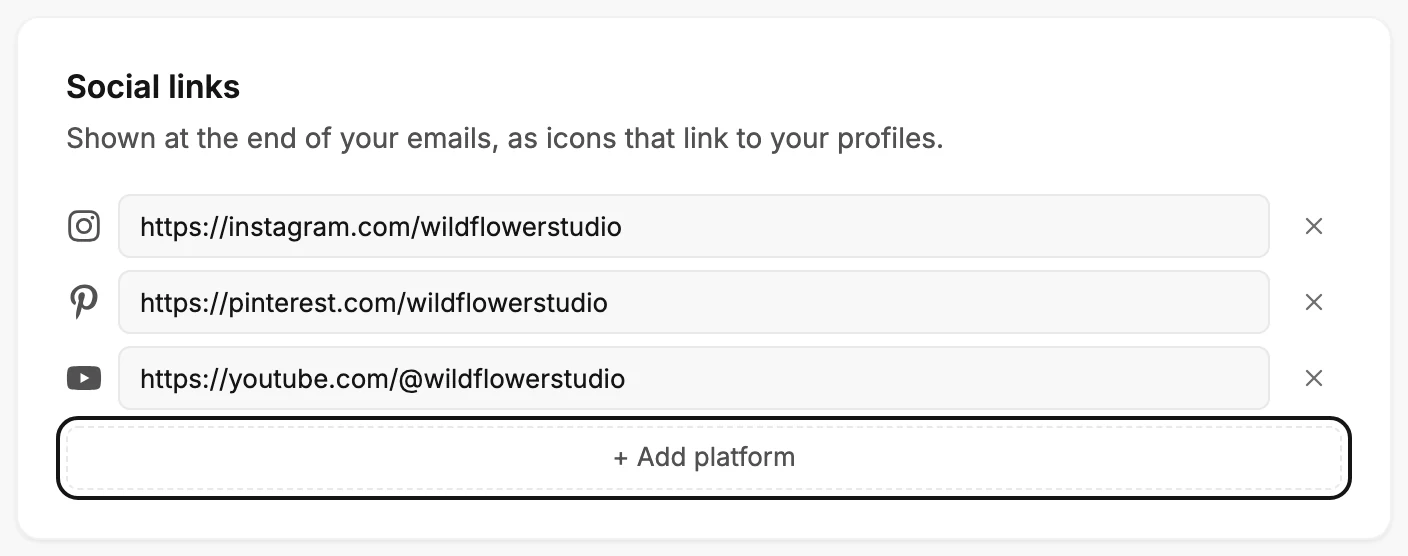
In the settings list, select Brand. The Brand page opens. Scroll to the Social links card, below the Logo card.
-
Select + Add platform. The list of platforms you haven’t added yet opens.
-
Pick the platform. Its row appears at the end of the card, with an empty address box.
-
Type or paste the profile’s full address, such as
https://instagram.com/yourstudio. If you leave out https://, Jounce adds it when you leave the box. -
Select Save kit at the bottom of the page. Jounce says Kit saved. New emails use it.
What to expect next
Every email you create shows the link in its Sign-off and Colored close blocks. Emails that open in the earlier editor show it in every Social links block, even emails you’ve already designed.
You can also add links from there: see Edit your social links from an email. See The Social links card for everything the card does.
If you leave the page before you save, Jounce asks Discard your edits? first. A row with no address isn’t saved.
The card holds up to eight platforms. At eight rows, + Add platform is replaced by Up to 8 links. Remove one to add another.
Next step
Put a social row in an email: Add social icons to your email.
More in this topic
Updated