

The Address page
Short answer
The Address page holds the mailing address for the footer of every email. Its Published pages card adds your privacy policy link to the foot of your hosted pages.
Select your avatar at the top right, choose All settings, then Address under Personal. The page’s own line says why it’s here. Every email you send has to show a mailing address in the footer. It doesn’t have to be your home: a P.O. box or a rented mailbox works.
Add your mailing address walks through filling it in the first time.
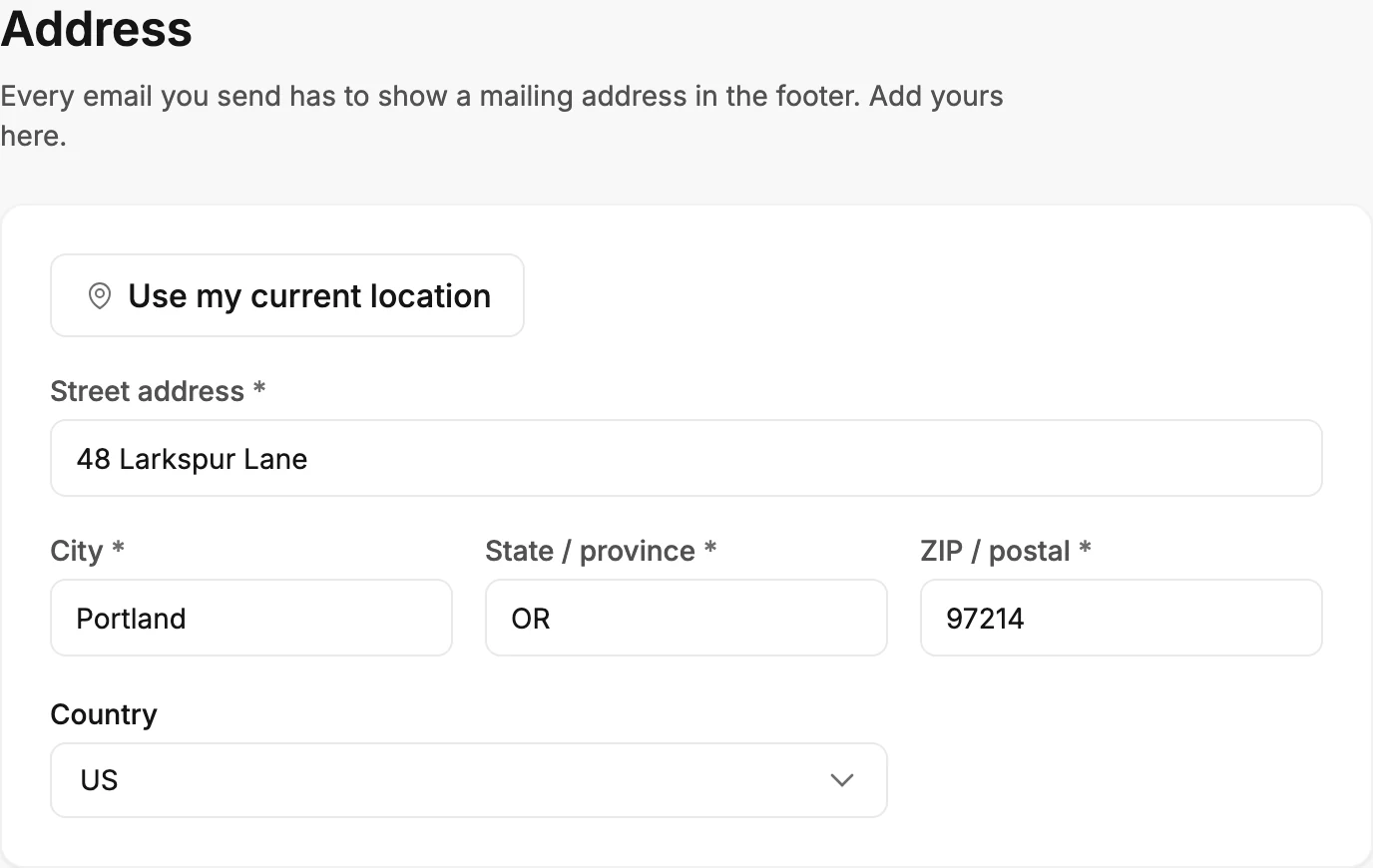
Use my current location
Asks your browser where you are and fills the fields from the answer. Jounce then says Jounce filled in the address below. Check it’s right.
When the reading is too rough to name your street, Jounce fills in the area. The cursor lands in Street address for you to finish. If it can’t find anything, see Why can’t Jounce find my location?.
Street address
After a few letters, a list of matching addresses appears under the field. Pick one and Jounce fills in the rest. Use the arrow keys and Enter, or the mouse. When nothing matches, the list says No matches — keep typing, or fill in your address by hand.
City, State / province, ZIP / postal, and Country
Type the rest, or check what the search filled in. Country is a list you can search by typing.
Saving
There’s no Save button. Jounce saves once all five fields are filled and shows Saved at the bottom right. A half-filled address isn’t saved, so the footer never shows a broken one. See How settings save.
Published pages
The second card sets the line at the foot of each full page and link-in-bio page you publish. See The four kinds of form.
The line says who the visitor’s details go to. It starts Your details go to, then the Brand name from the Brand profile on your Brand page. Without one, it reads Your details go to the owner of this page. Your first and last name from the Basics page never appear in it.
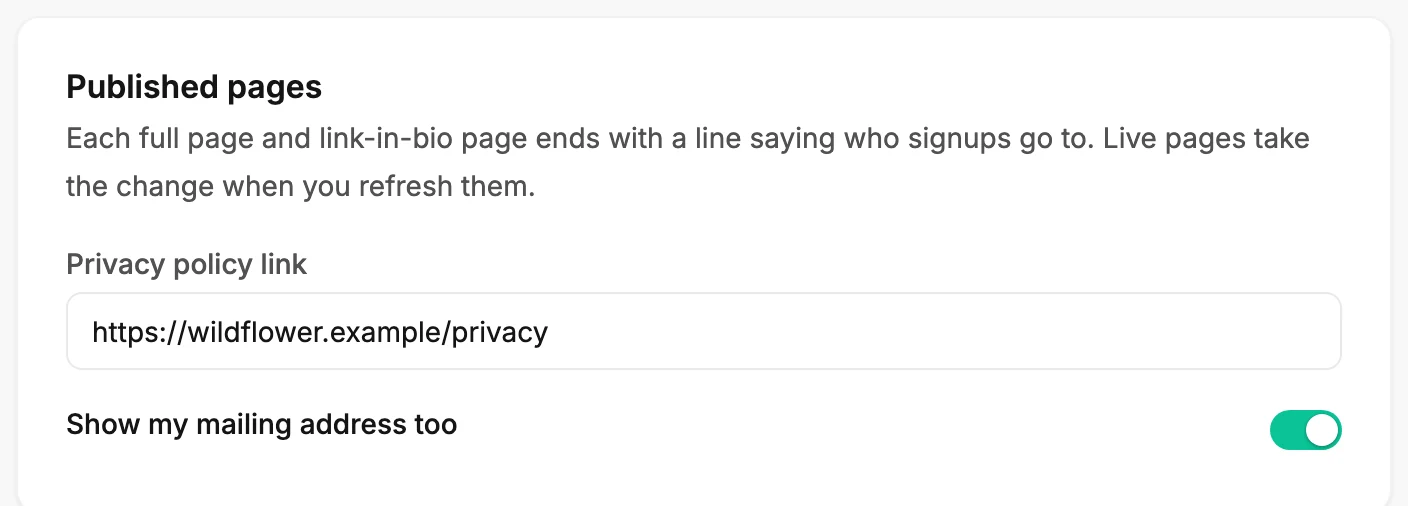
- Privacy policy link — the web address of your privacy policy, such as
yoursite.com/privacy. The line then ends with a Privacy policy link to it. Leave it empty and there’s no link. If what you type isn’t a web address, the field says That doesn’t look like a web address. Try yoursite.com/privacy. and nothing is saved. - Show my mailing address too — adds the address from the card above to the line. It’s off until you switch it on, and it shows only once your address is saved.
Both save as soon as you leave the field or flip the switch. A live page takes any change to the line the next time it updates, such as after your next edit to it. See Editing a live form.
Where the address shows
The footer of every email you send. See What Jounce adds to the bottom of every email. It also shows at the foot of your full pages and link-in-bio pages, but only when Show my mailing address too is on.
More in this topic
Updated