

Rename your workspace
Short answer
On the Members page, edit the Workspace name box and click away; only Admins see the box. Jounce saves it and the new name shows in the account menu, the Workspaces panel, and the review step before a send.
When you’re done, the account menu, the Workspaces panel, and the review step before a send all show the new name. You need to be an Admin of the workspace; a Manager or an Editor doesn’t see the box.
- Select your avatar at the top right and choose All settings.
- Choose Members. Workspace name sits at the top of the page.
- Select the box and type the new name. It takes up to 64 characters.
- Click away or press Tab. Saved shows at the bottom right.
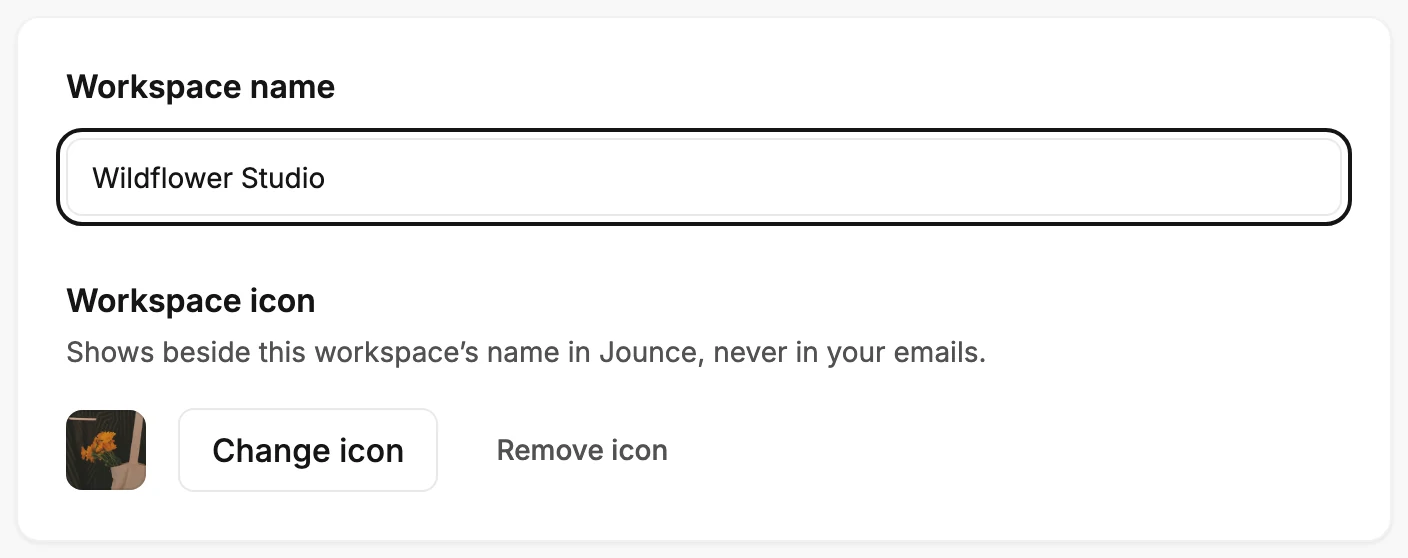
The square under the box shows the workspace’s icon. With no icon, it shows the workspace’s initials, and they follow the name as you type. See Change your workspace icon.
Where the name shows
The name belongs to the workspace, so everyone in it sees the change.
- The account menu, on the row under Workspace.
- The Workspaces panel, which lists every workspace your login belongs to.
- The review step before a send, in the line that says who the email goes to.
- The subject of every invite you send: ⟨Your name⟩ invited you to ⟨workspace⟩.
A workspace with no name shows as Untitled workspace in those places, and its invites say invited you to their Jounce workspace. Type a name to replace it.
If it says Couldn’t save, edit the box and click away again. See How settings save.
Next step
Bring someone in under the new name: Invite someone to your workspace.
More in this topic
Updated