

Make someone else the owner
Short answer
On the Members page, an Admin selects the three dots at the end of the person’s row, chooses Make owner, and confirms. Replies to the workspace’s emails and Jounce’s emails about it then go to that person.
When you’re done, the person you picked is the workspace’s owner. Replies to the workspace’s emails reach their address, and so do Jounce’s emails about the workspace. What follows the owner is in Workspace roles.
You need to be an Admin, and the person needs a verified email address.
-
Select your avatar at the top right and choose All settings.
-
Choose Members. The Owner badge marks the current owner.
-
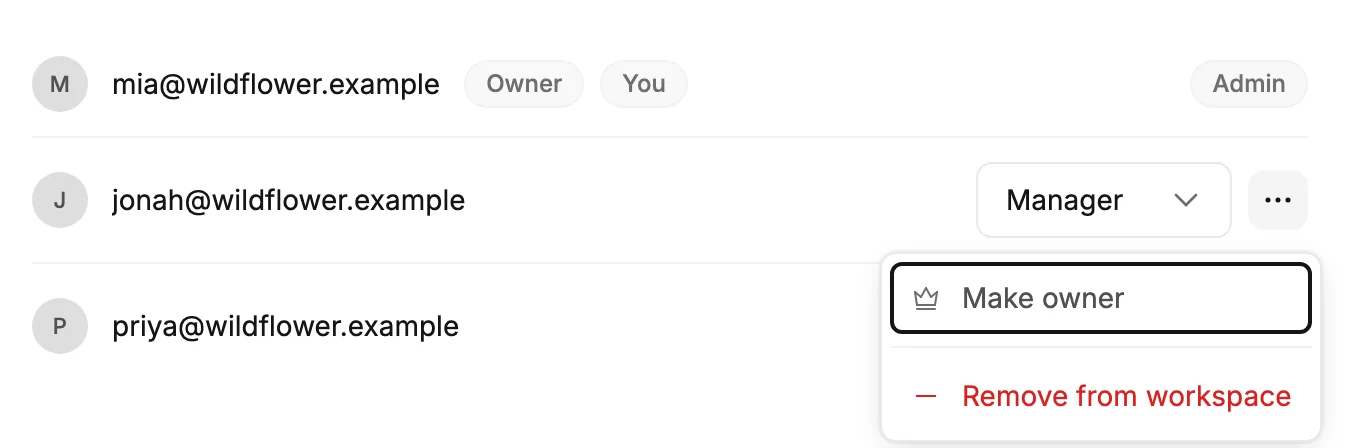
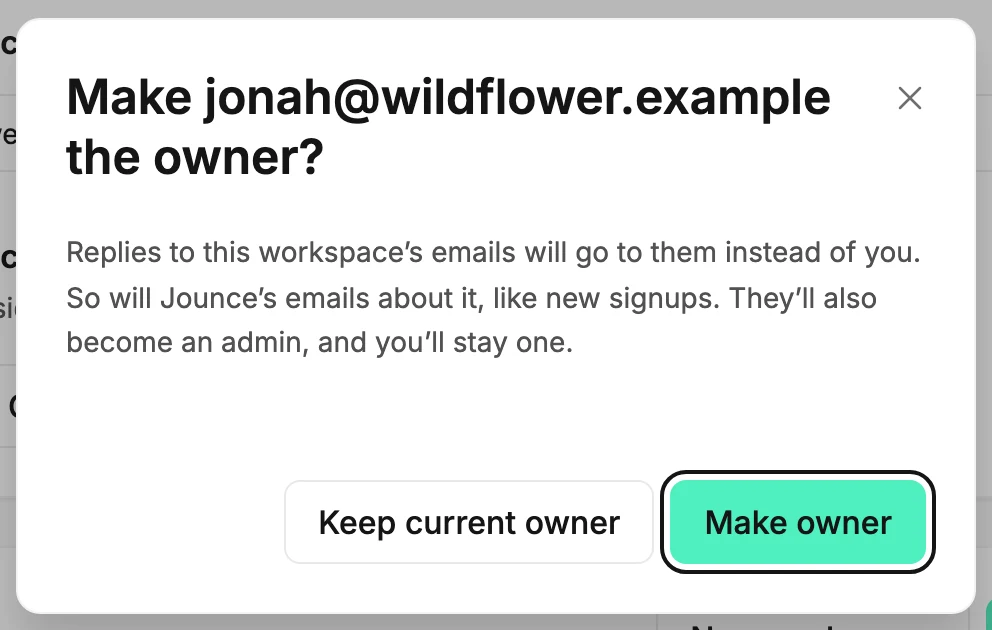
Select the ⋯ (three dots) at the end of the person’s row, then Make owner. A dialog called Make ⟨address⟩ the owner? opens and says what changes.
-
Select Make owner. Keep current owner closes the dialog with nothing changed.
Jounce says ⟨address⟩ is now the owner, and the Owner badge moves to their row. Jounce sends no email about the change, so let them know.
What changes
- Replies to the workspace’s emails go to their address. The address your emails come from stays as it was.
- Jounce’s emails about the workspace go to them, like the email when someone signs up and the Sending is paused email.
- A Manager or an Editor you make the owner becomes an Admin as well. Jounce then says ⟨address⟩ is now the owner and an admin.
- Everyone else keeps their role, the old owner included. To change one, see Change a member’s role.
Make yourself the owner
When someone else is the owner, the ⋯ on your own row holds Make owner. The dialog asks Make yourself the owner?, and Jounce says You’re now the owner. If your own address isn’t verified yet, Jounce asks you to verify it first: Verify your email to become the owner.
When Jounce refuses
- ⟨address⟩ hasn’t verified their email address yet. Nothing changed — ask them to verify it, then try again. Confirmation emails only go out while the owner’s address is verified, so a new owner’s has to be. See Verify your email address.
- That person isn’t a member of this workspace. Someone removed them, or they left. Reload the page to see the current list.
- Jounce couldn’t check that address just now. The owner hasn’t changed — try again. The dialog stays open, so select Make owner once more.
Next step
Handing the workspace over for good? See Leave a workspace.
More in this topic
Updated