

Choose your brand fonts
Short answer
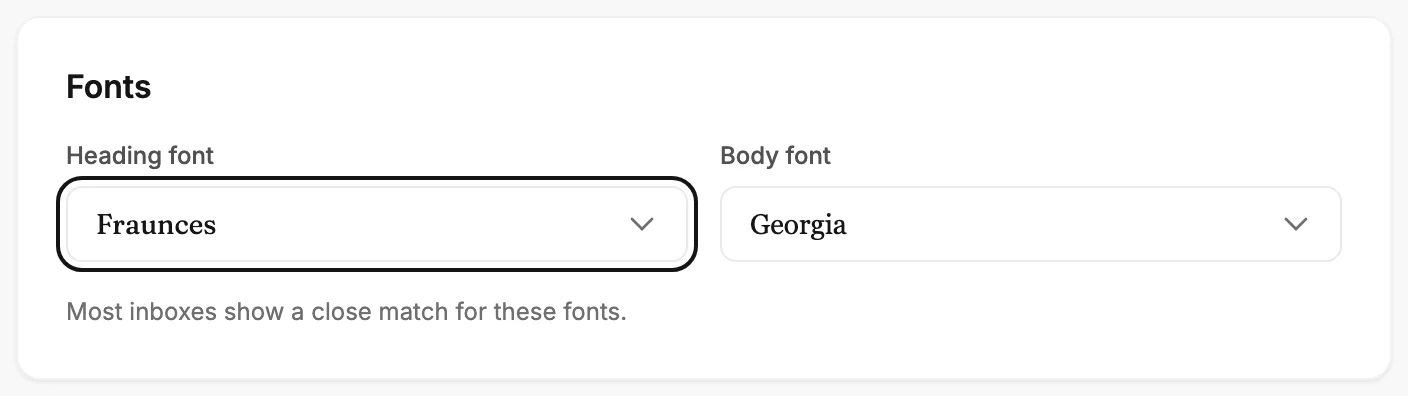
On the Brand page, under Fonts, pick a Heading font and a Body font, then select Save kit. Each list draws every font in its own face, and you can search it by name.
When you’re done, your kit holds a heading font and a body font, and the emails you make next start in them.
- Select your avatar at the top right and choose Your brand. The Brand page opens.
- Under Fonts, select Heading font. A list opens, each name drawn in its own font.
- Pick one. To find a font by name, type in the search box at the top of the list.
- Do the same for Body font.
- Select Save kit at the bottom of the page. Jounce says Kit saved. New emails use it, with Undo beside it.
Nothing is kept until you select Save kit. If you leave the page first, Jounce asks whether to discard your edits.
How your fonts show in email
Under the pickers, Jounce says Most inboxes show a close match for these fonts. Each font comes paired with a standard font of the same style. An inbox that can’t show yours shows that one instead, such as Georgia in place of Fraunces.
Standard fonts such as Georgia, Arial, and Verdana are on nearly every computer, so they show as themselves.
Body font lists only the fonts that show reliably in email. It leaves out the decorative ones made for headings, such as Lobster and Cinzel.
You can’t add a font of your own. If your website uses one Jounce doesn’t have, a scan picks the closest match and tells you. See Why did Jounce swap my font?
Where your fonts go
Every email you create uses your two fonts. In an email that opens in the earlier editor, each block you add takes the closest match in that editor’s own font list. See Apply your brand to new emails.
Next step
Your logo is a few cards down. See Upload your logo.
More in this topic
Updated