

Change or remove a social link
Short answer
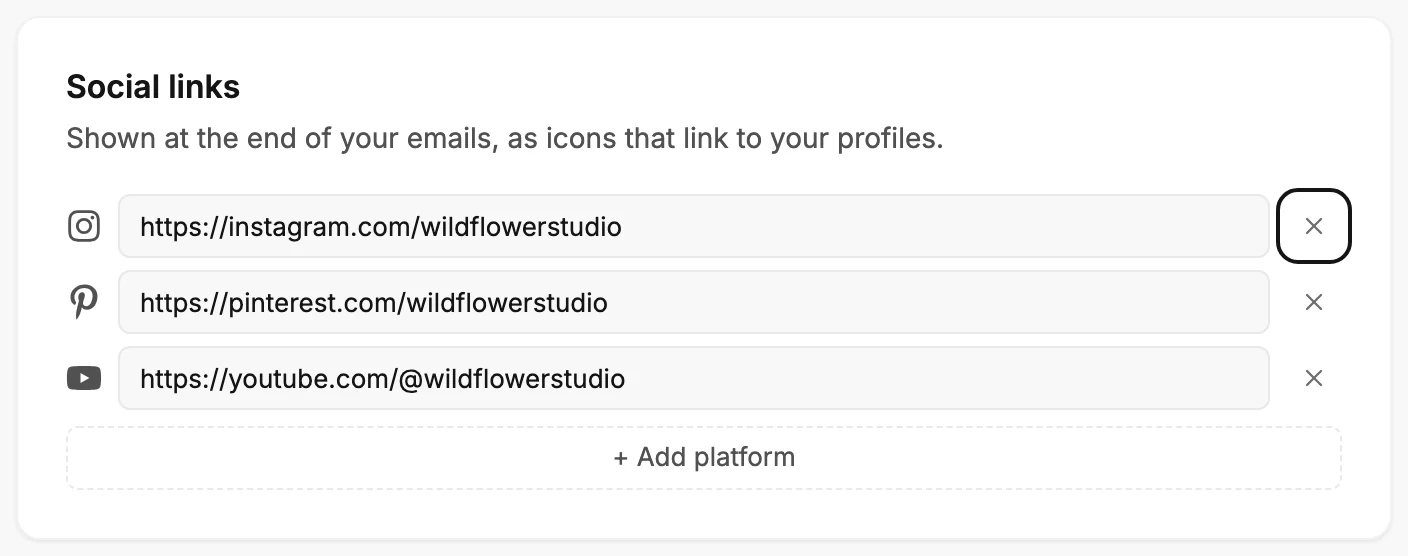
In the Social links card on the Brand page, edit the address in the platform’s row, or select its × to remove it. Then select Save kit.
When you’re done, the row holds the address you typed, or the platform is gone from the card. Your emails follow once you save.
Change a link
- Select your avatar at the top right and choose All settings, then Brand in the settings list. Scroll to the Social links card.
- Select the address in the platform’s row and type over it.
- Select Save kit at the bottom of the page. Jounce says Kit saved. New emails use it.
Remove a link
- In the Social links card, select the × at the end of the platform’s row. The row leaves the card.
- Select Save kit at the bottom of the page.
If you leave the page before you save, Jounce asks Discard your edits? first.
Note Once you save, a removed platform leaves the Social links blocks in your emails, both in the editor and at send. Emails already delivered keep the icons they went out with. Remove the last one, and each Social links block goes back to the rows in its own panel.
In any email you create, you can also change them from the email itself. See Edit your social links from an email.
Next step
Check a social row in the editor: The Social links block.
More in this topic
Updated