

Remove a member
Short answer
On the Members page, an Admin selects the three dots at the end of the person’s row, chooses Remove from workspace, and confirms. They lose access right away, and everything they made stays in the workspace.
When you’re done, the person is gone from the member list and Jounce says ⟨address⟩ was removed. Everything they made here stays. You need to be an admin of the workspace.
- Select your avatar at the top right and choose All settings.
- Choose Members. The member list shows everyone in the workspace.
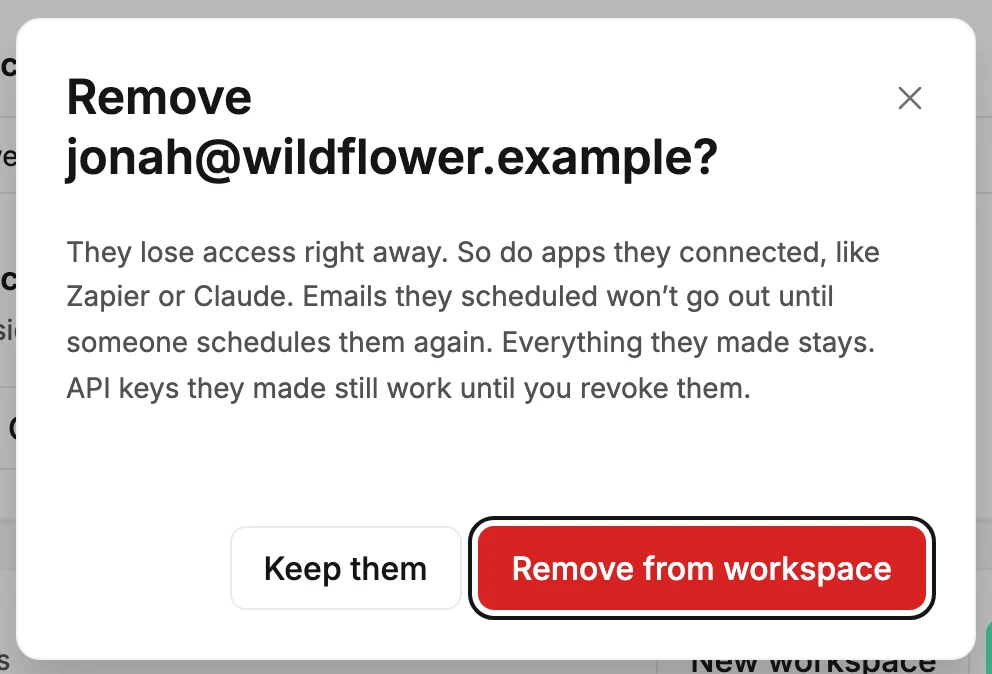
- Select the ⋯ (three dots) at the end of the person’s row, then Remove from workspace. A dialog called Remove ⟨address⟩? opens and says what happens.
- Select Remove from workspace. Keep them closes the dialog with nothing changed.
What happens next
The dialog says: They lose access right away. So do apps they connected, like Zapier or Claude. Emails they scheduled won’t go out until someone schedules them again. Everything they made stays. API keys they made still work until you revoke them.
If they’re the workspace owner, the dialog adds They’re the owner, so replies and Jounce’s emails about this workspace will go to another admin. To choose who takes over, make that person the owner first.
- If they’re in Jounce at that moment, their screen says You were removed from ⟨workspace⟩. Jounce moves them to another of their workspaces, or to the card that says they’re not in one.
- Apps they connected here, like Zapier or Claude, lose access at once. Their connections leave the Connected apps and Connected AI tools lists.
- API keys they made keep working until an Admin or a Manager revokes them; see Revoke an API key.
- An email they scheduled doesn’t go out. Once its time comes, its label reads Failed, and its page says the person who scheduled it is no longer in this workspace. An Admin or a Manager can send it with Review and send. See Why did my send fail?
- Their emails, forms, automations, and subscribers stay with the workspace. Nothing is deleted.
- To bring them back, invite them again. They rejoin with whatever role you pick then. See Invite someone to your workspace.
Note Removing someone doesn’t change the address your emails come from. It belongs to the workspace, and it’s made from your From name, not from anyone’s sign-in email. See The address your emails come from.
When Jounce refuses
- A workspace needs at least one admin. Make someone else an admin first. — you tried to remove the only admin. See Why does it say a workspace needs at least one admin?
- That person isn’t a member of this workspace. — someone already removed them, or they left. Reload the page to see the current list.
- That didn’t go through. They’re still a member — try again. Jounce couldn’t finish the removal, so select Remove from workspace once more.
You can’t remove yourself: your own row’s ⋯ has no Remove from workspace. To take yourself out, see Leave a workspace.
Next step
Give the work they were doing to someone else: Change a member’s role.
More in this topic
Updated