

The Images page
Short answer
Under Brand in Settings, the Images page holds Your images: the pictures the image picker offers. Import reads your website on any plan, and on Pro it brings in every photo it finds, sorted into groups.
Select your avatar at the top right and choose All settings, then Images under Brand. The page has two cards: From your website and Your images.
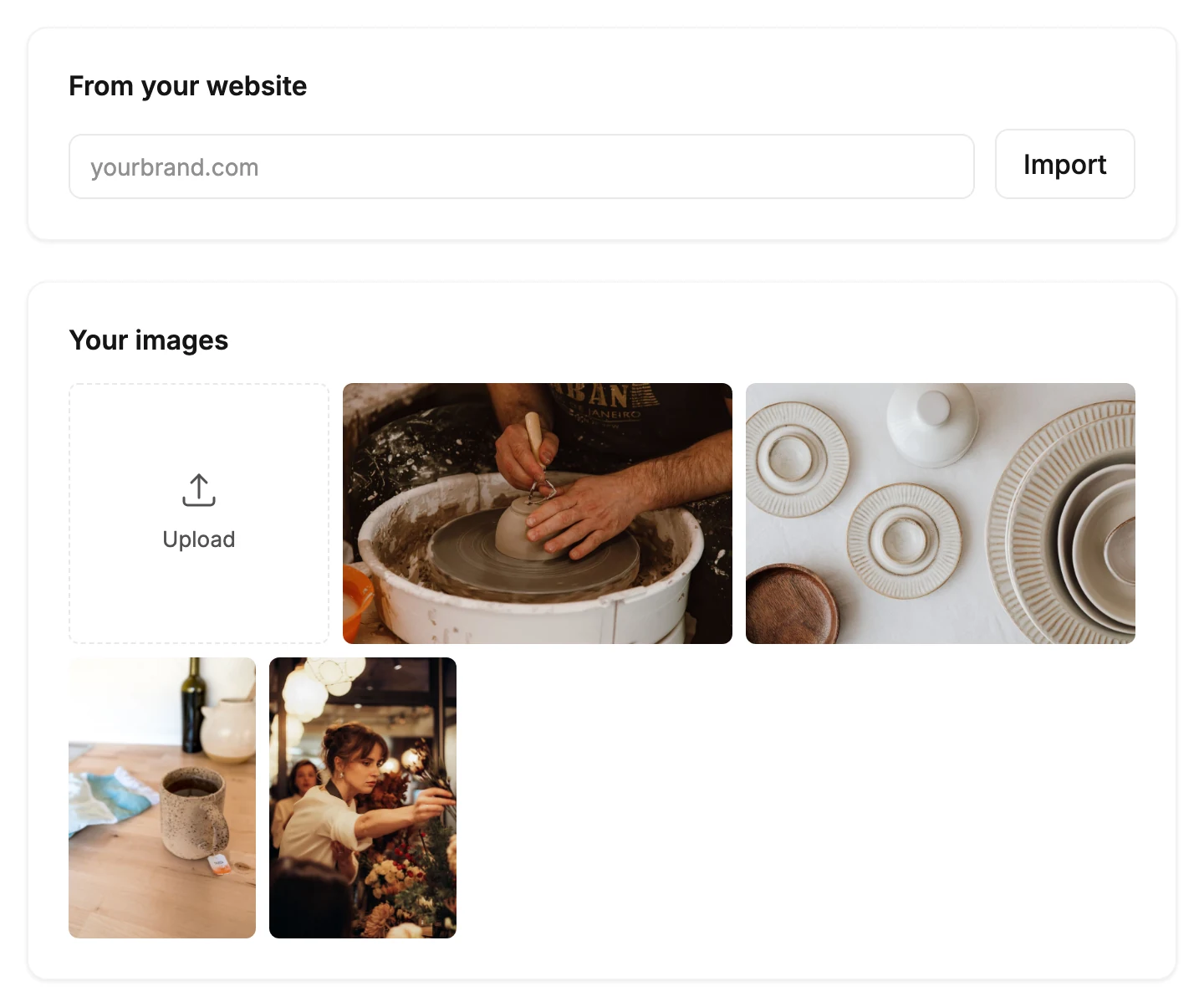
From your website
This card brings the photos on your website into Your images in one press, ready to place in an email. Reading your site works on every plan. Importing its photos is part of Pro.
- Type your site’s address in the box, like yourbrand.com. When Jounce knows your site, the box starts with it.
- Select Import, or press Enter.
Jounce knows your site from your last import, the website you gave in setup, or your brand’s website links. There’s nothing to pick: Jounce imports every photo it finds, and the line under the box says what it’s doing:
| Jounce says | What’s happening |
|---|---|
| Reading yourbrand.com. | Your site is opening. |
| Reading page 3 of 24 · 12 photos so far | Jounce reads your home page and the pages it links to. |
| Importing 19 photos · 4 of 19 | Jounce copies each photo into Your images. |
| Sorting and describing · 4 of 19 | Jounce puts each photo in a group and describes it. |
| 19 photos from yourbrand.com. | Done. The count is every photo from your site in Your images. |
When the import is done, a note at the bottom of the screen says 19 photos from yourbrand.com added to your images, with Undo.
If Jounce runs out of time to sort them all, the line adds when it will finish: Jounce finishes sorting within the hour. Past Jounce’s limit for the day, it says Jounce finishes sorting tomorrow. Your photos are in Your images either way.
Where your site gave a photo no description, Jounce writes its alt text. Jounce also notes the page each photo came from.
Each photo is Jounce’s own copy, so changing your website never changes your images or an email you’ve sent. A photo that isn’t yours comes off with its ×, like any picture in Your images.
While Jounce works
If your site is slow to open, the line changes to Taking longer than usual — still working.
You can leave the page while Jounce reads and imports, and work on an email meanwhile. The import goes on, and its note with Undo shows wherever you are. The image picker’s Your images offers the same import, and shows one that’s under way. See The image picker.
While your photos import, your browser doesn’t ask before you close the tab: Jounce finishes the import. While Jounce still reads your site, or while your photos wait for Pro, closing the tab loses the photos it found. So your browser asks first.
Undo an import
Undo on the note takes that import’s photos out of Your images, as the × does. Emails that use them keep them. A note then says 19 photos removed from your images, with Undo to put them back.
A later check leaves out photos you removed, so it won’t bring them back.
Importing is part of Pro
On a plan without Pro, the Upgrade to Pro screen opens as Jounce finds your first photos. Its title reads Your photos from yourbrand.com are ready to import, with up to four of your photos under it. Its list of what Pro adds starts with Photos from your website.
Jounce keeps reading behind the screen. Upgrade there, and the import goes on by itself. Then Jounce sorts and describes every photo.
Not now closes the screen, and your photos wait on the card: 19 photos found on yourbrand.com, with Import 19 photos. Select it to open the screen again, titled Your 19 photos are ready to import.
If you left the page before Jounce found your photos, they wait there the same way. Your photos wait only while this tab stays open.
With no plan, the pay pop-up opens on Pro under the same title. Once you’ve paid, it offers Import photos.
If you’re not an admin, the screen says only an admin can change the plan. See Upgrade to Pro.
Where the screen can’t open, the card says Importing your website’s photos is part of Pro, beside Import 19 photos.
What Jounce leaves out
Jounce reads your home page and the pages it links to, up to 50 pages. On a bigger site, the line that says what Jounce found adds Read the first 50 pages.
It imports photos only, and leaves out:
- logos, icons, and drawings saved as SVG files
- small pictures
- share images, which show only when someone posts a link to your site
- a picture on almost every page, like one in your header or footer
- the same photo twice: Jounce imports it once, at its largest
- photos already in Your images, or ones you removed from it
When there’s nothing to import, the line under the box says No photos on your site. If Your images has them all already, it says No new photos on your site.
Check your site again
Right after an import, Check for new photos reads your site again. On a later visit, the box already holds your site’s address, so select Import. Either way, Jounce imports only photos that aren’t in Your images yet.
Import 19 photos, on photos that wait, doesn’t read your site again. So it doesn’t count toward the day’s limit.
If some photos didn’t copy, the card says so, like 18 of 19 photos added. Select Try again to copy the ones it missed. It doesn’t read your whole site again, so it doesn’t count toward the day’s limit.
When Jounce can’t import your photos
| Jounce says | What to do |
|---|---|
| Jounce couldn’t read that site. Check the address and try again. | Check the address for a typo, and open it in a browser to be sure it loads. A site Jounce can’t open doesn’t count toward the day’s limit. |
| Jounce can’t read another site today. Try again tomorrow. | You’ve reached the day’s limit for reading sites. Your images are as they were. |
| Verify your email address first — Jounce sent you a link. Nothing was changed. | Open the link in the email Jounce sent you, then select Import again. See Verify your email address. |
If Jounce reads your site but can’t import the photos, the card says why, beside Import 19 photos. Select it to try again.
Your images
Your images shows the pictures you see under Your images in the image picker, newest first. It also shows the pictures Jounce made for you, which the picker keeps under AI images. Everyone in your workspace shares them.
A post’s main photo lands here too when Jounce writes an email from the post, and Jounce sorts it like your website’s photos. See Turn a blog post or a video into an email.
On a paid plan, Jounce sorts and describes each picture you upload as it lands, up to a daily limit. It does the same for the pictures it makes for you. A picture that already has a description keeps it.
- Upload is the first tile. Select it to choose one or more pictures from your computer.
- Remove from your images is the × on a picture, as in the image picker. The picture leaves Your images, and every email that uses it keeps it. The note that follows offers Undo.
- Select a picture to see its details.
- Scroll down for older pictures. Jounce loads more as you near the end.
- Once you have a dozen pictures, Search your images sits beside the card’s title. It finds a picture by its file name, its alt text, or what Jounce noted about it, like its group or its page.
- All and a button for each of Jounce’s groups line up under the title. They show with the search, once your pictures fall into two groups or more. Select one to show only that group.
A search or a group looks through every picture, even ones you haven’t scrolled to. A search that finds nothing reads No photos found. Try another search. With no pictures yet, the card reads No images yet, with Upload an image.
If more pictures can’t load, the ones already there stay. Couldn’t load the rest of your images and Try again sit under them.
Jounce’s groups
Jounce puts each picture it sorts in one of nine groups: People, Products, Food & drink, Places, Nature, Animals, Backgrounds, Illustrations, and Graphics. A group’s button shows once a picture is in it.
How a picture was made comes first. Graphics holds pictures whose words are the point: a banner, a sale poster, a flyer, a menu, a price list, or a quote card. A photo with a small sign in it stays a photo.
A drawing, a painting, or a picture made on a computer goes in Illustrations, whatever it shows. Every photo goes by what it shows, like People for a portrait or Food & drink for a dish.
Search still finds a picture by what it shows, so a drawing of a dog comes up
when you search for dog.
A picture’s details
Select a picture and its details open. The title says what the picture shows, in Jounce’s words, or gives its file’s name.
| Line | Shows |
|---|---|
| From | Uploaded, for a picture you uploaded. For a photo from your website or from a post, the page it came from, like About us page · yourbrand.com/about-us. |
| Alt text | The picture’s description, which you can change. Jounce saves as you type. The next time you place the picture, the description comes with it. |
More in this topic
Also answered here
- why didn't it find every photo on my site
- why does import ask me to upgrade
- does jounce sort the pictures I upload
Updated