

Add your website links
Short answer
Open Settings › Brand, select + Add link in the Website links card, type each page’s name and address, and select Save kit. Your emails show the first three, so put your most important pages first.
When you’re done, your site’s main pages sit in the Website links card. The rows of links at the top and bottom of your emails show the first three.
A scan of your site fills an empty card with up to five pages Jounce picks and names, ready to check and save. See Fill your brand from your website. To add or change them yourself:
-
Select your avatar at the top right and choose All settings.
-
In the settings list, select Brand. The Brand page opens. Scroll to the Website links card, below Social links.
-
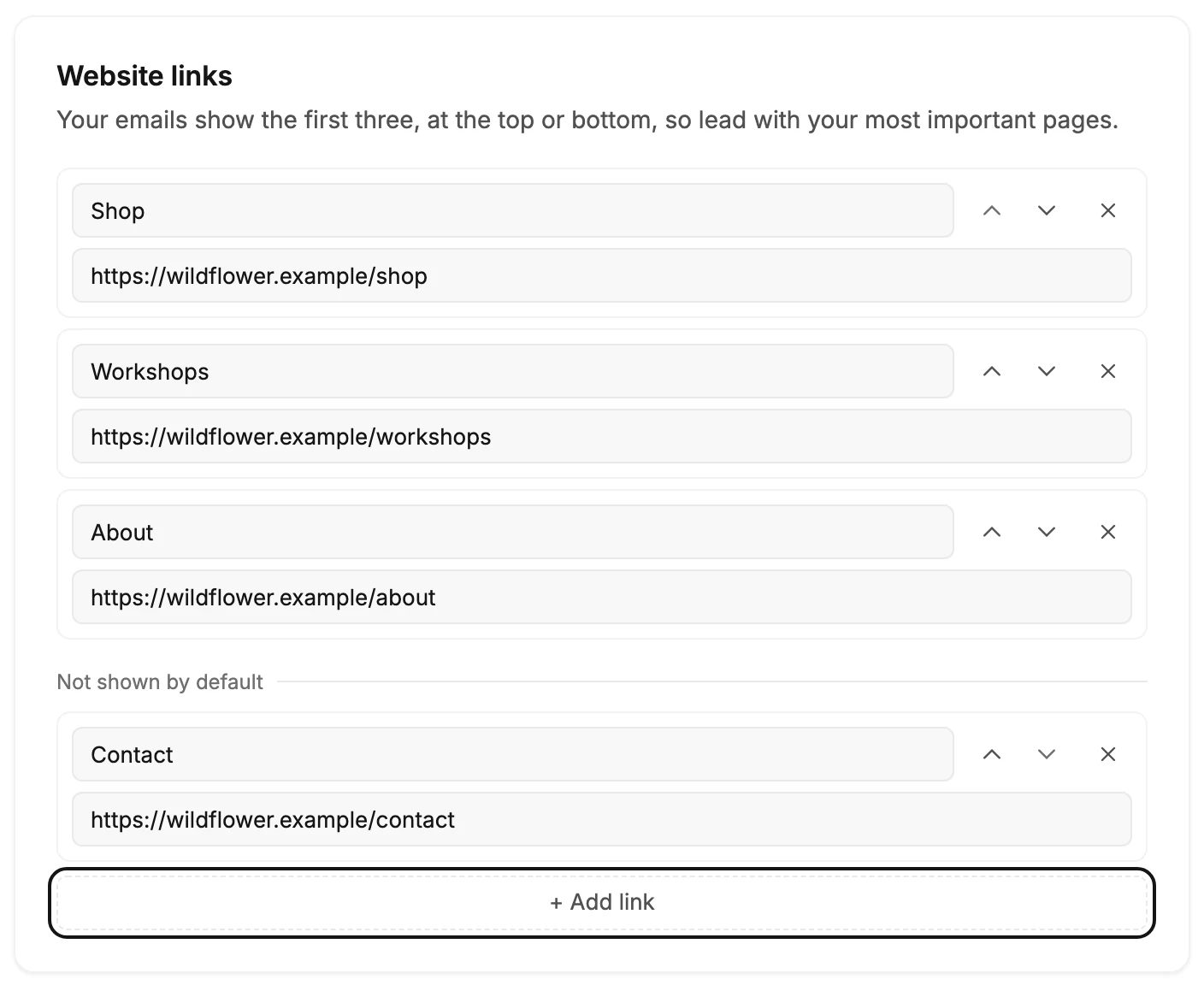
Select + Add link. A new link appears, with a box for its name and one for its address.
-
Type the name readers see, such as
Shop. -
Type or paste the page’s full address, such as
https://yourstudio.com/shop. If you leave out https://, Jounce adds it when you leave the box. An email address works too. -
Add the rest the same way, up to five links in all.
-
Select Save kit at the bottom of the page. Jounce says Kit saved. New emails use it.
What to expect next
Logo and links and Footer links rows show your first three links. A row you add from the layout library starts on them, and so does one in a template or an AI draft.
A row that already has links of its own keeps them. To switch one, select the whole row in the email, then Use your website links. Logo and links, side by side always keeps its own, since it holds just one or two.
Once you save, every email that shows your website links changes with them, automation emails too. An email already sent or scheduled keeps the links it had.
You can also edit them from inside an email, and add your fourth or fifth link to one email’s row. See Edit your website links from an email.
Pick the three your emails show
The card says Your emails show the first three, at the top or bottom, so lead with your most important pages. With more than three, a line reading Not shown by default sits after the third.
To change the order, use the arrows at the top right of a link. Move up and Move down move it one place per press. Select Save kit, and your emails show the new first three.
Change or remove a link
Type over a link’s name or address. To remove a link, select the × at its top right. Point at the ×, and it reads Remove. Then select Save kit.
A link needs both a name and a full address to be saved. If you leave the page before you save, Jounce asks Discard your edits? first.
Next step
Put a row of your links in an email: The Link bar block.
More in this topic
Also answered here
- where do I set the links at the top of my emails
- can a link open an email address
- can jounce take my menu links from my website
Updated