

Open results from Analytics
Short answer
On the Emails tab, a row under Recent sends opens that email’s results; on the Automations tab, a row under Your automations opens its insights. Both come back through Back to analytics.
When you’re done, one email’s results page or one automation’s insights page is open, and one link takes you back to the tab you left.
An email’s results
- Open Analytics and choose the Emails tab.
- Scroll to Recent sends. The table lists the newest sends in the range, up to ten.
- Select a row, or its subject. The email’s results page opens with Back to analytics at the top left.
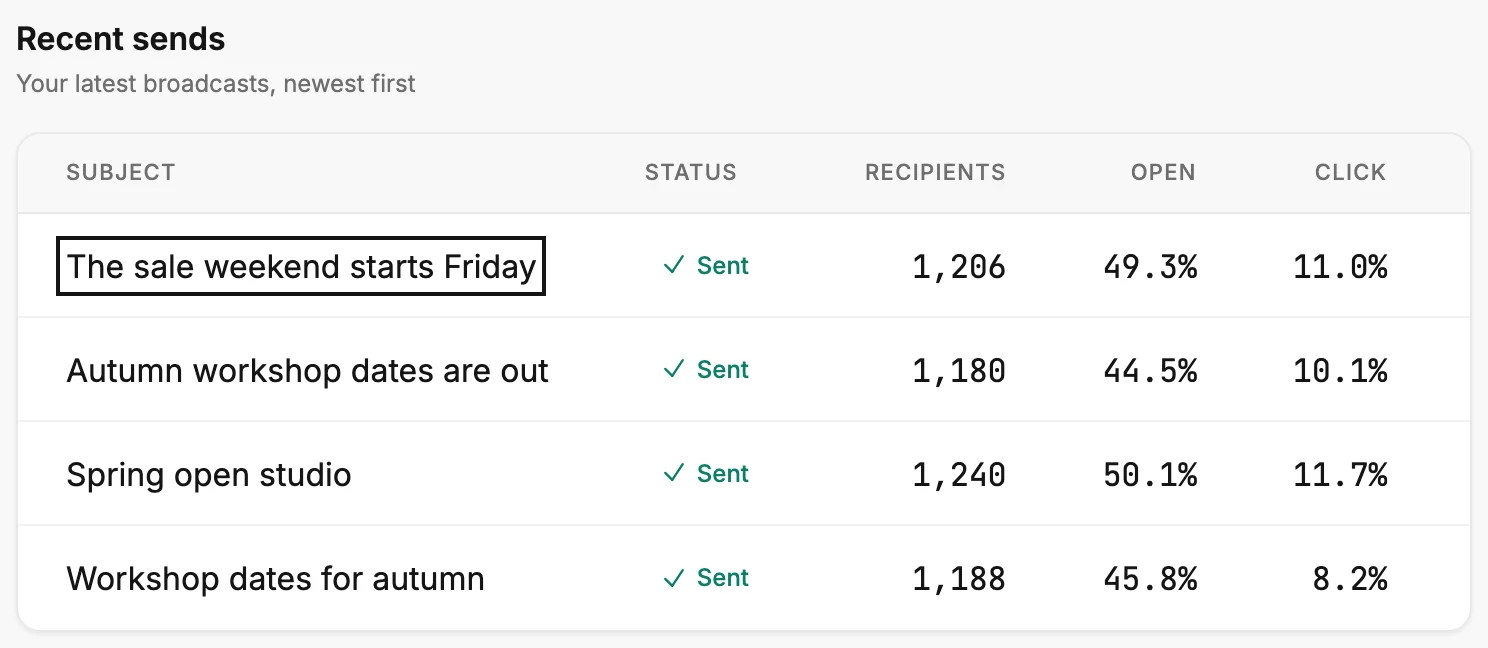
A row opens only when its email still exists. A send whose email was deleted keeps its numbers in the table, but nothing opens. An older send isn’t in the table at all. Open Emails in the top bar, point at its card, and select View results. See Open an email’s results.
An automation’s insights
- Choose the Automations tab.
- Scroll to Your automations. Every automation has a row, drafts included.
- Select a row, or its name. The insights page opens with Back to analytics at the top left. A draft’s page says it hasn’t started yet.
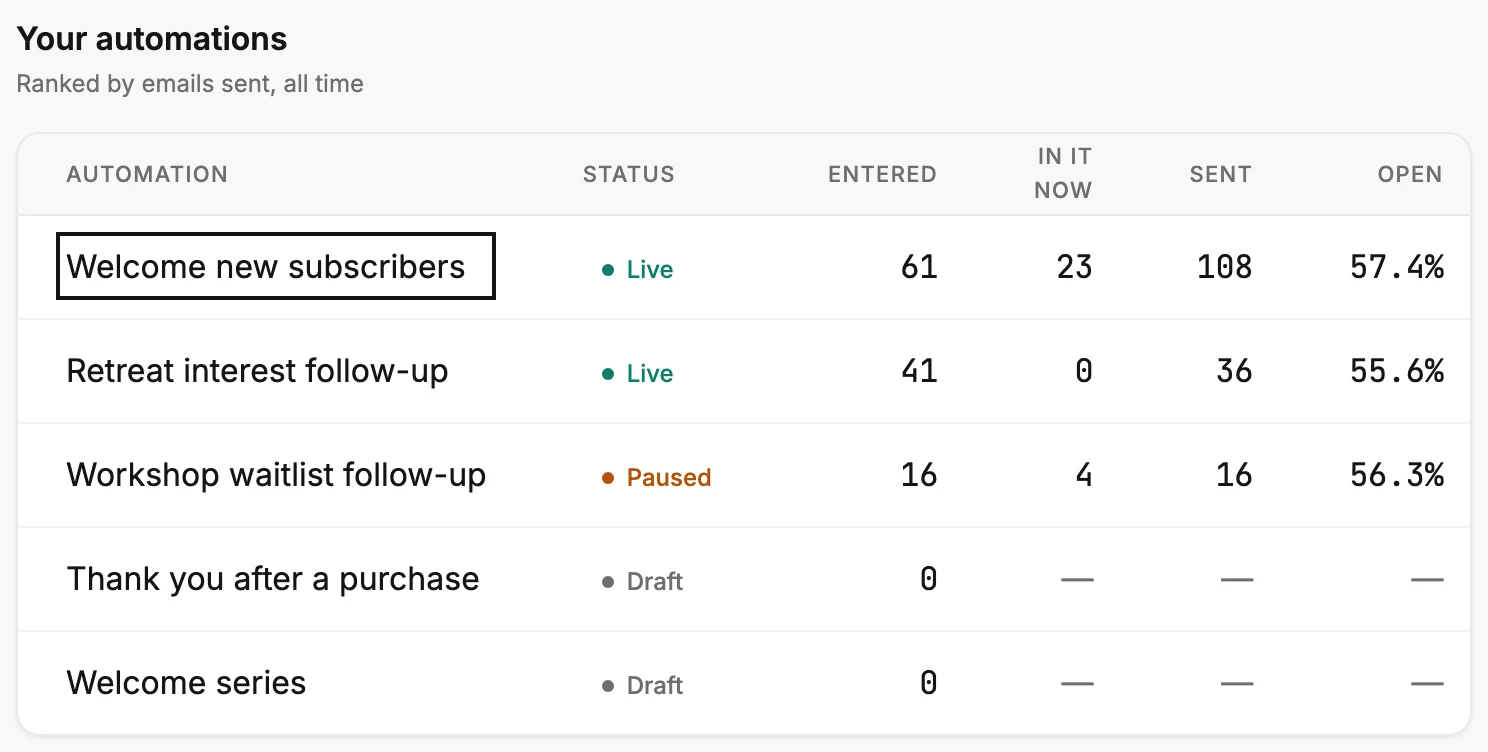
To come back
Select Back to analytics, or press Esc. You land on the tab you left.
Note The Forms tab’s table doesn’t open anything. To change a form, open Forms in the top bar. The Subscribers tab has no table; its lists show counts only.
Next step
What each page shows: The results page for an email, The insights page for an automation.
More in this topic
Updated