

The Recent sends table
Short answer
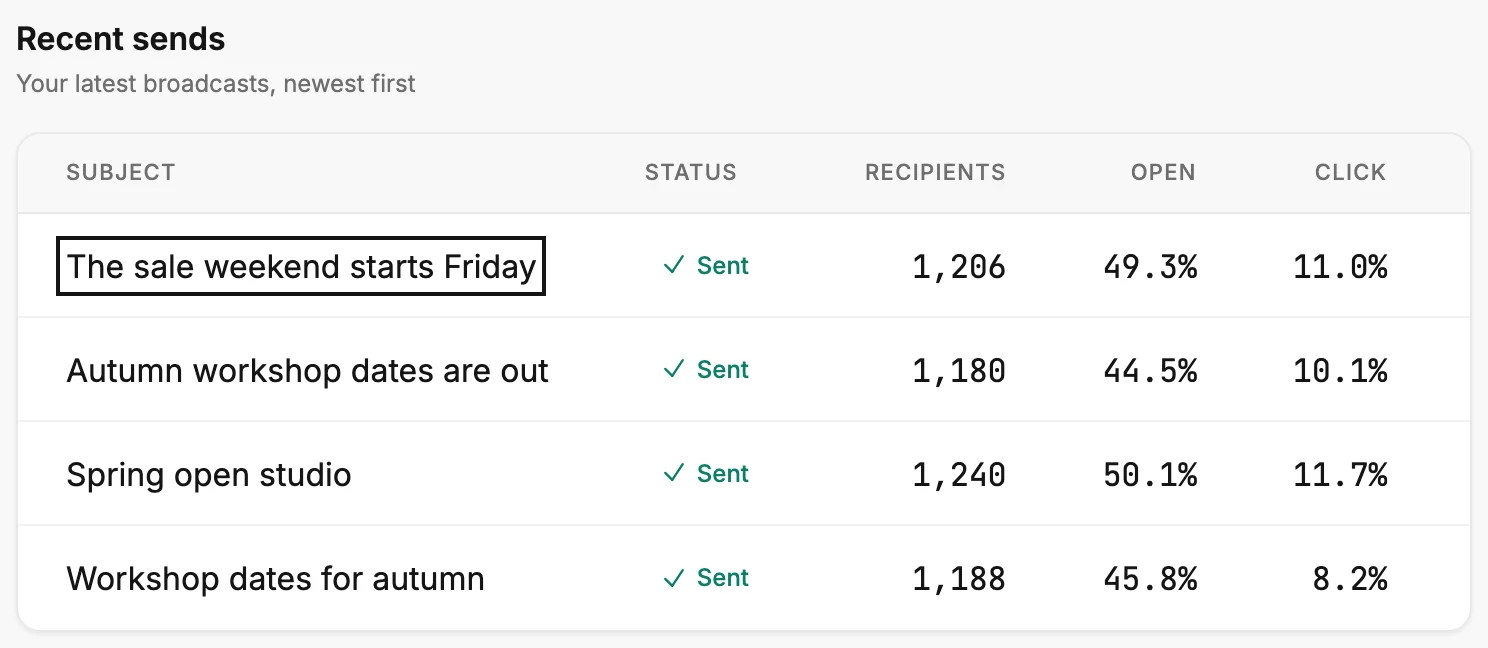
The last table on the Emails tab lists the ten newest sends in the range, newest first. Each row shows status, recipients, open and click rates, and date, and selecting one opens that email’s results page.
Recent sends is the last section on the Emails tab. The table holds the ten newest sends in the time range, newest first.
The columns
| Column | What it shows |
|---|---|
| Subject | The subject line. An A/B test shows its first subject line. |
| Status | The same label the email wears on the Emails page. |
| Recipients | How many people the email was addressed to. |
| Open | That send’s opens, as a share of its own delivered mail. |
| Click | That send’s clicks, as a share of its own delivered mail. |
| Sent | The day the send finished. An A/B test shows the day its test went out. |
In a narrow window, slide the table sideways to reach Sent, the last column.
The Status column
The label is the one the email wears on the Emails page, so the two never disagree. Sent means everyone was reached. Partly sent means some people were never reached; see Why does my email say Partly sent?
Canceled means someone stopped it partway. The full set is in Email statuses.
Recipients, Open, and Click
Recipients is how many people the email was addressed to. Open and Click are shares of the mail that was delivered. When some addresses bounced, that base is a little smaller than the recipients count.
On a Partly sent or Canceled row, the base is smaller still, because only part of the list got it. A dash in Open or Click means nothing was delivered, so there’s no share to show.
Opening a row
Select a row, or its subject, to open the email’s results page. It has Back to analytics at the top left. A row opens only if its email still exists. If the email was deleted, its row keeps its numbers but doesn’t open.
A send older than the ten shown isn’t in the table at all. Open Emails in the top bar, point at its card, and select View results. See Open results from Analytics.
More in this topic
Updated