

See how your forms did over a period
Short answer
Open Analytics, choose the Forms tab, and pick a time range. The four cards add up every form in it, and the Your forms table ranks them by submissions.
When you’re done, you’ll know how many people joined through your forms in the period, how many saw a form, and which form did best.
-
Open Analytics in the top bar and choose the Forms tab. The title reads Form analytics.
-
Pick a time range at the right of the title. The page opens on the last 30 days. See Choose a time range.
-
Read the four cards. Submissions is how many people joined through a form. Form views is how many unique visits your live forms had. Conversion rate is the first as a share of the second.
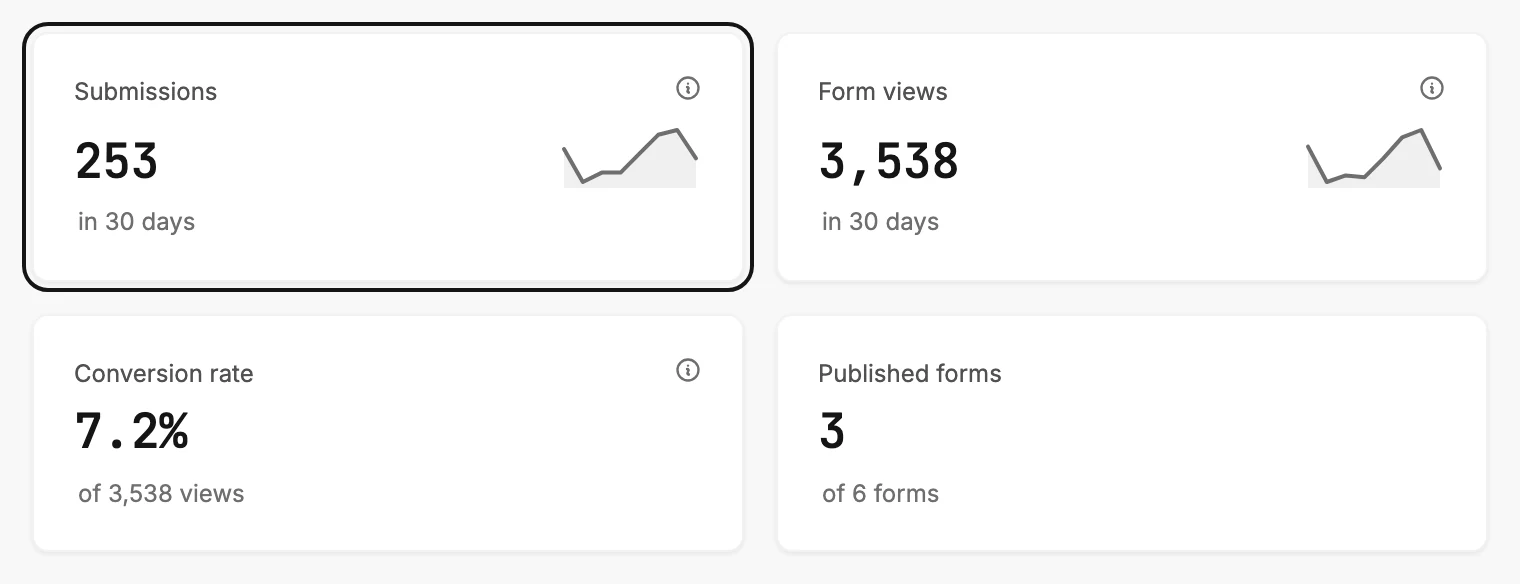
-
Scroll to Your forms. The form with the most submissions in the range sits at the top, with its own Views, Submissions, and Conversion beside it.
-
To change a form, open Forms in the top bar and select its card. The rows here are for reading, not opening.
The cards are one total across every form in the range. A form that many people see weighs more in Conversion rate than a form few people see. To see who joined, open Audience; each person’s page says they came from a signup form. See Where a subscriber came from.
Next step
A form’s numbers over all time, and where you edit it: The Forms page.
More in this topic
Updated