

See how your emails did over a period
Short answer
Open Analytics, choose the Emails tab, and pick a time range. The four cards add up every send in it, and Recent sends compares the sends one by one.
When you’re done, you’ll know how much mail was delivered in the period, what was opened and clicked, and which send did best.
-
Open Analytics in the top bar and choose the Emails tab. The title reads Email analytics.
-
Pick a time range at the right of the title. The page opens on the last 30 days. See Choose a time range.
-
Read the four cards. Delivered is how much mail arrived. Under it is its share of everything sent. Open rate and Click rate are shares of that delivered mail. Unsubscribe rate is the share who left.
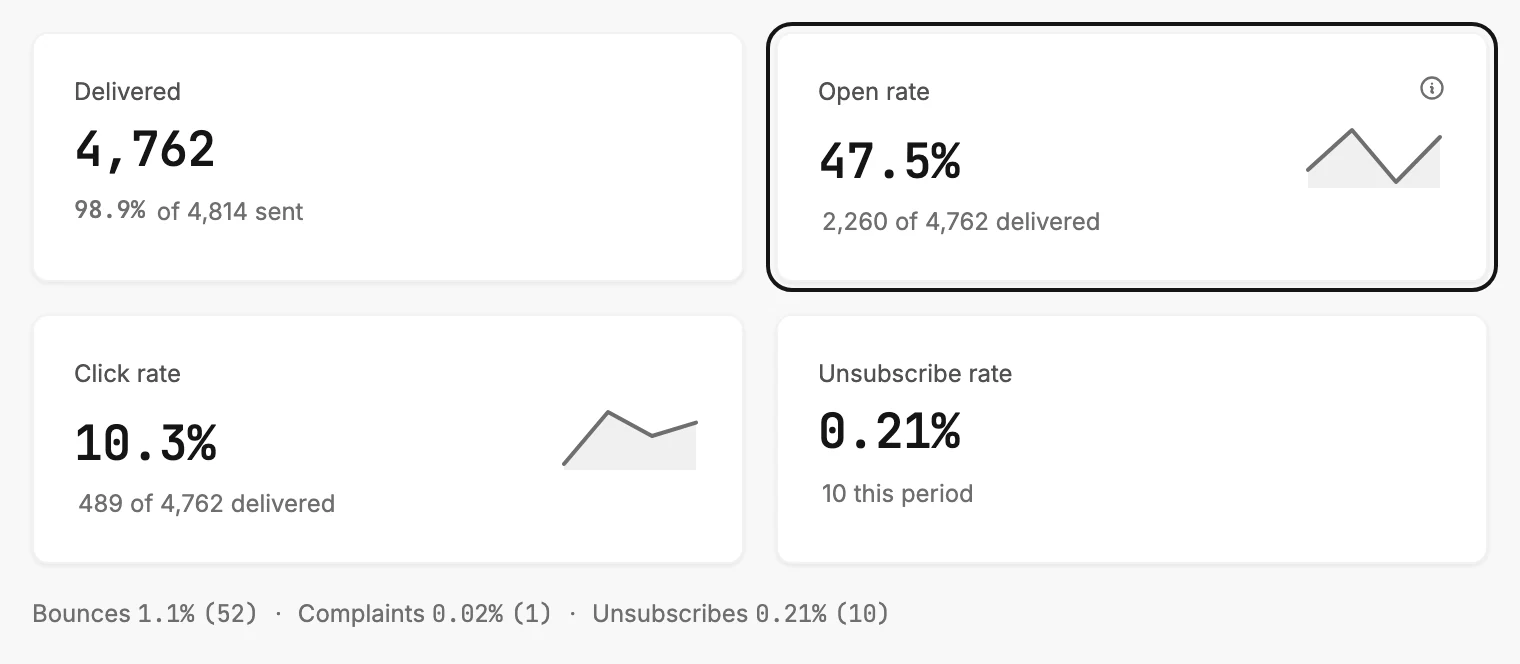
-
Scroll to Recent sends. Each row is one send with its own Open and Click rate, so the best subject line stands out.
-
Select a row to open that email’s results page. Back to analytics at the top left brings you back to the tab.
The cards are one total across every send in the range, not an average of the rows. A send to many people weighs more than a send to a few. Bounces come back over a day or two after a send. Delivered can drop a little in those days, and the rates move with it.
An open rate has no pass mark to grade it against; see What a good open rate looks like.
Next step
What one send’s own page shows: The results page.
More in this topic
Updated