

See how your automations did over a period
Short answer
Open Analytics, choose the Automations tab, and pick a time range. Entered counts who went into an automation in that range; the sends, opens, and clicks beside it cover each automation’s whole life.
When you’re done, you’ll know how many people entered your automations in the period. You’ll also see how their emails have done overall, and which automation works hardest.
-
Open Analytics in the top bar and choose the Automations tab. The title reads Automation analytics.
-
Pick a time range at the right of the title. The page opens on the last 30 days. See Choose a time range.
-
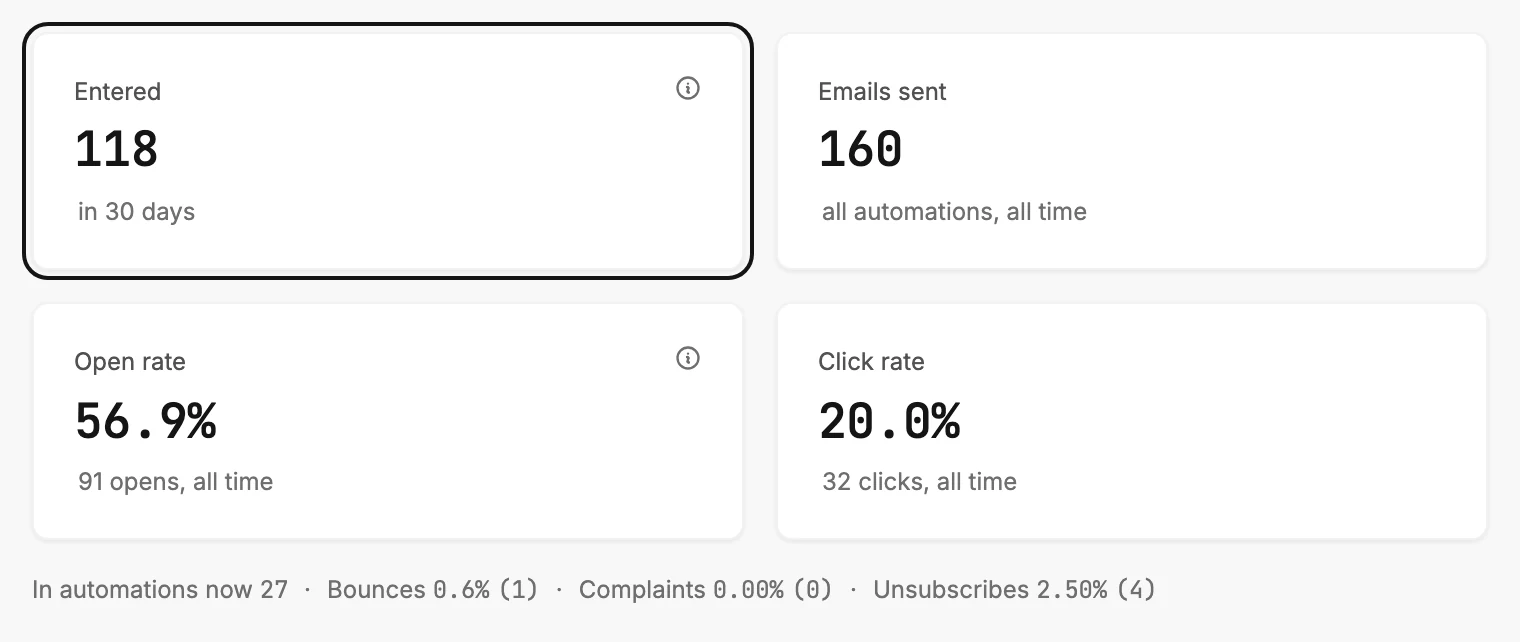
Read Entered. It’s the one card that follows the range. It counts who went into any automation in that time.
-
Read the other three cards as all-time totals. Emails sent, Open rate, and Click rate add up everything every automation has ever sent, whatever range you pick. Their labels say all time.
-
Scroll to Your automations. The automation that has sent the most sits at the top. Its Entered follows the range, and In it now is this moment. Sent, Open, and Click cover its whole life.
-
Select a row to open that automation’s insights page. It shows the numbers step by step. Back to analytics at the top left brings you back.
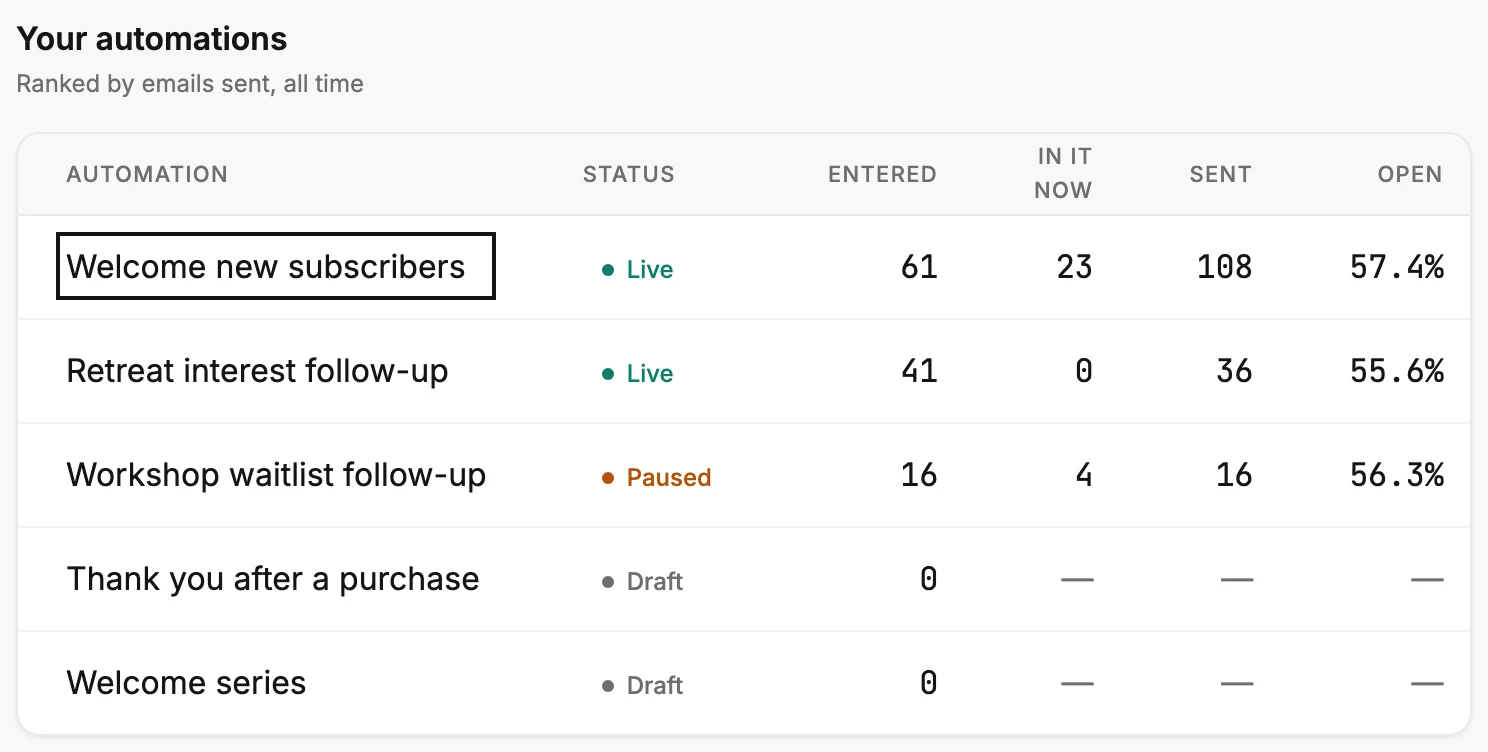
An automation sends each time a person reaches a step. A range of days would cut each person’s story off at a different point. That’s why only Entered has a date. See Which numbers follow the time range.
Next step
One automation’s numbers, step by step: The insights page.
More in this topic
Updated