

Connect Gemini to Jounce
Short answer
Copy your MCP link from the Claude, ChatGPT & Gemini page and add it as a server in the Gemini CLI config, then select Allow read-only access when Jounce asks. Gemini has no connect button — the setup is for developers.
When you’re done, Gemini can answer questions about your numbers from its command line. It can also answer questions about how Jounce works, from the help articles. Gemini has no connector setting to paste a link into. The page’s own line says so: Gemini has no connect button. This setup is for developers.
The CLI is a program a developer runs in a terminal. If that isn’t you, Claude and ChatGPT connect with a paste. You need to be an Admin or a Manager of the workspace to approve the connection.
- Select your avatar at the top right and choose All settings, then Integrations under Workspace.
- Select Set up on the Claude, ChatGPT & Gemini card. The page opens with your MCP link at the top — the address an AI tool uses to reach Jounce.
- Select Copy beside the link. The button reads Copied.
- Add your MCP link as a server in the Gemini CLI config.
- Authorize when the CLI prompts you. Your browser opens Jounce.
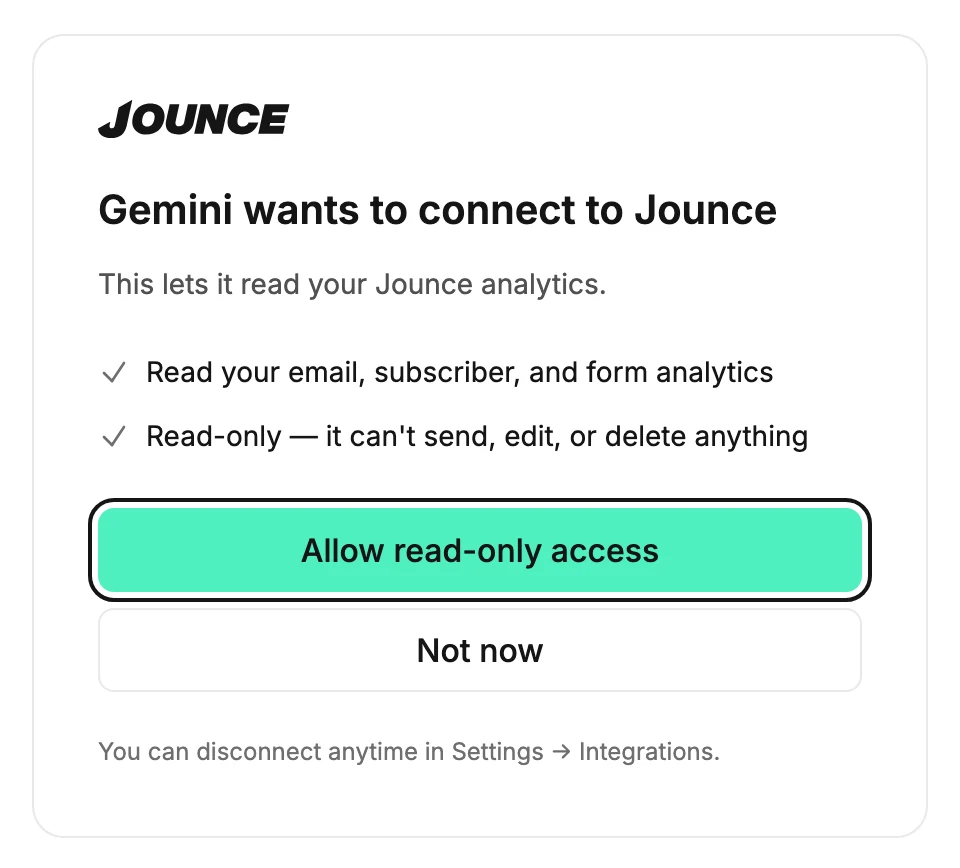
- Sign in if Jounce asks. The screen titled ⟨tool⟩ wants to connect to Jounce opens and lists what the tool will be allowed to do.
- Select Allow read-only access. Jounce hands the connection back to the CLI, and it is done.
What happens next
- Gemini appears under Connected AI tools on the Claude, ChatGPT & Gemini page, with the date it connected.
- Ask Gemini about your workspace. It reads the same numbers as your Analytics pages and can’t change anything; see What an AI tool can see. It can also look up how Jounce works in the help center.
- Gemini reads the workspace you were in when you approved it.
If the screen looks different
The line under the title reads Access goes to an app on this computer, since the CLI runs on your machine. If it names a web address instead, the request didn’t come from your CLI. Select Not now; see What an AI tool can see.
If you haven’t verified your email yet, Allow read-only access opens Verify your email to connect an app. Nothing is connected yet. Open the link Jounce sent you, select I’ve verified, then select Allow read-only access again.
An Editor sees no Allow read-only access button. The screen’s line reads Admins and managers approve connections instead; see Why does it say admins and managers approve connections? If the connection didn’t finish, see Why didn’t my AI tool connect?
Next step
Ask Gemini a first question, such as whether your list is healthy. To cut it off later, see Disconnect an AI tool.
More in this topic
Updated