

The Claude, ChatGPT & Gemini page
Short answer
The Claude, ChatGPT & Gemini page holds your MCP link with a Copy button and the connection steps for each AI tool. Under them, the Connected AI tools list is where Admins and Managers disconnect a tool.
Select your avatar at the top right and choose All settings, then Integrations under Workspace, then Set up on the Claude, ChatGPT & Gemini card.
The page’s own line says what it’s for: Ask about your analytics from the AI tool you already use. Read-only — it can look, never change anything. Integrations above the title takes you back to the Integrations page.
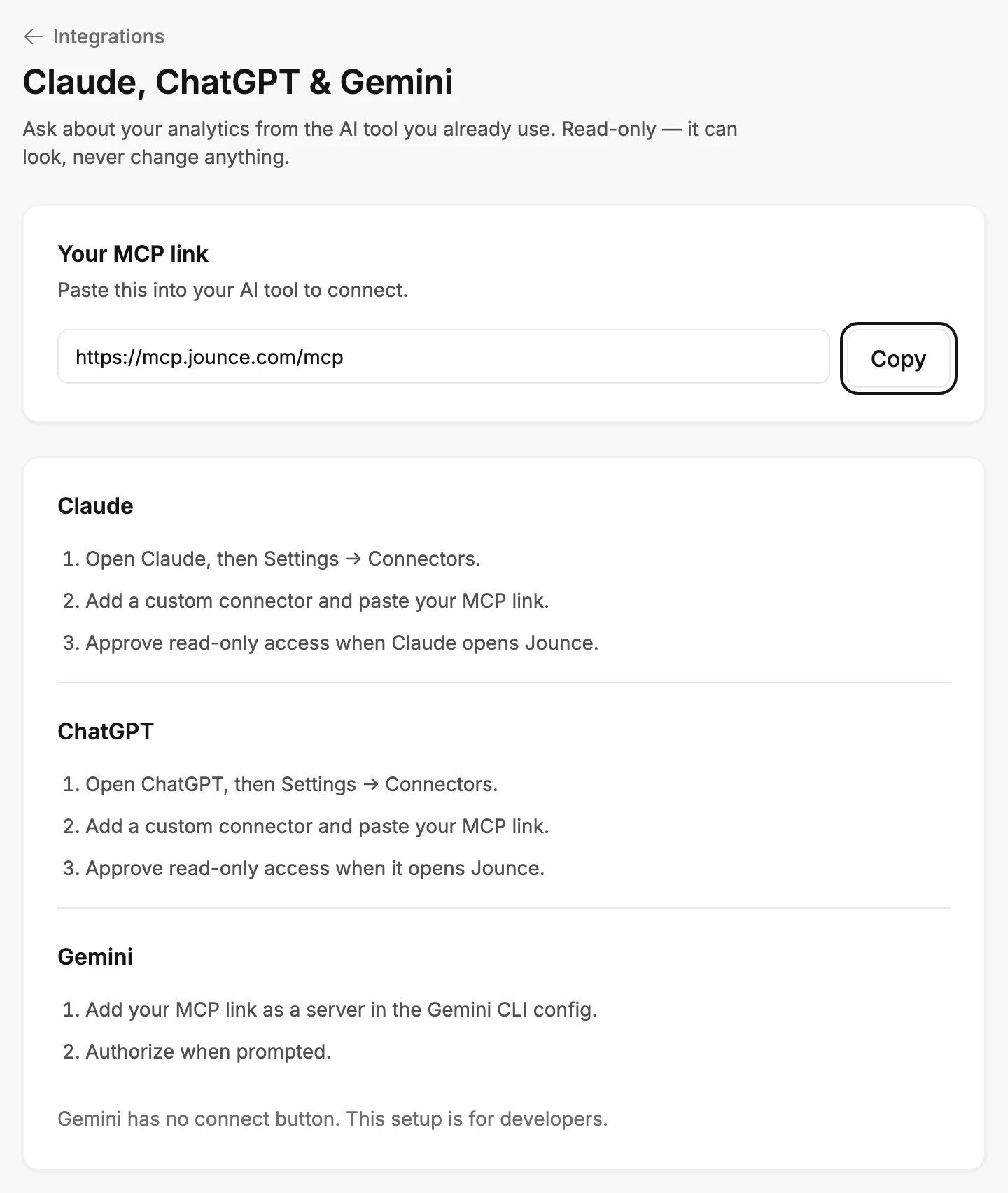
Your MCP link
The card’s line reads Paste this into your AI tool to connect. The box holds your MCP link — the address an AI tool connects to:
https://mcp.jounce.com/mcp
The link is the same for every workspace. Jounce learns which workspace the tool may read when you approve the connection; see What an AI tool can see.
Copy puts the link on your clipboard, and the button reads Copied for a moment.
Claude, ChatGPT, and Gemini
The second card holds the steps for each tool, one short list per tool. Claude and ChatGPT take the link as a custom connector under their own Settings → Connectors screens. Gemini’s list ends with the line Gemini has no connect button. This setup is for developers.
Each tool has its own how-to: Connect Claude to Jounce, Connect ChatGPT to Jounce, and Connect Gemini to Jounce.
Connected AI tools
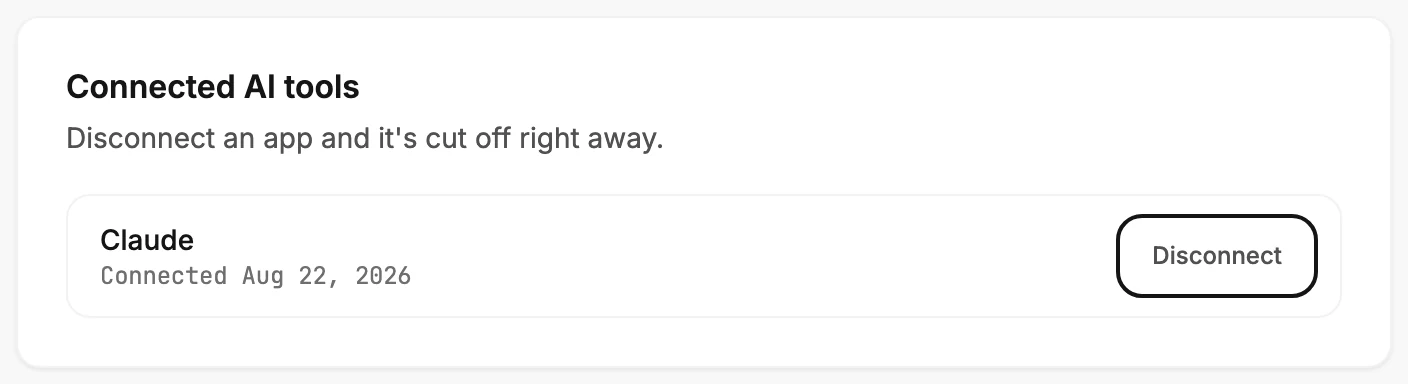
Every AI tool that has connected to this workspace, one row each: the tool’s name and Connected with the date. A tool Jounce doesn’t name shows the web address its access goes to. While Jounce reads the list, the card says Checking your connected apps. Before anything has connected, it reads No apps yet. Connect one with the link above.
A tool leaves the list once the person who connected it leaves the workspace, is removed, or becomes an Editor.
For an Admin or a Manager, the card’s line reads Disconnect an app and it’s cut off right away. Each row ends in a Disconnect button; see Disconnect an AI tool. An Editor sees the rows without the button, and the line reads Admins and managers disconnect apps.
Apps connected through Zapier or the developer API are not on this list. They show under Connected apps on the Integrations page.
If the list didn’t load
The card reads Couldn’t load your connected apps. Your account is fine — try again with a Try again button. Select it and Jounce reads the list once more. Your connections are unchanged either way.
More in this topic
Updated