

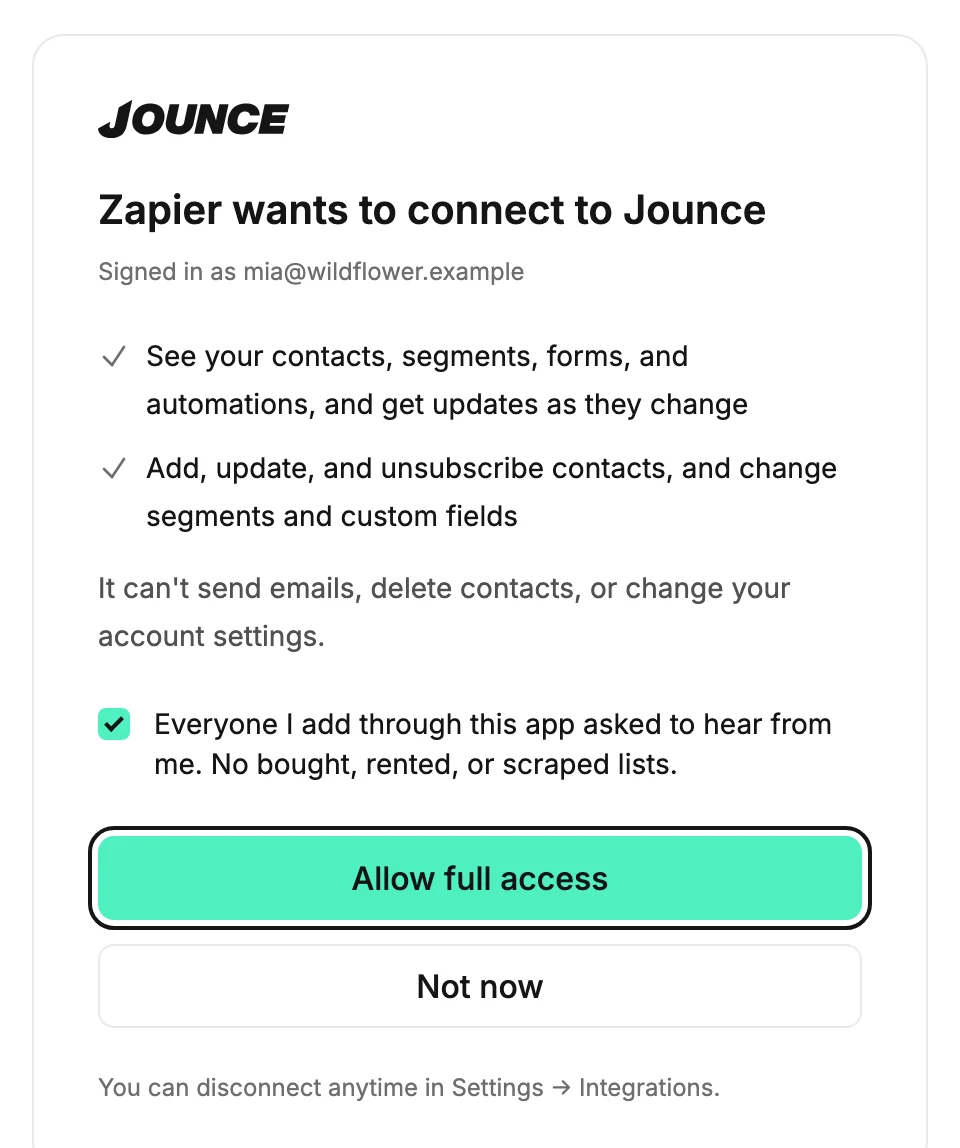
The Zapier connection screen
Short answer
When Zapier connects, the screen titled Zapier wants to connect to Jounce names who is signed in and what Zapier can and can’t do. You tick a statement, then pick Allow full access or Not now.
Zapier sends you to this screen when you connect a Jounce account inside a Zap. Nothing connects until you select Allow full access. The connection goes to the workspace you’re signed in to.
Signed in as
Under the title, Signed in as ⟨your email⟩ names the person who will approve. If that’s the wrong person, select Not now, sign in as the right one, and start again from Zapier.
What Zapier can see and change
Two ticked lines say what the connection allows. One covers reading: See your contacts, segments, forms, and automations, and get updates as they change. The other covers writing: Add, update, and unsubscribe contacts, and change segments and custom fields. The screen says contacts, and the rest of Jounce says subscribers. They’re the same people.
Zapier always asks for full access, because its actions add and change subscribers. The unticked line under them sets the limit: It can’t send campaigns, delete contacts, or change your account settings.
The statement
Everyone I add through this app asked to hear from me. No bought, rented, or scraped lists. Tick it before you allow. If you select Allow full access without ticking it, the screen says Check the box to allow full access and takes you to the box. Jounce saves your agreement alongside the connection.
Allow full access and Not now
Allow full access connects Zapier and sends you back to it. If you haven’t verified your email yet, it opens Verify your email to connect an app first. Open the link Jounce sent you, select I’ve verified, then select Allow full access again; see Verify your email address.
Not now connects nothing, and never asks you to verify. It sends you back to Zapier, which shows that you said no. The small line at the bottom says where to undo it later: You can disconnect anytime in Settings → Integrations; see Disconnect a connected app.
If you’re an Editor
The screen shows no Allow full access button. Its line reads Admins and managers approve connections. Ask one to connect Zapier. Not now still works; see Why does it say admins and managers approve connections?
Jounce says That didn’t go through
The full line reads That didn’t go through. Nothing was connected — try again. Select Allow full access once more. If it shows again, start the connection again from Zapier.
Other titles on this screen
Three other titles mean nothing was connected: This connection link is incomplete, Your account didn’t load, and Not connected. See Why does it say this connection link is incomplete?
More in this topic
Updated