

The Developer API page
Short answer
The Developer API page lists your workspace’s API keys, one per row, with Open docs and Create key at the top of the card. Admins and Managers create and revoke keys; every member can read the list and the docs.
Select your avatar at the top right and choose All settings. Then choose Integrations under Workspace, and Set up on the Developer API card.
A line at the top says what the page is for: Build on your audience from your own code — subscribers, segments, and signed webhooks. The link at the end of that line, What the developer API can do, opens that article in a new tab. To go back, select Integrations above the title.
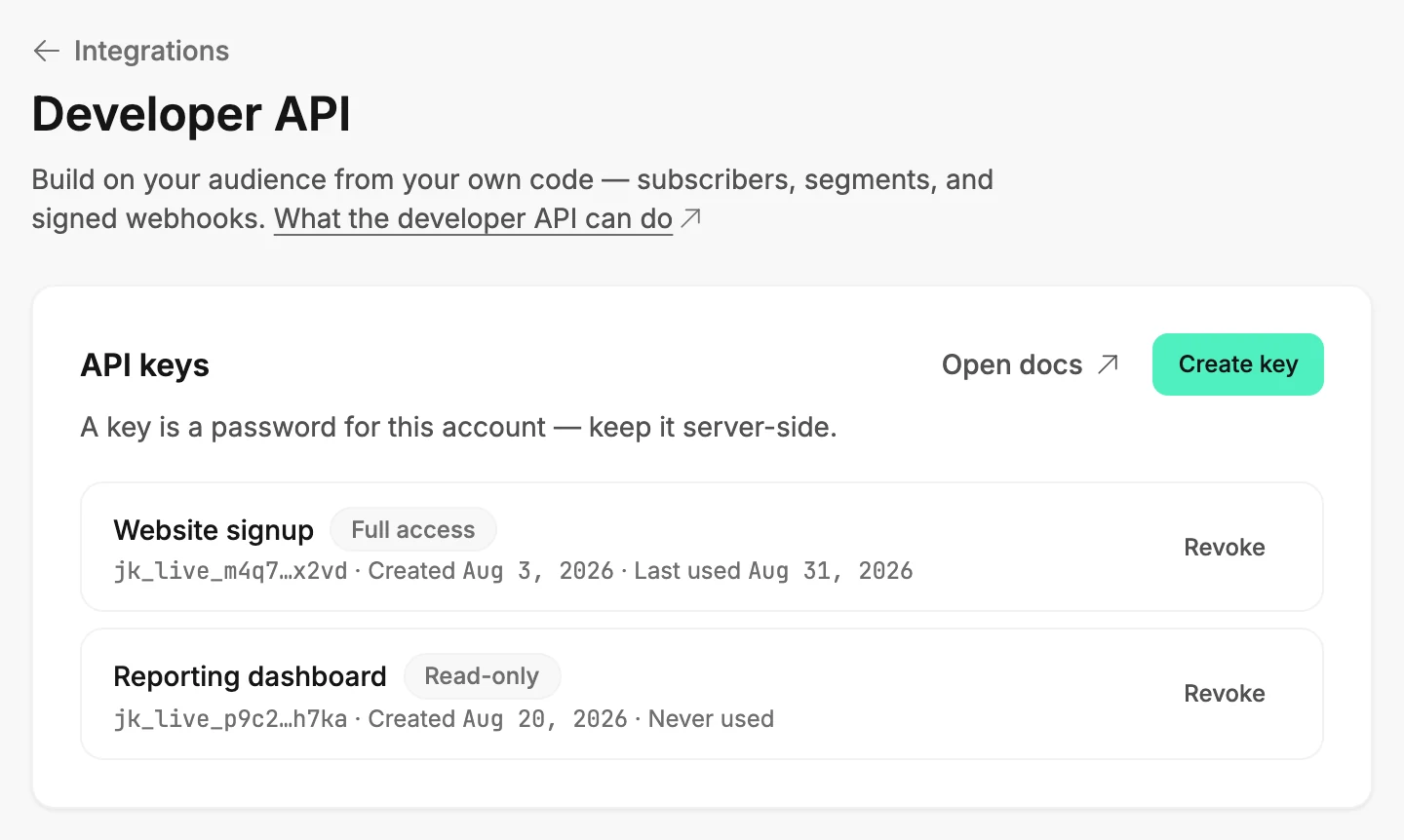
API keys
A key is what your code shows Jounce to prove it may read or change this workspace. The card lists every key the workspace has, newest first. An Admin or a Manager sees the line A key is a password for this account — keep it server-side. An Editor’s line reads Admins and Managers create and revoke keys.
Open docs opens the API reference in a new tab. It lists every address your code can call, what each one does, and the webhook events. Anyone in the workspace can read it.
Create key opens a short form in the card. An Admin or a Manager fills it in; see Create an API key.
A key’s row
Each row shows the key’s name and a badge: Full access or Read-only. The
line under the name shows the first and last few characters of the key, such as
jk_live_m4q7…x2vd, so you can tell keys apart. Jounce never shows the whole
key again after the moment it’s created.
The row also shows the date it was created and the date it was last used. A key no code has used yet reads Never used. The last line names who made the key: Made by you for your own, or the maker’s email address.
For an Admin or a Manager, each row ends in Revoke; see Revoke an API key. An Editor sees the rows without the button.
Before the first key
While Jounce reads the list, the card says Checking your keys. Before anything has been created, an Admin or a Manager reads No keys yet. Create one and the quickstart takes it from there, and quickstart opens the docs. An Editor reads No keys yet.
If the list didn’t load
The card reads Couldn’t load your keys. They’re intact — try again with a Try again button. Select it and Jounce reads the list once more. Your keys keep working either way.
Zapier and AI tools are not keys
An app connected through Zapier shows under Connected apps on the Integrations page. An AI tool shows under Connected AI tools, which has a page of its own. Neither uses a key from this page.
More in this topic
Updated