

Disconnect a connected app
Short answer
On the Integrations page, an Admin or Manager selects Disconnect beside the app under Connected apps, then Disconnect app. The app is cut off right away, and you can reconnect from the app any time.
When you’re done, the app is gone from the Connected apps list and can no longer reach your workspace. You need to be an Admin or a Manager of the workspace.
- Select your avatar at the top right and choose All settings, then Integrations under Workspace. The Connected apps card lists every app that has connected.
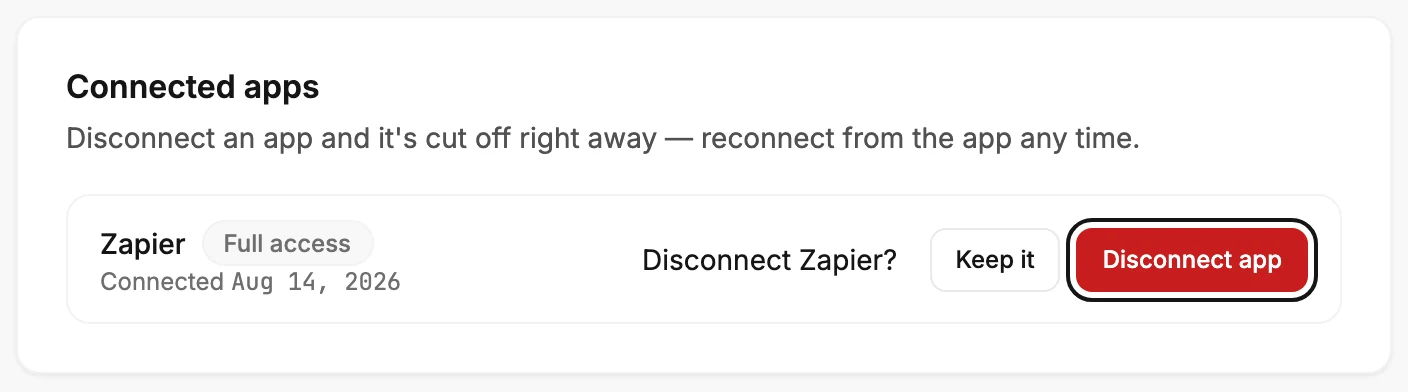
- Select Disconnect at the end of the app’s row. The row asks Disconnect ⟨app⟩?, with Keep it and then a red Disconnect app.
- Select Disconnect app. Keep it, or Esc, closes the question with nothing changed.
What happens next
The card says: Disconnect an app and it’s cut off right away — reconnect from the app any time.
- The app’s access ends at once. The next thing it tries in your workspace fails on its side.
- A Zap that used Jounce stops running. Jounce stops telling the app what happens in your workspace, so a Zap that starts from Jounce has nothing to run on.
- Nothing in your workspace changes. Subscribers the app added, segments it used, and everything else stay as they are.
- To reconnect, start from the app. It asks to connect once more, and you approve it on the ⟨app⟩ wants to connect to Jounce screen. In Zapier, also turn a Zap that starts from Jounce off and on again; see Why did my Zap stop?
Note When someone leaves the workspace, is removed, or becomes an Editor, Jounce disconnects the apps they connected. You don’t need to disconnect them here.
When Jounce refuses
- Jounce couldn’t disconnect that app, so it’s still connected. Try again. The request didn’t reach Jounce, so select Disconnect app once more.
- Jounce couldn’t finish disconnecting that app, so it may still be connected. Try again. A very busy connection leaves a lot to clear. Select Disconnect app again, and Jounce goes on from where it stopped.
- Only workspace admins and managers can do this. The button showed before Jounce finished checking your role, or your role changed; see Why does it say admins and managers approve connections?
Note AI tools aren’t on this list. Disconnect Claude, ChatGPT, or Gemini under Connected AI tools on the Claude, ChatGPT & Gemini page. The steps are the same.
Next step
If you disconnected the wrong app, start the connection again from that app. For what each card on the page does, see Which integration do you need?
More in this topic
Updated